
How to use Sift
From install to a tidier library in minutes
Set Sift up once, then free up Google storage whenever you need to. Every step below shows the real app, exactly as you'll see it.
The short version
Four steps to your first freed gigabyte
Setup takes a couple of minutes. Sift does the slow part.
- 1
Add Sift to Chrome
Install it from the Chrome Web Store and pin it to your toolbar.
- 2
Open it
Signed in to Google Photos in Chrome? Click Sift, then Open Sift.
- 3
Let it read your library
About a minute for every 20,000 photos. Keep using Sift meanwhile.
- 4
Start freeing space
Duplicates, Clean up and Ask Sift show what to remove and what it frees.
Set up, step by step
What you'll see on screen, from the very first click.
 Step 1
Add Sift to Chrome and pin it
Add Sift from the Chrome Web Store, then click the puzzle icon in Chrome's toolbar and pin Sift. Use the Chrome profile you're signed in to Google Photos with: Sift uses that session, so there's nothing to log in to.
 Step 2
Open Sift and take the short tour
Click the Sift icon, then Open Sift. Sift opens in its own tab, with a quick tour of what's where. Skip it if you'd rather explore.
 Step 3
Let Sift read your library
Sift lists your whole library, about a minute for every 20,000 photos and videos, and remembers it, so next time it opens straight away and only checks what's new. Click Read file details once to get file names and sizes.
 Step 4

Choose how you see your photos

Photos looks like Google Photos, grouped by day. Grid works like a folder on your computer: click anywhere to select. Details is a list you can sort by size. Switch with Ctrl+1, 2 and 3, or in Settings, Display.
Find the space you can free
Four ways to see what's filling your storage. Every result shows how much it frees before you remove anything.

Open Duplicates and click Find duplicates. Sift groups identical copies and look-alikes, keeps the sharpest, best-exposed shot and marks the rest. Check the picks, then free the space.
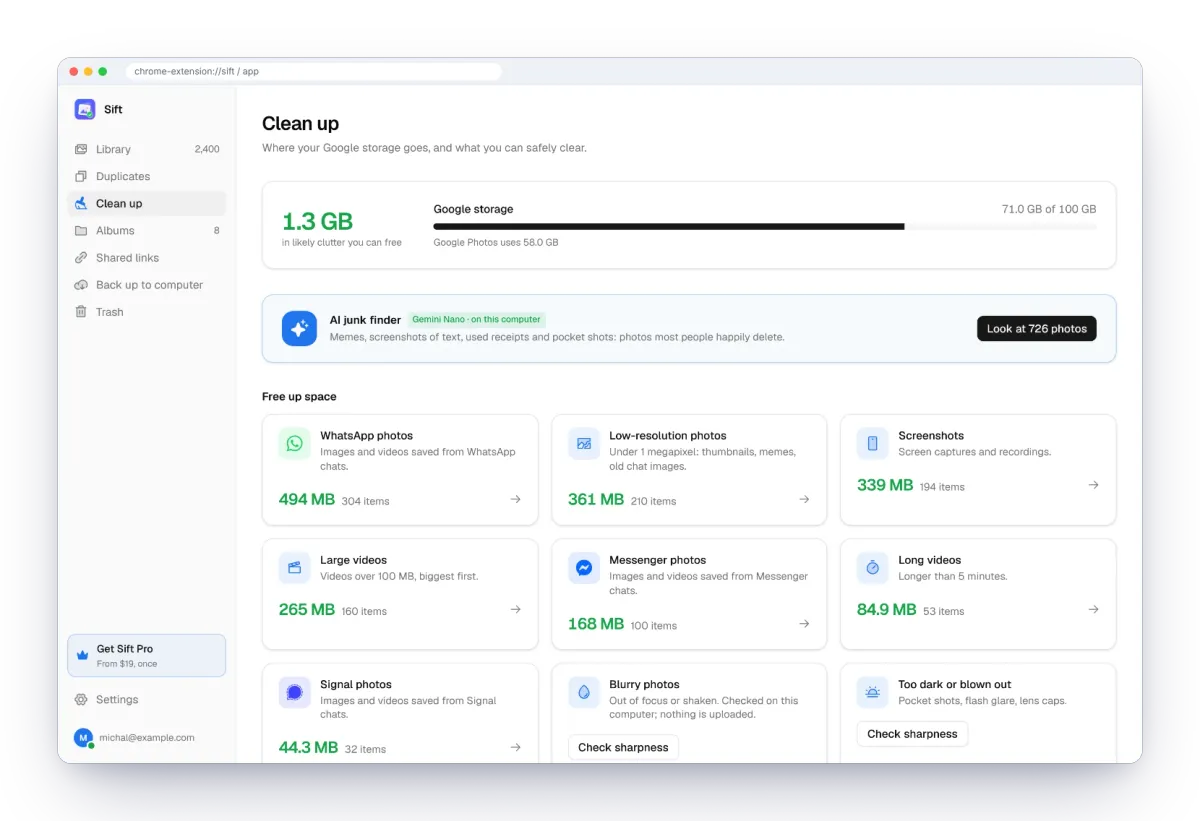
Clean up lists big and long videos, screenshots, low-resolution photos and everything WhatsApp, Messenger and Signal saved, each with the space it frees. Click a card to review it.
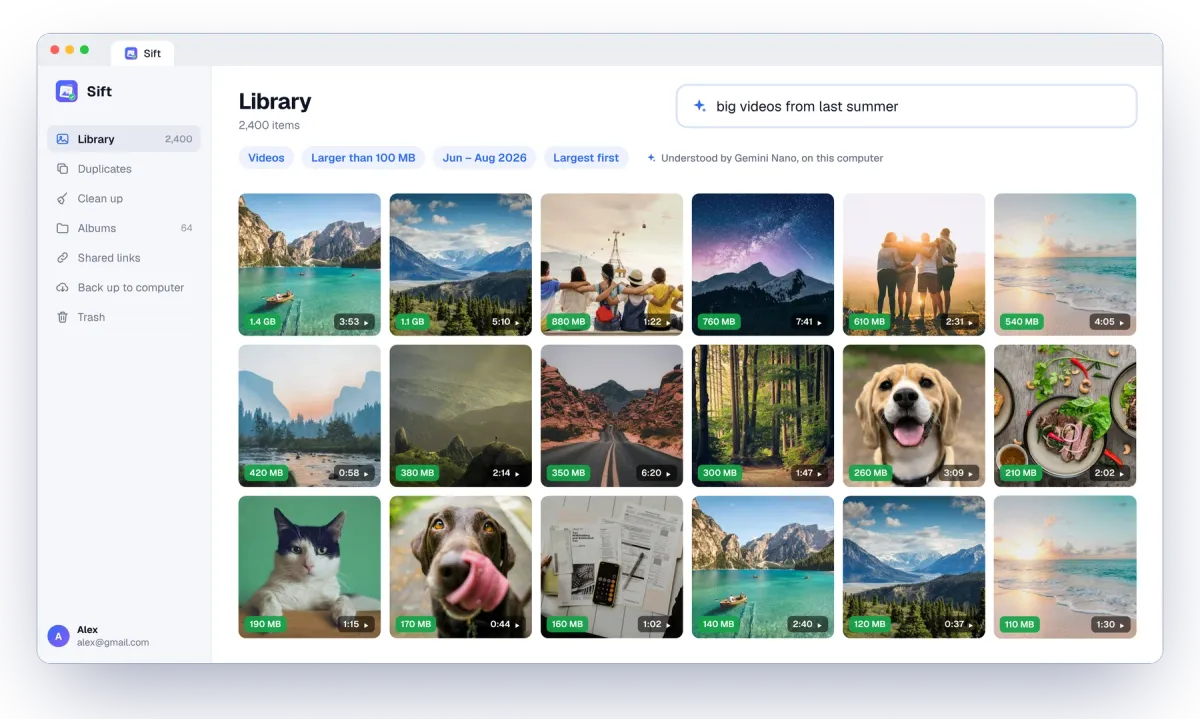
Type what you're after in plain words, like “big videos from last summer”. Sift turns it into filters you can see and change.
On Clean up, start the AI junk finder. It picks out memes, receipts, pocket shots and screenshots of text and sorts them into piles for you to review.
Select, remove, restore
Desktop-style tools, with a safety net.
Select like on a desktop
Click to select, Ctrl+click to add more, Shift+click for a range, or drag a box across. Ctrl+A selects everything shown, and right-click opens the actions.
Remove without waiting
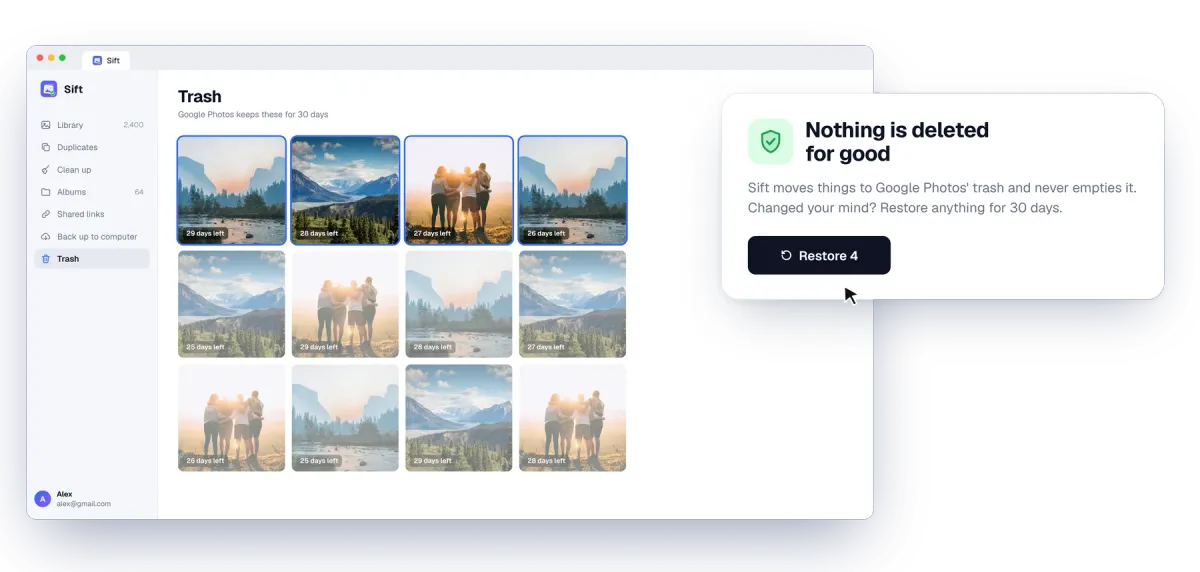
Removed photos vanish from view straight away while Sift moves them to Google Photos' trash in the background. Anything can be restored there for 30 days.
Back up originals first
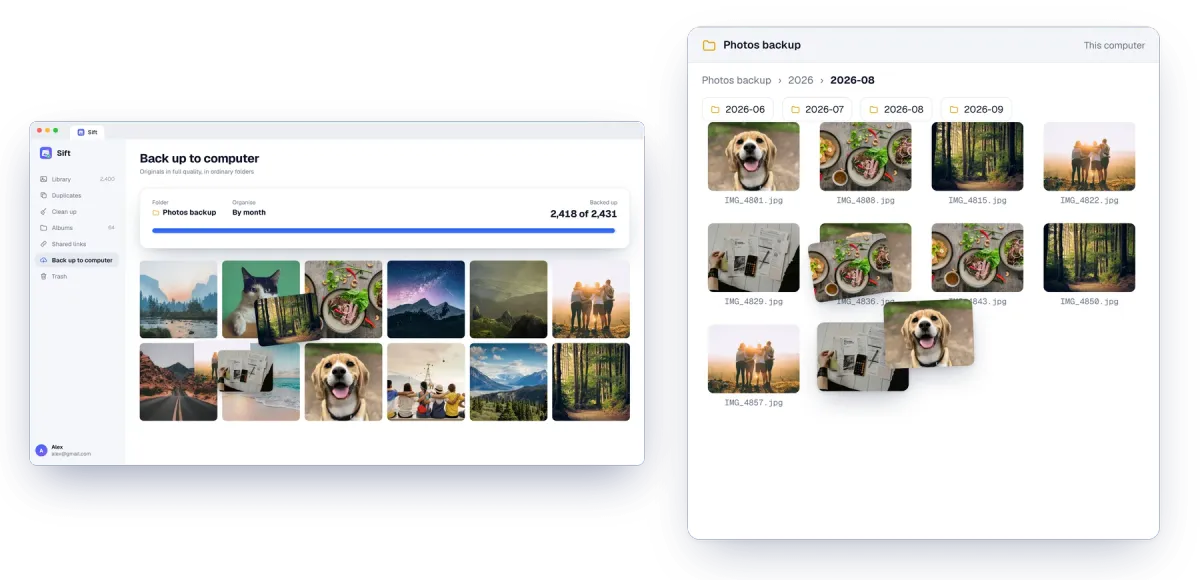
Back up to computer copies full-quality originals into ordinary folders, by month, year or album. Later runs only download what's new.
Your photos stay between you and Google
Sift runs in your browser and talks to Google Photos straight from your computer. There's no Sift account and no Sift cloud. We never receive your photos, your library or your Google password.
Nothing is uploaded to us
Photos, thumbnails, file names and backups stay on your computer. Clearing Sift's local copy takes one click in Settings.
Your sign-in stays with Google
Sift uses the Google Photos session already in Chrome. It never sees or stores your password.
AI on your own computer
Ask Sift and the junk finder use Gemini Nano, built into Chrome. Your photos aren't sent to us or to any AI service.
The only thing our server keeps
A one-way fingerprint of your Google account (a hash, not your email), your licence, and how much the free version has freed. Nothing about your photos.
No tracking, no ads
No analytics, advertising or crash reporting inside Sift. Payments go through Polar and never touch the app.
Sift Pro
Unlock everything in a minute
The free version frees up to 1 GB and backs up your first 500 photos. Pro removes the limits: paid once, no subscription.
- 1
Step 1
Buy Personal or Family
Checkout is handled by Polar. Personal covers one Google account, Family up to five.
- 2
Step 2
Copy your licence key
It's in your receipt email, and always on your purchases page.
- 3
Step 3
Paste it into Sift
Open Settings, Sift Pro, paste the key and click Activate. It's linked to the Google account you're signed in with.
- 4
Step 4
Use it on any computer
Same Google account on another computer? Pro works there too. Deactivate in Settings to free a slot for another account.
If something doesn't look right
Quick fixes for the questions people ask most.
Sift says I'm not signed in
Sift uses your Google Photos session in this Chrome profile. Open photos.google.com in the same profile, sign in, then reopen Sift.
Ask Sift or the junk finder isn't available
They need Chrome's built-in AI, Gemini Nano, which Chrome downloads once on computers that support it. Settings, AI shows its status. Everything else in Sift works without it.
Where do removed photos go?
To Google Photos' trash, exactly as if you deleted them in Google Photos. Restore them from Sift's Trash or from Google Photos within 30 days.
Why does a photo say “Storage saver” and free nothing?
Photos uploaded in Storage saver (High quality) before June 2021 don't count toward your Google storage, so removing them frees nothing. Sift marks them so you can focus on what does count.
Can I use Sift with more than one Google account?
Yes. Sift works with whichever account is signed in to Google Photos in that Chrome profile. A Personal licence covers one Google account, Family up to five.
Still have questions? Contact support
Questions? A real person answers.
Stuck on a step, or missing a feature? Send a message and you'll hear back by email.