
How to Delete All Photos from Google Photos (Safely, in Minutes)
How to delete all photos from Google Photos without losing the ones you want: back up first, protect your phone's copies, then clear the library on the web, the app or with Sift.

Michal Wlosik
· 6 min read
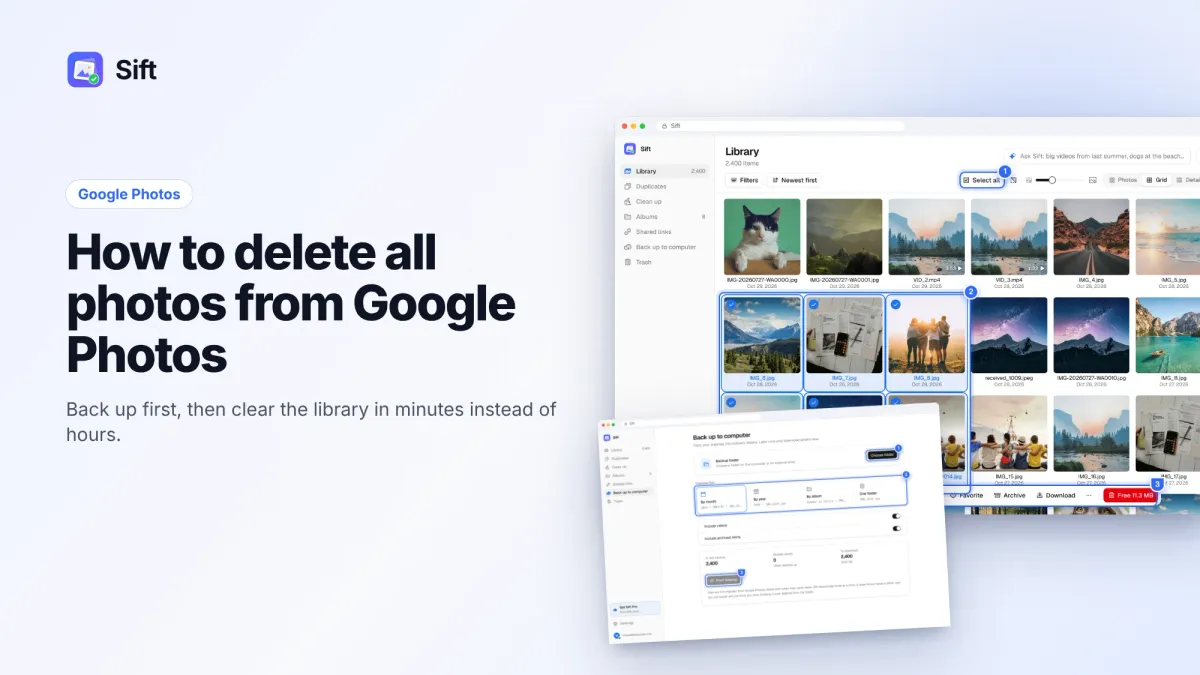
Short answer: To delete all photos from Google Photos, first back up your library, and turn off backup on any phone where you want to keep its copies. Then select everything (on photos.google.com, click the checkmark next to the first date and Shift-click the last one) and click the trash icon. Items stay in trash for 30 days, and only count as gone for storage once you empty it.
It sounds simple, but there are two traps: losing photos you meant to keep, and wiping your phone's camera roll by accident. Here is how to delete all Google Photos safely.
Before you delete anything: three things to know
1. Back up first
Deleting from Google Photos is not a way to "move" photos somewhere else. Once the trash is emptied, they are gone. If you want a copy, download your library before you start. Two options:
- Google Takeout. Free. Exports your library as zip files (you pick 1, 2, 4, 10 or 50 GB parts). Dates and descriptions go in separate .json files, and preparing the export can take hours to days.
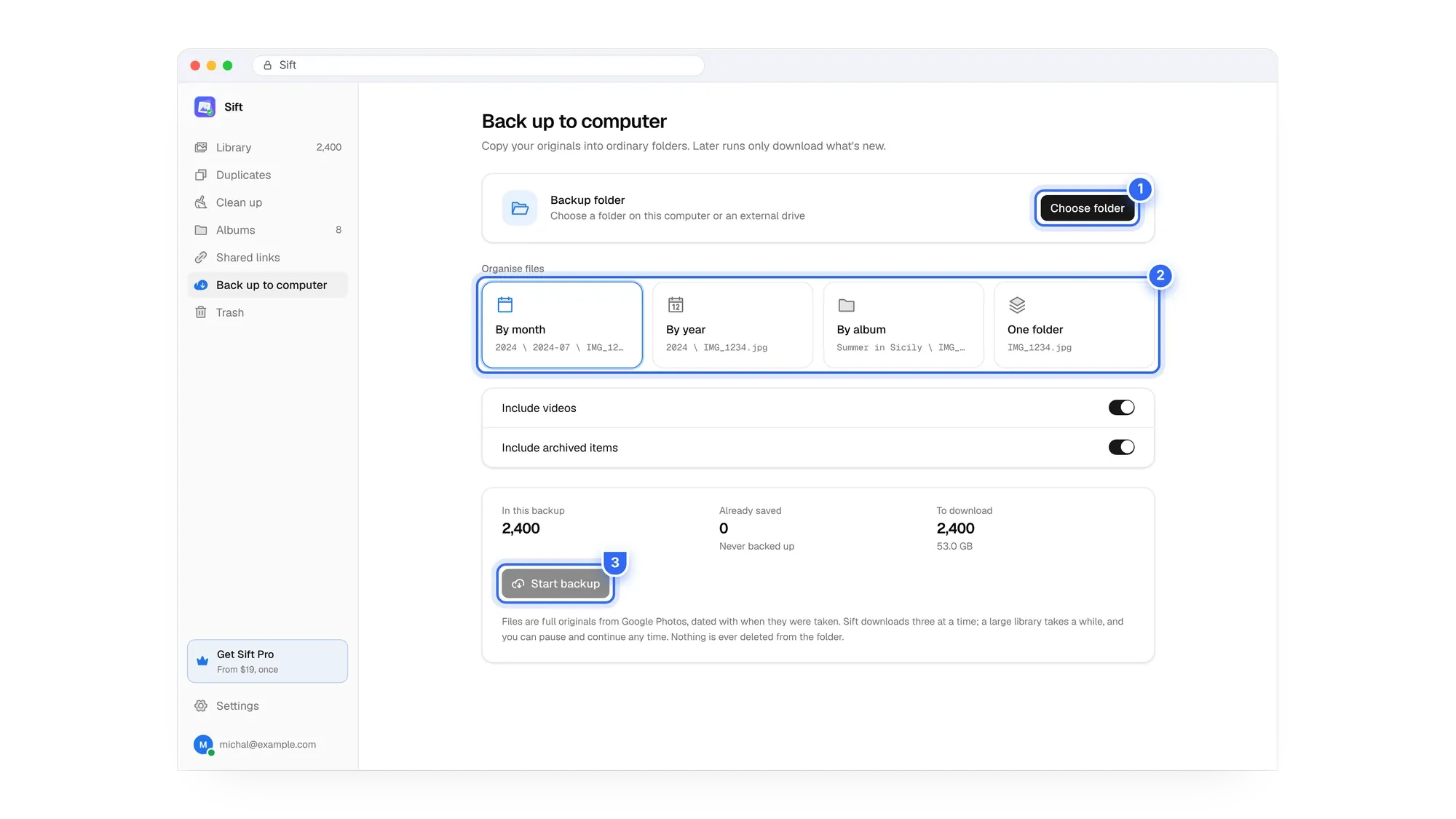
- Sift Back up to computer. Downloads full-quality originals into ordinary folders on your PC or an external drive, organized by month, year or album, with each file dated when it was taken.
Our guide to downloading all your Google Photos compares both in detail.
2. Deleting syncs to your phone
Google Photos deletions sync. If a phone has backup turned on, deleting a backed-up photo in Google Photos also removes it from that phone. If you want to keep the photos on your phone and only clear the cloud, turn off backup on that phone first. The full sequence is in how to delete from Google Photos without deleting from your phone, and Google explains it on its delete photos and videos help page.
3. Trash keeps everything for 30 days
Deleted photos and videos stay in trash for 30 days, then are permanently deleted. That is your safety net if you change your mind. If you need the storage back right away, empty the trash yourself (Collections or Library › Trash › Empty trash). More in how Google Photos trash works.
How to delete all photos from Google Photos on a computer
photos.google.com is the most reliable free way, because you can select by day and in ranges. There is no single "select all" button for the whole library on the web, so you build the selection.
- Back up your library and turn off backup on any phone whose copies you want to keep (see above).
- Open photos.google.com in a browser on your computer and sign in.
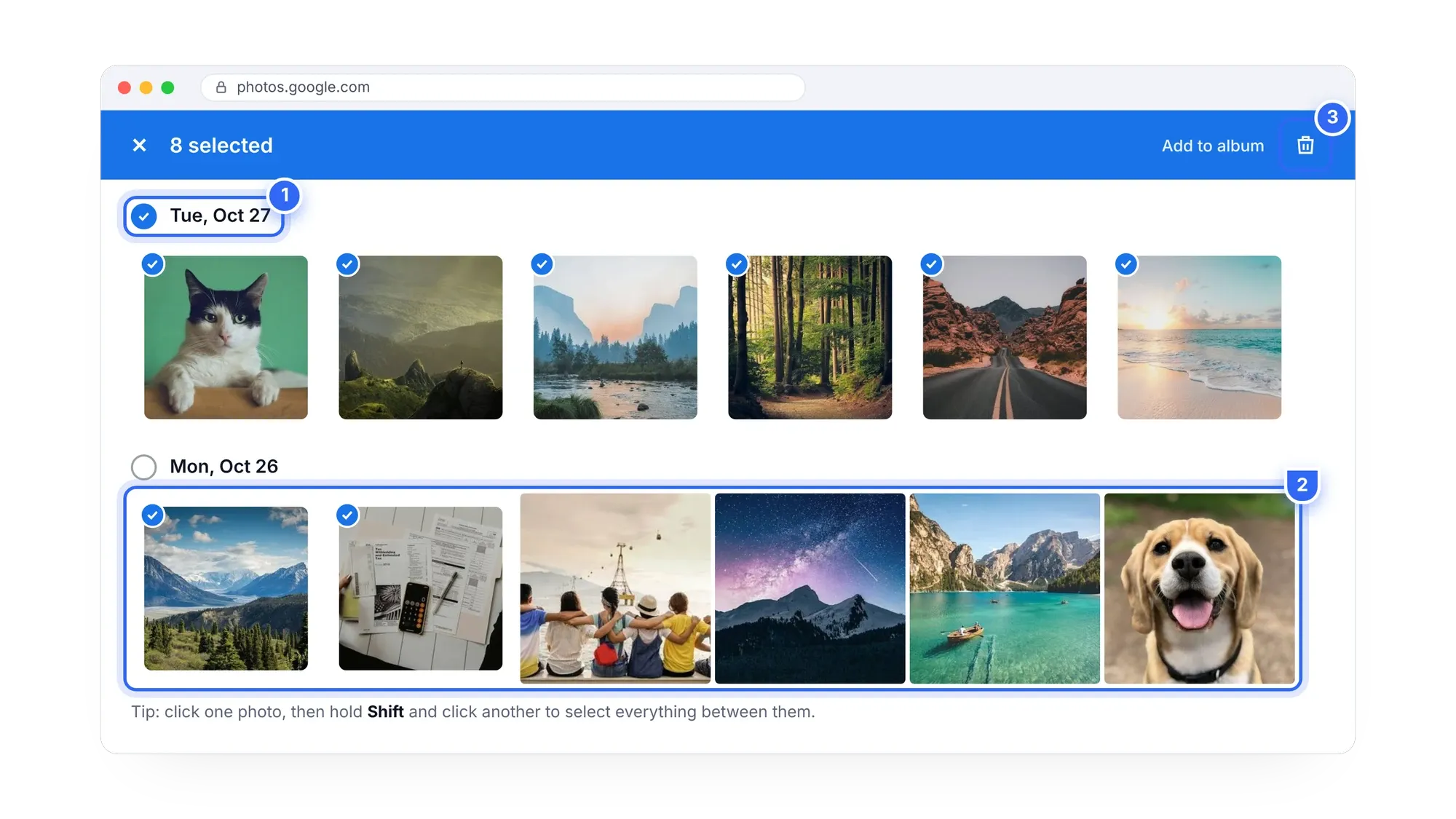
- Scroll to the top of your library. Hover over the newest date and click the checkmark next to it. That selects the whole day.
- Scroll down to the oldest photo you want to delete. Hold Shift and click the checkmark next to that date. Everything in between is selected.
- Click the trash icon at the top right, then confirm Move to trash.
- Repeat if some photos weren't selected, then open Trash and click Empty trash when you're sure.
The catch with big libraries: the website loads photos as you scroll. With tens of thousands of photos, scrolling to the bottom takes a long time, the selection can get slow, and it can stop short if the page hasn't loaded everything. Many people end up working a year at a time. Our guide on how to select all photos in Google Photos has more tips.

Back up, then clear the lot. Sift saves your originals to your own drive and selects your whole library in one click, with the space freed shown first.
How to delete all Google Photos from the phone app
The Google Photos app on Android and iPhone works for smaller batches, but it is the slowest way to delete everything.
- Turn off backup first if you want to keep the photos on the phone (profile picture › Photos settings › Backup).
- Open the Photos tab.
- Long-press a photo to start selecting.
- Without lifting your finger, drag across more photos, or tap the circle next to a date to select that day.
- Tap Delete (or the trash icon) and confirm.
Selecting thousands of photos with a finger is tiring, and a slip can deselect a block. For a full library, use a computer.
Removing one phone's backup in one step
If what you want is to remove everything a single phone backed up, Google has an option for that. In the app, go to Photos settings › Backup and look for Undo backup for this device. Google says the photos and videos stay on your device, backup is turned off for it, and items from other devices are not affected. It is rolling out, so you may not see it yet.
How to delete all Google Photos at once with Sift
Sift is a Chrome extension (and Windows app) that works through the Google Photos website, with desktop-style selection.
- Back up with Back up to computer if you want to keep copies. Later runs only download what's new, and Sift never deletes anything from that folder.
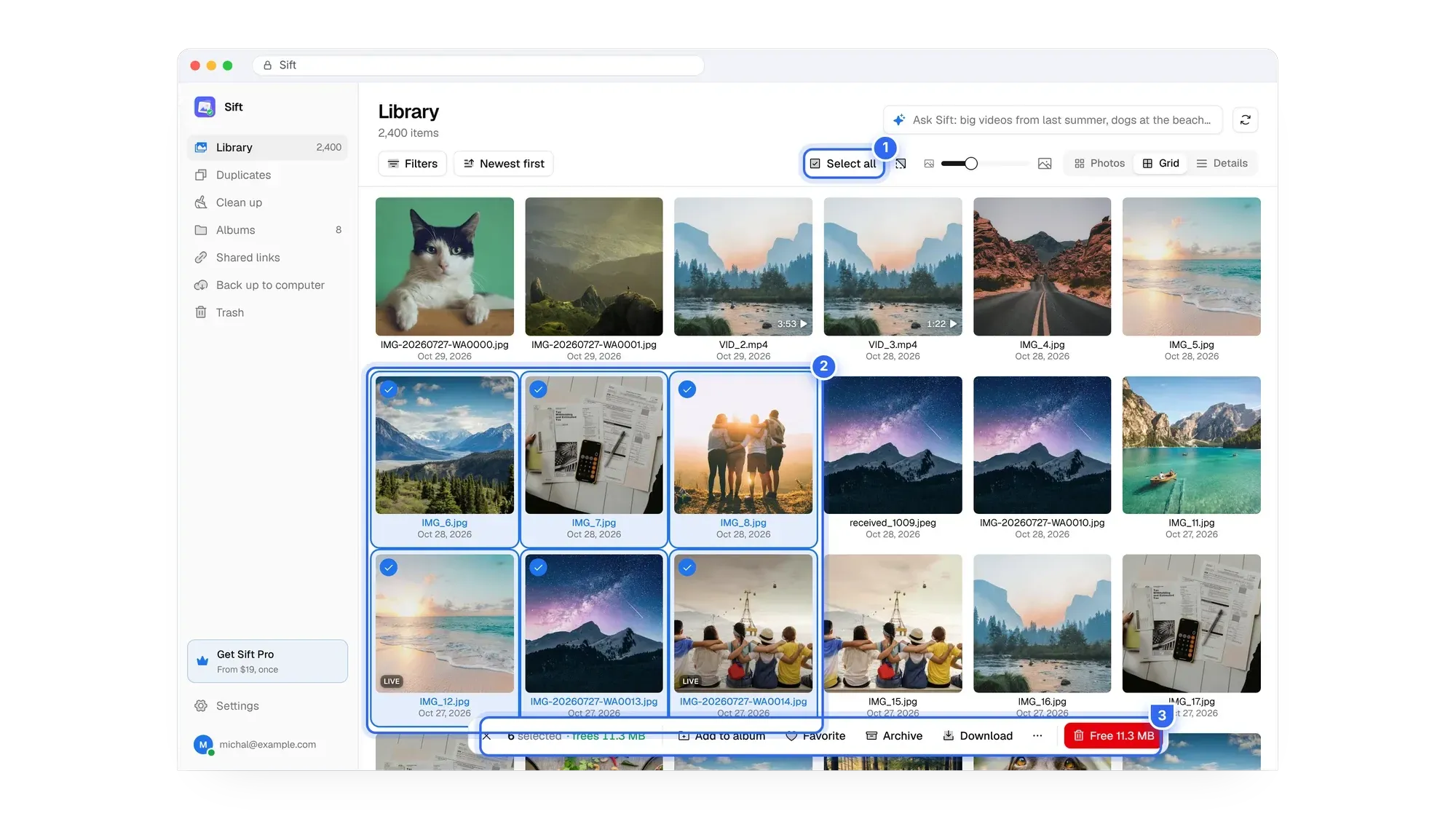
- Open your library in Sift and click Select all. You can also drag a box, Shift-click or Ctrl-click to pick a range or skip a few.
- Check the bar at the bottom: it shows "N selected · frees X MB" so you know exactly how much Google storage you'll get back.
- Move the selection to trash. Sift only moves items to Google Photos' trash and never empties it, so everything can be restored for 30 days.
- Empty the trash in Google Photos when you're sure.
The free plan frees up to 1 GB and backs up your first 500 photos, so it is good for testing. Clearing a whole library needs Personal, $19 one time, or Family at $39 for up to five Google accounts. See pricing.
Which method should you use?
| Method | Best for | Speed on a big library | Shows space freed |
|---|---|---|---|
| photos.google.com | Free, any size if you're patient | Slow, scroll and Shift-click | No |
| Phone app | A few hundred photos | Very slow | No |
| Undo backup for this device | Everything from one phone | Fast | No |
| Sift | Whole libraries, with backup first | Fast, one click | Yes |
Why people clear their whole library
Usually it's storage. Free Google storage is 15 GB, shared across Gmail, Drive and Photos. When it's full, Gmail can't send or receive, Drive stops syncing, and phone backups stop. Clearing Photos, after saving the originals to your own drive, can stop you paying Google every year: the 100 GB plan costs about $20 to $24 a year in the US. Others are leaving Google Photos, closing an account, or starting fresh.
If you don't want to delete everything, a targeted clean-up often frees enough: duplicates, large videos and screenshots. Start with how to clean up Google storage.
Not sure you want to delete everything? Try Sift free: see what's taking up space, and free up to 1 GB with no card or account.
FAQ
Is there a way to delete all Google Photos at once?
Not with one button in Google Photos. On the web, click the checkmark next to the first date, Shift-click the last date, and move the selection to trash. Sift adds a true Select all.
How do I remove all photos from Google Photos but keep them on my phone?
Turn off backup on the phone first, then delete at photos.google.com from a computer. Or use Undo backup for this device in the app's Backup settings, if you have it.
Will deleting all Google Photos delete them from my phone?
Yes, if backup is on. Deleting a backed-up item in Google Photos removes it from every device with backup turned on.
How long until the storage is freed?
Items in trash are permanently deleted after 30 days. Empty the trash to free the space sooner. Storage numbers can take a while to update.
Can I get the photos back?
Yes, for 30 days from the trash. After it's emptied, only your own backup can bring them back.
Does deleting Google Photos delete my Google account?
No. Your account, Gmail and Drive stay as they are. You only remove the photos and videos.
Back up, turn off backup on the phone, select, trash. In that order, nothing gets lost.
Sift is independent and not affiliated with Google. Google Photos details checked in October 2026 and may change.
Written by
Keep reading

How to Find and Delete Large Videos in Google Photos
Videos are usually the biggest thing in your Google storage. Here's how to find large videos in Google Photos, back up the keepers, and delete the rest safely.
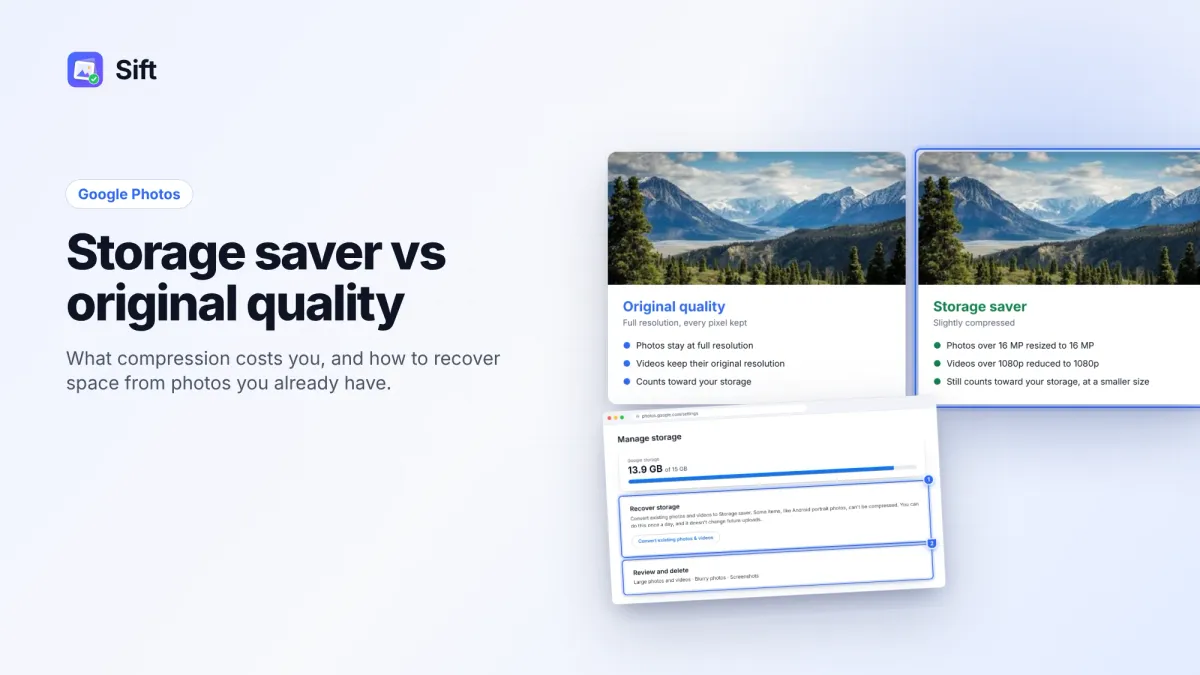
Storage Saver vs Original Quality in Google Photos: Which to Choose (and How to Recover Space)
Storage saver resizes photos to 16 MP and videos to 1080p; Original quality keeps everything. Here's who notices, how to switch, and how Recover storage works.
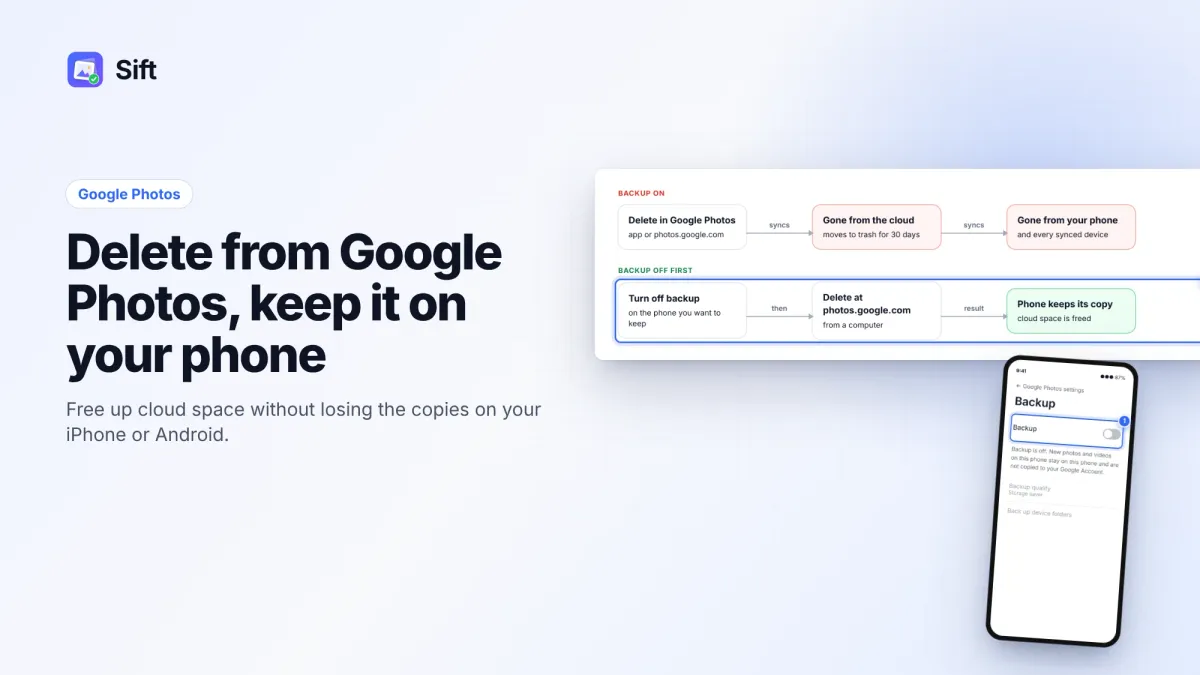
How to Delete Photos from Google Photos Without Deleting Them from Your Phone
Deleting in Google Photos also deletes from your phone when backup is on. Here's the safe order on Android and iPhone, and why "Free up space" does the opposite.
Questions or thoughts? Share them below.