
How to Select All Photos in Google Photos (Web, Android and iPhone)
Google Photos has no true select-all button. Here's how to select all photos on the web, Android and iPhone, and a faster way when you have thousands.

Michal Wlosik
· 6 min read

Short answer: Google Photos has no true "select all" button for your whole library. On a computer, go to photos.google.com, click the checkmark next to the first date, scroll down, and Shift-click the checkmark next to the last date to select everything in between. On Android or iPhone, long-press one photo and drag your finger across the rest. For large libraries, a tool like Sift adds a real Select all.
Here is how to select all photos in Google Photos on each device, where the limits are, and the faster option when you have thousands.
Is there a "select all" in Google Photos?
Not for the whole library. Google Photos lets you select one photo, a whole day, or a range, but there is no single command that picks every photo you own. That's why people searching for "google photos select all" end up stitching selections together a day or a year at a time.
What you can do depends on where you are:
| Where | Select one | Select a day | Select a range | Select everything |
|---|---|---|---|---|
| photos.google.com | Hover, click the checkmark | Checkmark next to the date | Shift-click | No, use date + Shift-click |
| Android / iPhone app | Long-press | Tap the date's circle in selection mode | Long-press and drag | No |
| Sift | Click | Drag a box | Shift-click or drag | Yes, Select all |
How to select all photos in Google Photos on a computer
The website is the best free way, because Shift-click works across days.
- Open photos.google.com in a browser and sign in.
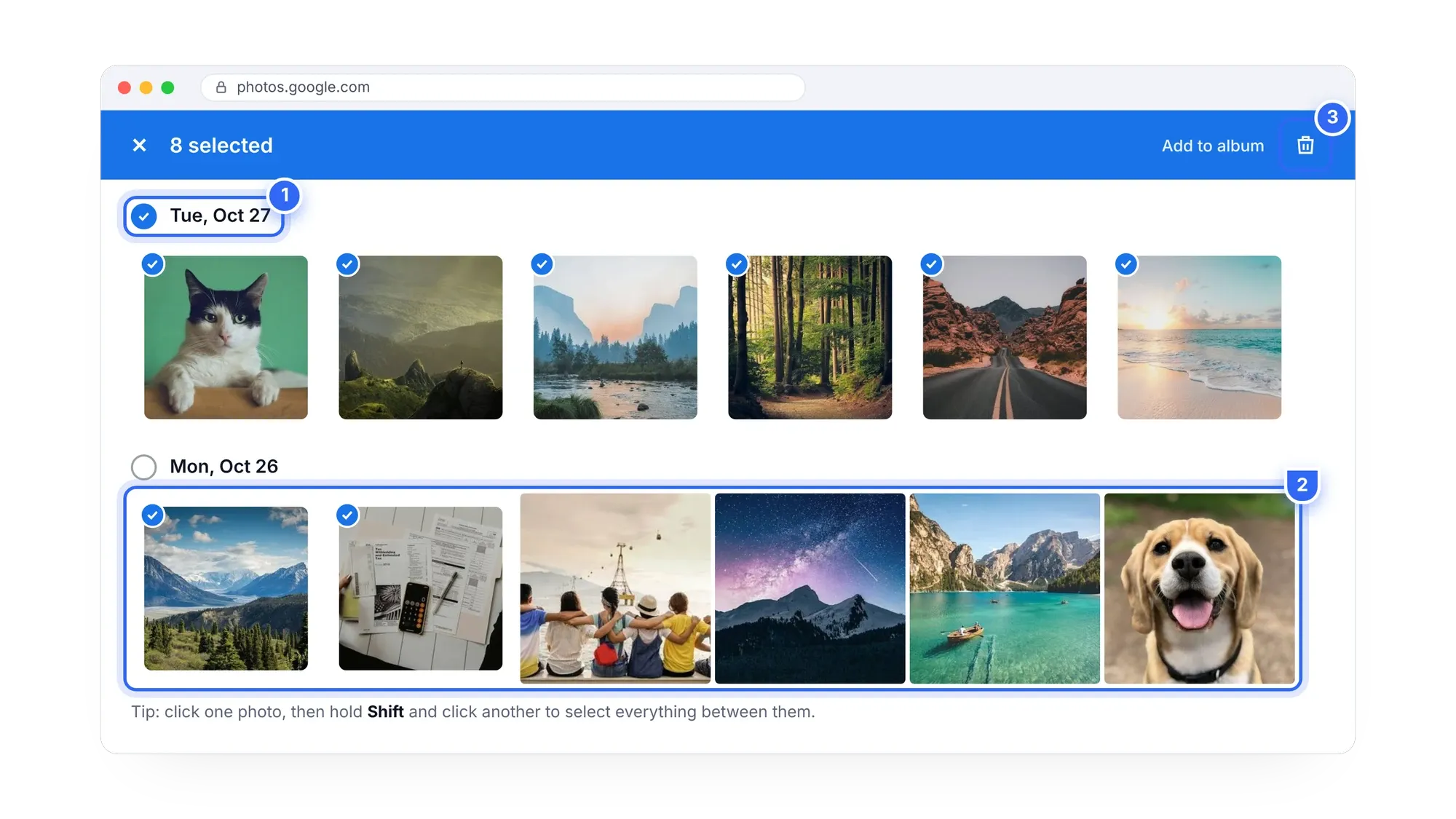
- Hover over the first photo you want, or the date above it. Click the checkmark next to the date to select that whole day.
- Scroll down to the last photo you want. You can drag the scrollbar on the right to jump through the years.
- Hold Shift and click the checkmark on that last photo or date. Every photo in between is selected, and the count appears at the top.
- Now act on the selection: trash icon to delete, + to add to an album, or ⋮ › Download (or Shift+D) to download as a zip.
How to select multiple photos in Google Photos that aren't next to each other
Click each photo's checkmark one at a time. Once one photo is selected, clicking anywhere on another photo adds it. You can mix day checkmarks, single photos and Shift-click ranges in one selection.
Tips for the website
- Search first. Search "Videos", "Screenshots" or a year, then select within the results. It's a smaller, faster page.
- Work in chunks. The site loads photos as you scroll. With a very large library, select a year, act on it, then do the next year.
- Check the count. The number at the top tells you if the range really covered everything you meant.

Want a real Select all? Sift gives Google Photos desktop-style selection and shows how much space your selection frees, free up to 1 GB with no card.
How to select all photos in Google Photos on Android
- Open the Google Photos app and go to the Photos tab.
- Long-press the first photo. A checkmark appears and you're in selection mode.
- Keep your finger down and drag across or down the grid. Every photo you pass is selected. Drag to the edge of the screen to keep scrolling.
- To add a whole day, tap the circle next to its date.
- Use the buttons at the top or bottom to share, add to an album, or delete.
Pinching to zoom out first shows more photos per screen, which makes dragging faster.
How to select all photos in Google Photos on iPhone
The iPhone app works the same way as Android.
- Open Google Photos and go to Photos.
- Long-press a photo to start selecting.
- Drag your finger across the photos you want, or tap the circle next to a date to select that day.
- Tap the action you need: share, add to album or delete.
Careful with delete on any phone: if backup is on, deleting in Google Photos also removes the photo from your phone. See how to delete from Google Photos without deleting from your phone.
Why selecting thousands of photos is slow
Google Photos is built for scrolling and sharing, not for bulk work. With tens of thousands of items, you run into the same problems on every device:
- The page or app has to load every photo as you scroll past it, which can take minutes.
- A long drag on a phone is easy to break, and lifting your finger ends it.
- There's no total size, so you can't tell how much storage a selection would free.
- Big actions on huge selections can be slow to finish.
If you're selecting to delete, it often makes sense to back up first. Our guide on deleting all photos from Google Photos walks through the safe order.
Select all in Google Photos with Sift
Sift is a Chrome extension (and Windows app) that works through the Google Photos website and adds the selection you'd expect from a desktop file manager.
- Add Sift to Chrome and sign in on Google's own page. Sift never sees your password.
- Open your library. Filter it first if you like: videos, screenshots, a date range, or files over a certain size.
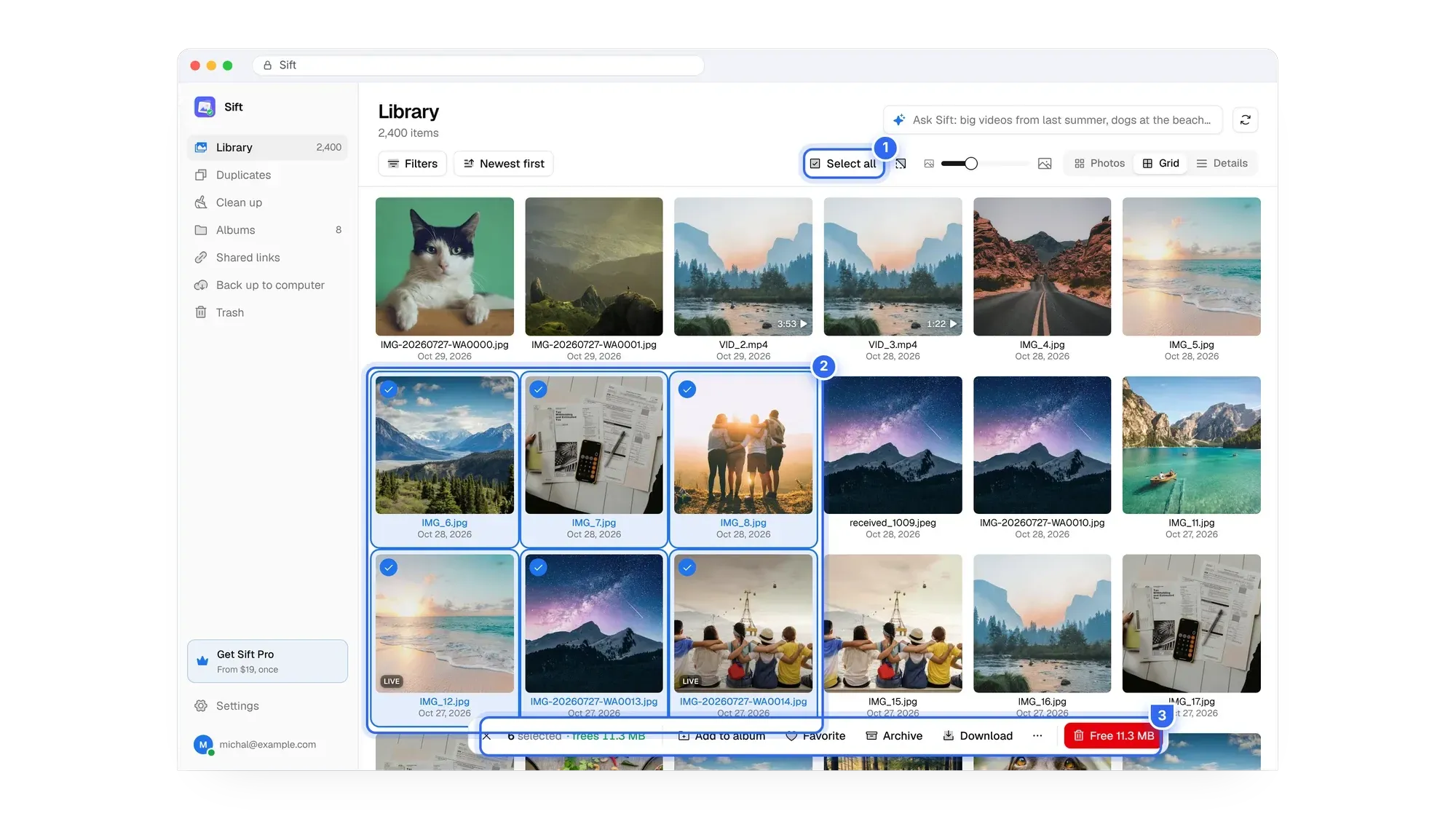
- Click Select all to pick everything in view. Or drag a box around a block, Shift-click for a range, Ctrl-click to add or remove single photos, and right-click for actions.
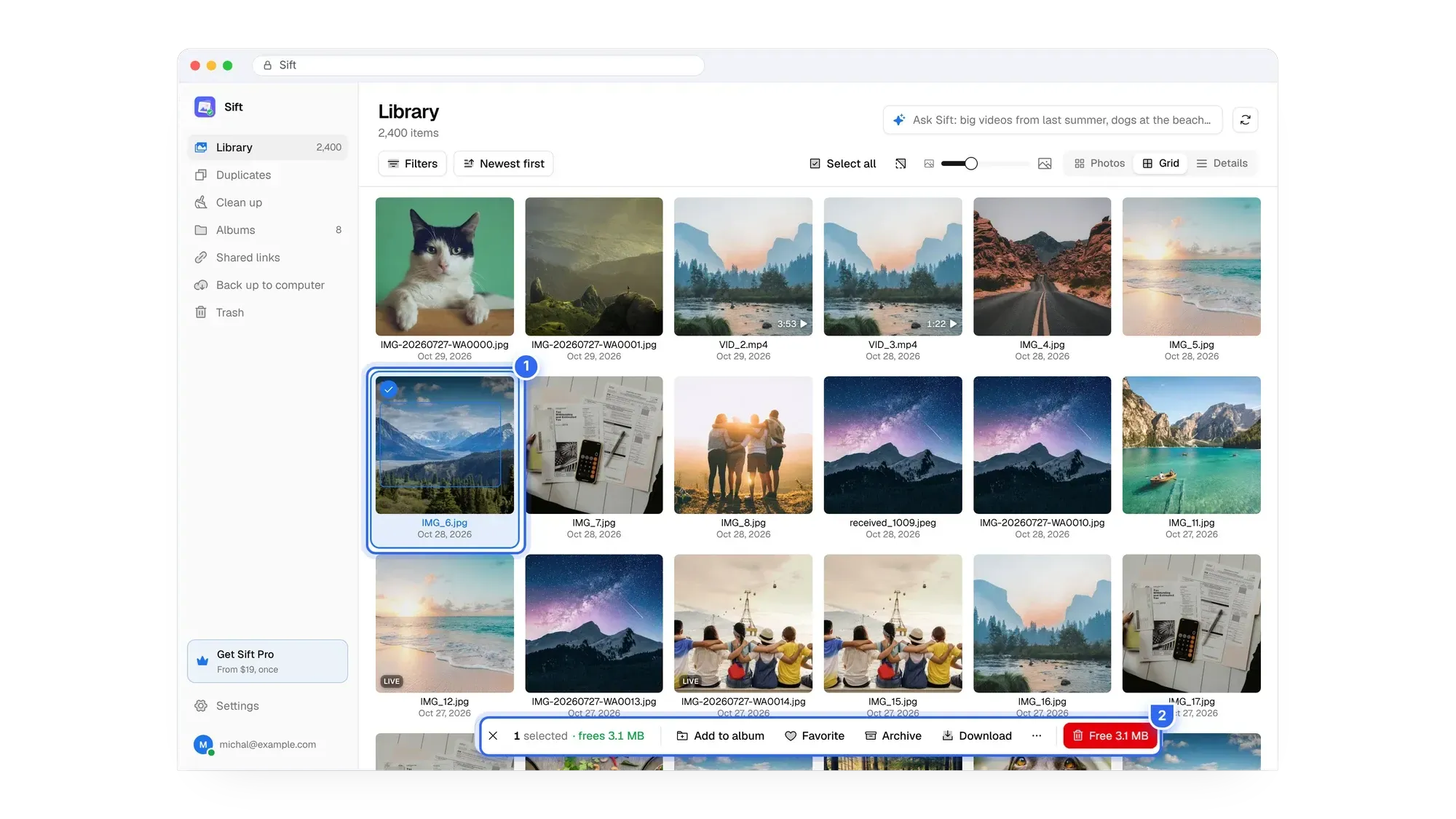
- Read the bar at the bottom: "N selected · frees X MB". That's how much Google storage the selection would free.
- Act on it: favorite, archive, add to an album, or move to trash. Sift only moves items to Google Photos' trash and never empties it, so you have 30 days to restore.
Selecting, browsing, filtering, favoriting and adding to albums are free. Moving items to trash frees up to 1 GB on the free plan. Unlimited clean-up is $19 one time on Personal, or $39 for up to five accounts on Family. See pricing.
Why it's worth doing
Most people want to select all photos for one reason: storage. Free Google storage is 15 GB, shared with Gmail and Drive. When it fills up, Gmail stops sending and receiving and your phone stops backing up. Selecting by size and clearing what you don't need, like duplicates and big videos, can bring you back under the line without paying for a plan every year. The bigger picture is in how to clean up Google storage.
Stop dragging through thousands of photos. Select your whole library in one click and see the megabytes it frees before you act.
FAQ
Can you select all in Google Photos?
Not for the whole library in one step. On the web, click the date checkmark at the top, then Shift-click the last date. In the app, long-press and drag.
Does Ctrl+A work in Google Photos?
No, there's no select-all shortcut for the library on photos.google.com. Use the date checkmark and Shift-click instead.
How do I select multiple photos in Google Photos on my phone?
Long-press one photo, then drag across the others without lifting your finger, or tap more photos one by one.
How do I select all photos from one day?
Click (or tap, in selection mode) the checkmark or circle next to that date.
Is there a limit to how many photos I can select?
Google doesn't publish one, but very large selections are slow to build and act on. Working a year at a time is more reliable.
How do I see how much space my selection takes?
Google Photos doesn't show it. Sift's selection bar shows how many megabytes the selected items would free.
Select smart, act once, and get your storage back.
Sift is independent and not affiliated with Google. Google Photos details checked in October 2026 and may change.
Written by
Keep reading

How to Find and Delete Large Videos in Google Photos
Videos are usually the biggest thing in your Google storage. Here's how to find large videos in Google Photos, back up the keepers, and delete the rest safely.

Storage Saver vs Original Quality in Google Photos: Which to Choose (and How to Recover Space)
Storage saver resizes photos to 16 MP and videos to 1080p; Original quality keeps everything. Here's who notices, how to switch, and how Recover storage works.
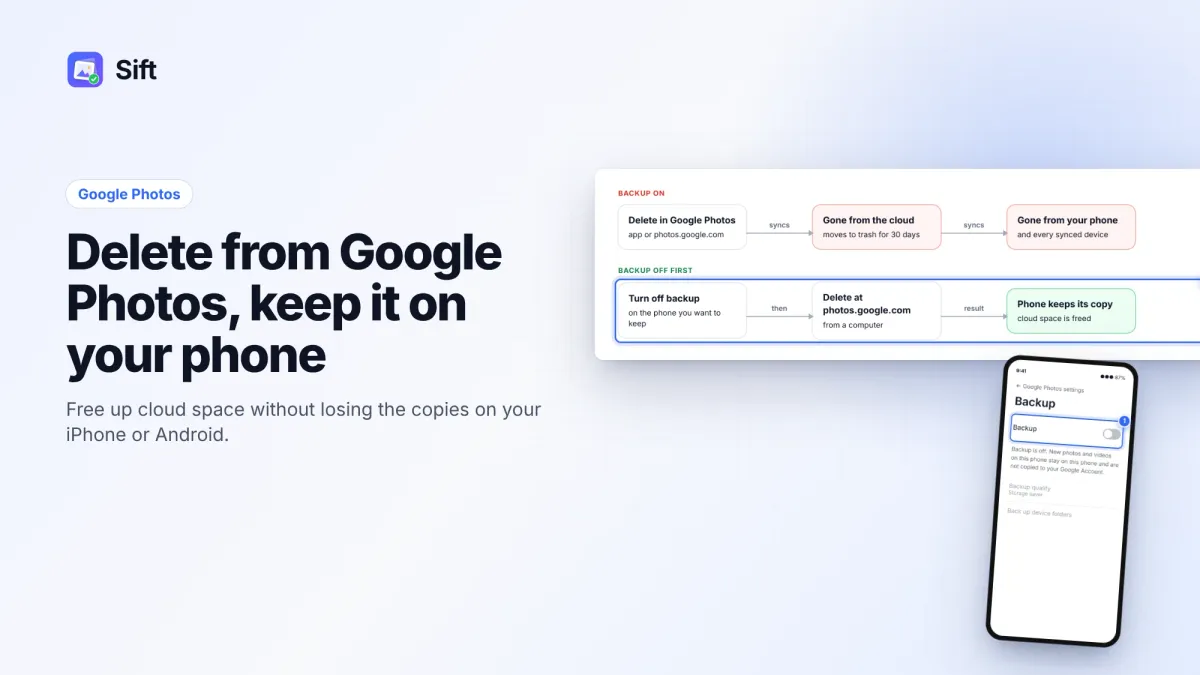
How to Delete Photos from Google Photos Without Deleting Them from Your Phone
Deleting in Google Photos also deletes from your phone when backup is on. Here's the safe order on Android and iPhone, and why "Free up space" does the opposite.
Questions or thoughts? Share them below.