
Storage Saver vs Original Quality in Google Photos: Which to Choose (and How to Recover Space)
Storage saver resizes photos to 16 MP and videos to 1080p; Original quality keeps everything. Here's who notices, how to switch, and how Recover storage works.

Michal Wlosik
· 6 min read
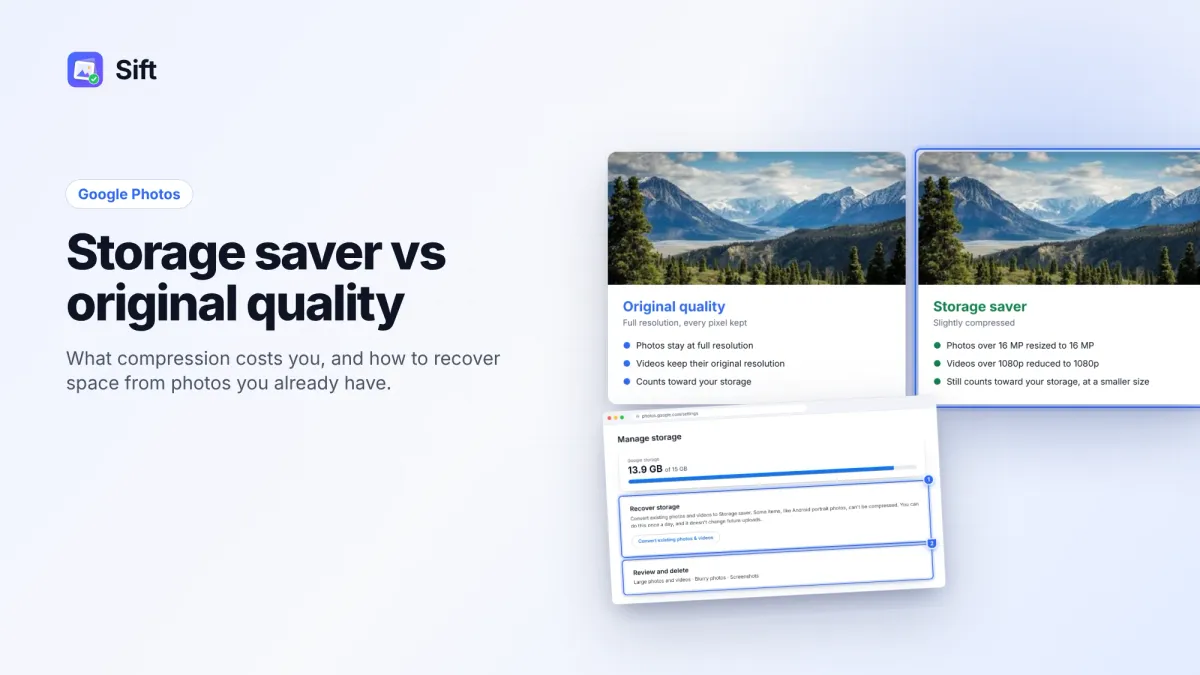
Short answer: Google Photos Storage saver resizes photos over 16 MP to 16 MP and videos over 1080p to 1080p. Original quality keeps every file exactly as you took it. Both count toward your 15 GB. Most people won't notice the difference on a phone or laptop screen, so Storage saver is a good choice for everyday photos, but back up your originals first if you plan to compress what's already in the cloud.
Here's how the two settings differ, who will notice, how to switch, and how Recover storage works on photos you've already uploaded.
Storage saver vs Original quality: what changes
Google Photos offers two main backup qualities. Here's what each one does, based on Google's backup quality help page.
| Original quality | Storage saver | |
|---|---|---|
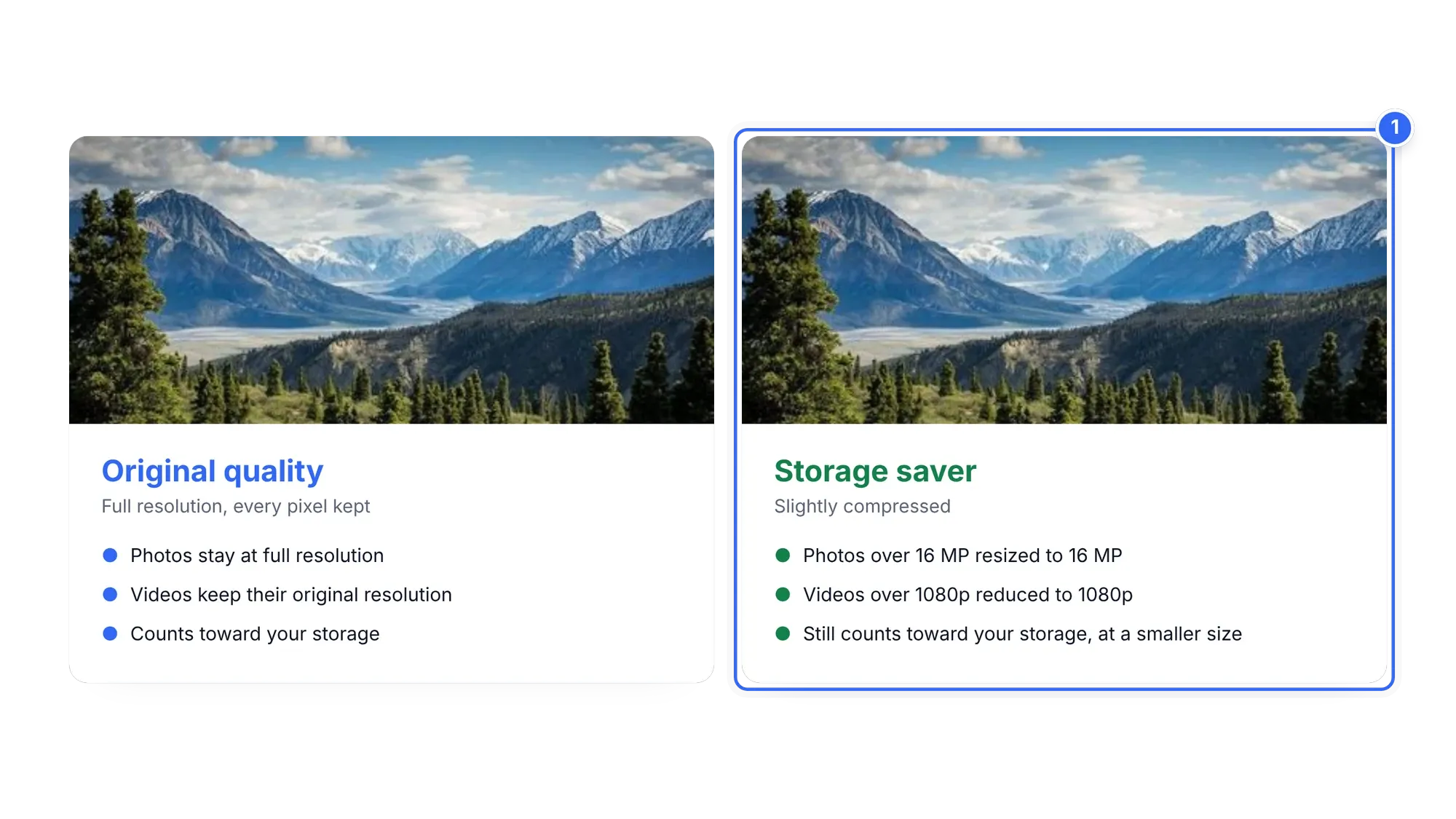
| Photos | Kept at full resolution | Over 16 MP resized to 16 MP |
| Videos | Kept at full resolution | Over 1080p reduced to 1080p |
| File format | Unchanged | May be converted, for example to .jpg |
| Counts toward 15 GB? | Yes | Yes |
| Good print size | Large prints and banners | Up to about 24 × 16 inches |
| Best for | Photographers, editing, 4K video | Everyday phone photos |
One thing that confuses people: Storage saver used to be called "High quality", and it used to be free and unlimited. Since June 1, 2021, new uploads count toward your storage in every quality. Photos you backed up in High quality before that date still don't count.
Some countries also have an Express option (3 MP photos, 480p video). If you don't see it, it isn't offered where you live.
Who will notice the difference?
For most people, a 16 MP photo looks the same as the original on a phone, laptop or TV. Photos at or under 16 MP aren't resized at all. You're more likely to notice if you:
- Shoot at 48, 50 or 200 MP and crop in heavily afterward.
- Record 4K video and want to keep it in 4K. Storage saver drops it to 1080p.
- Edit RAW files or print large. Storage saver may convert files to .jpg.
- Care about captions in videos. Google notes some information, like closed captions, might be lost.
If none of these apply, Google Photos storage saver is a reasonable trade for the space it saves.
Not sure? Try it on a few photos. Back them up in Storage saver, open them on your largest screen and zoom in. If you can't tell them apart from the originals, the setting is fine for you.
How to switch to Storage saver for new uploads
Changing the setting only affects photos backed up from now on. Note that you can't change backup quality while you're out of storage, so free some space first if you're at 15 GB.
On Android or iPhone
- Open the Google Photos app.
- At the top, tap your profile picture or initial.
- Tap Google Photos settings, then Backup, then the quality option (Photos and videos quality).
- Choose Storage saver.
The setting is per device. If you use Google Photos on two phones, change it on each.
On a computer
- Go to photos.google.com/settings.
- Choose a backup quality.
To check a single photo's quality and size, open it and swipe up on a phone, or click Info on a computer, and look under Details.
Google Photos compress existing photos: Recover storage
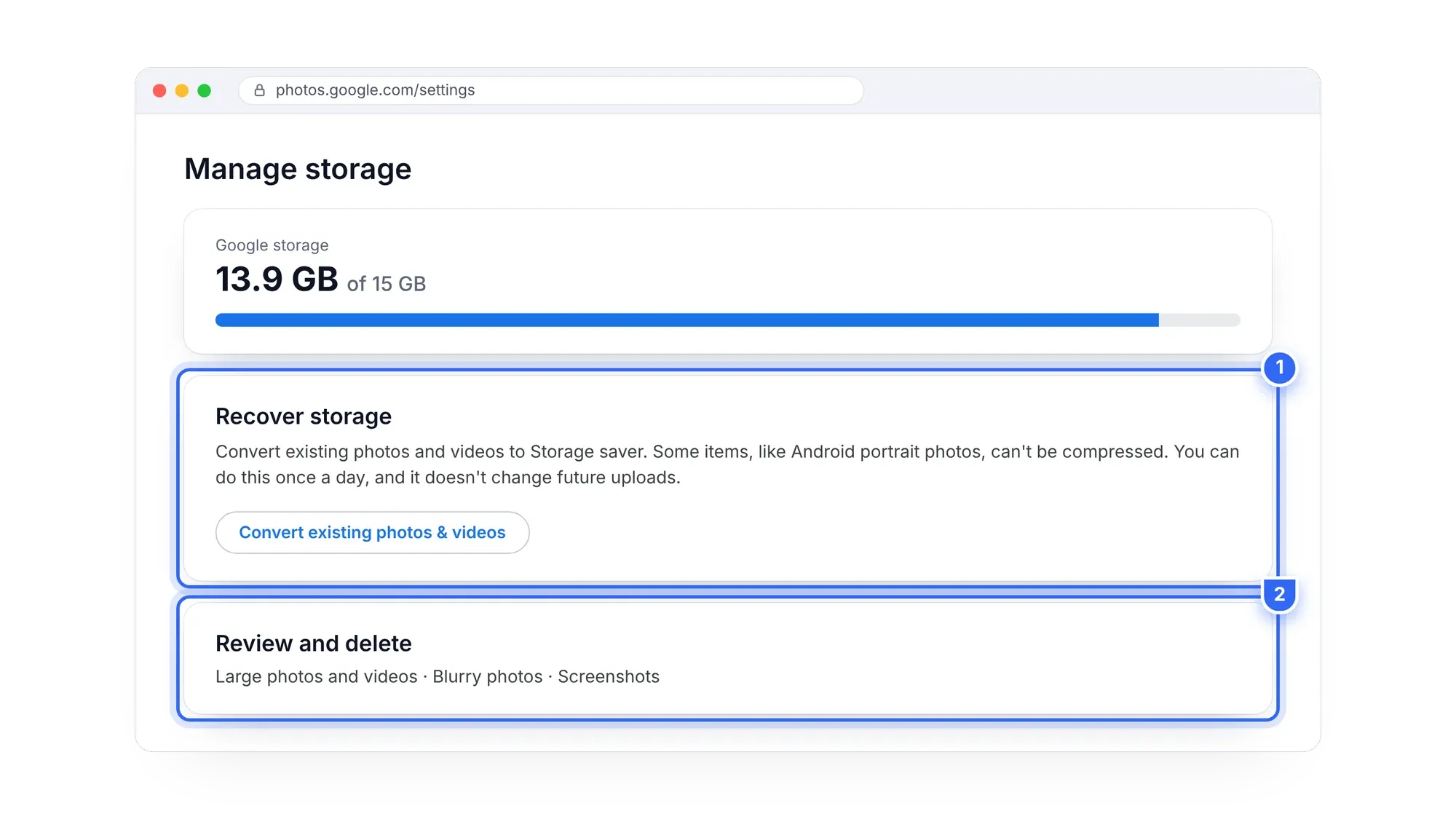
Switching the setting doesn't touch what's already in your library. To compress existing photos, Google has a separate tool called Recover storage.
- On a computer, go to photos.google.com.
- Click Settings, then Manage storage.
- Under "Recover storage", click to convert existing photos and videos to Storage saver.
- Review the estimate, then confirm.
Recover storage caveats
- It's permanent for the cloud copy. Once converted, the full-resolution version in Google Photos is gone. If your phone no longer has the original, you can't get it back.
- Once a day. You can only run it once a day.
- Future uploads aren't affected. Change your backup quality separately.
- Some items won't shrink. Some Multi-Picture Format photos, like portraits taken on Android, can't be compressed and stay at full size.
- Not for everyone. The option doesn't appear if you have unlimited storage for Google Photos.
Back up originals before you compress
Because Recover storage can't be undone, keep a full-quality copy on a drive you own first. Your options:
- Google Takeout: exports Google Photos as zips (1, 2, 4, 10 or 50 GB parts), with dates in separate .json files. Preparing can take hours to days.
- Download from photos.google.com: select items, then Shift+D or ⋮ then Download. Multiple items arrive as a zip.
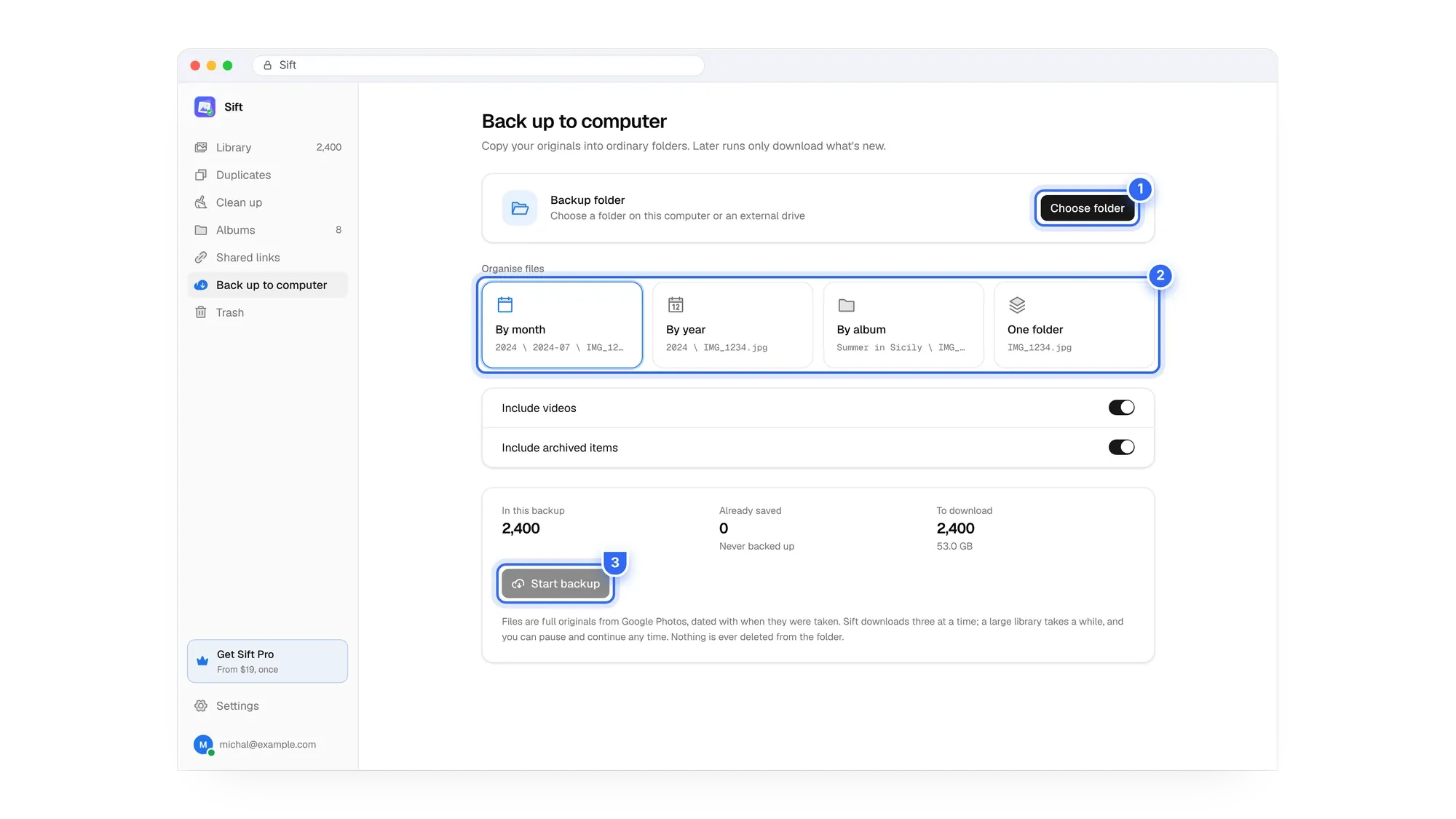
- Sift's Back up to computer: downloads full-quality originals into ordinary folders on your PC or an external drive, organised by month, year or album, and dated with when they were taken. Later runs only download what's new, and nothing is ever deleted from the folder.
Our guides on downloading all your Google Photos and moving them to an external hard drive walk through each method.

Keep your originals before you compress. Sift backs up full-quality photos to your own drive, organised by month or album. The free version backs up your first 500 photos with no card.
Compress or clean up first?
Recover storage shrinks good photos and bad photos alike. Before you compress, it's worth removing what you don't need at all: duplicates, look-alike bursts, screenshots, chat photos and long videos you'll never watch. Those often free more space than compression, and you keep full quality on the photos that matter.
A sensible order:
- Check one.google.com/storage to see how much Photos uses.
- Delete clutter. See how to remove duplicates and how to find large videos.
- Empty the Google Photos trash.
- If you still need space, back up originals, then run Recover storage.
- Switch new uploads to Storage saver if you're happy with the quality.
For the full walkthrough across Photos, Gmail and Drive, read how to clean up Google storage.
Sift's free plan scans your whole library and frees up to 1 GB. Personal is $19 one time for unlimited cleanup and backup, compared with about $20 to $24 a year for Google's 100 GB plan in the US. See Sift pricing.
Free space without shrinking your best shots. Sift finds duplicates, big videos and junk, and shows how much each would free before anything is removed.
FAQ
What's the difference between Original quality vs Storage saver?
Original quality keeps photos and videos exactly as taken. Storage saver resizes photos over 16 MP and videos over 1080p. Both count toward your storage.
Is Storage saver good enough?
For most phone photos, yes. Photos over 16 MP are resized to 16 MP, which still prints well up to about 24 × 16 inches.
Does Storage saver count toward my storage?
Yes. Since June 1, 2021, both Storage saver and Original quality count toward your 15 GB.
Can I undo Recover storage?
No. The cloud copies stay at Storage saver. Back up originals first if you want to keep them.
How do I compress existing photos in Google Photos?
Go to photos.google.com, then Settings, then Manage storage, and use Recover storage. You can run it once a day.
Why can't I change my backup quality?
You can't change it while you're out of storage. Free some space first, then try again.
Clean up first, keep your originals safe, then compress only if you still need the room.
Sift is independent and not affiliated with Google. Google Photos details checked in October 2026 and may change.
Written by
Keep reading

How to Find and Delete Large Videos in Google Photos
Videos are usually the biggest thing in your Google storage. Here's how to find large videos in Google Photos, back up the keepers, and delete the rest safely.
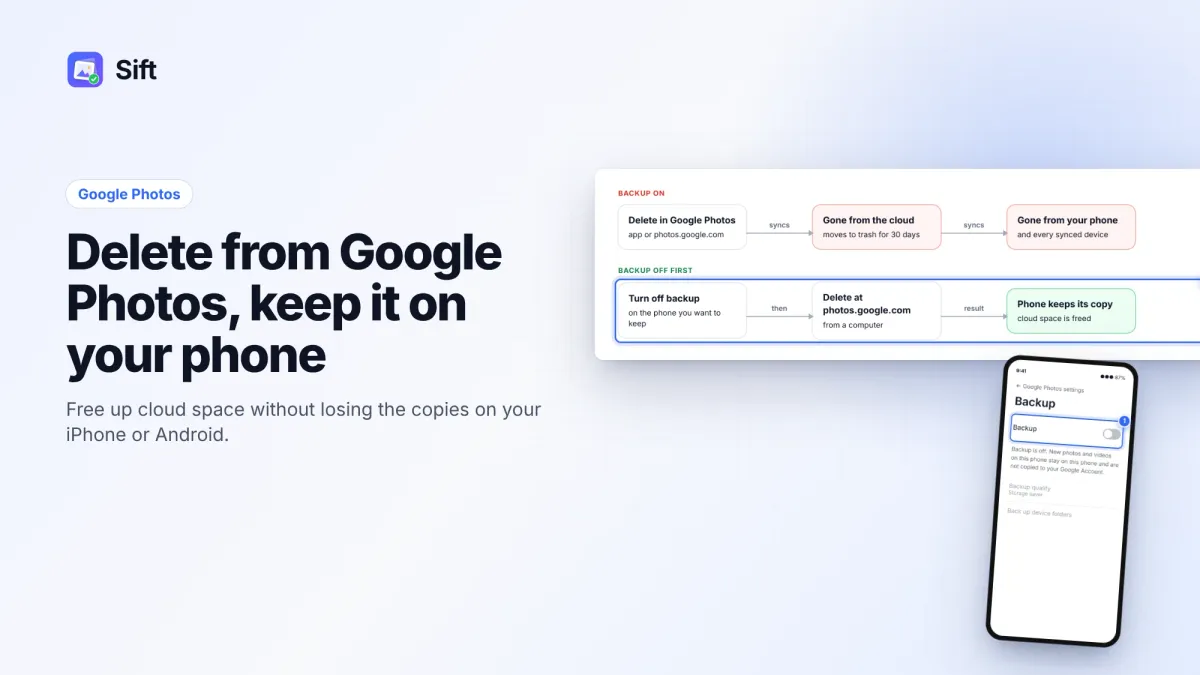
How to Delete Photos from Google Photos Without Deleting Them from Your Phone
Deleting in Google Photos also deletes from your phone when backup is on. Here's the safe order on Android and iPhone, and why "Free up space" does the opposite.
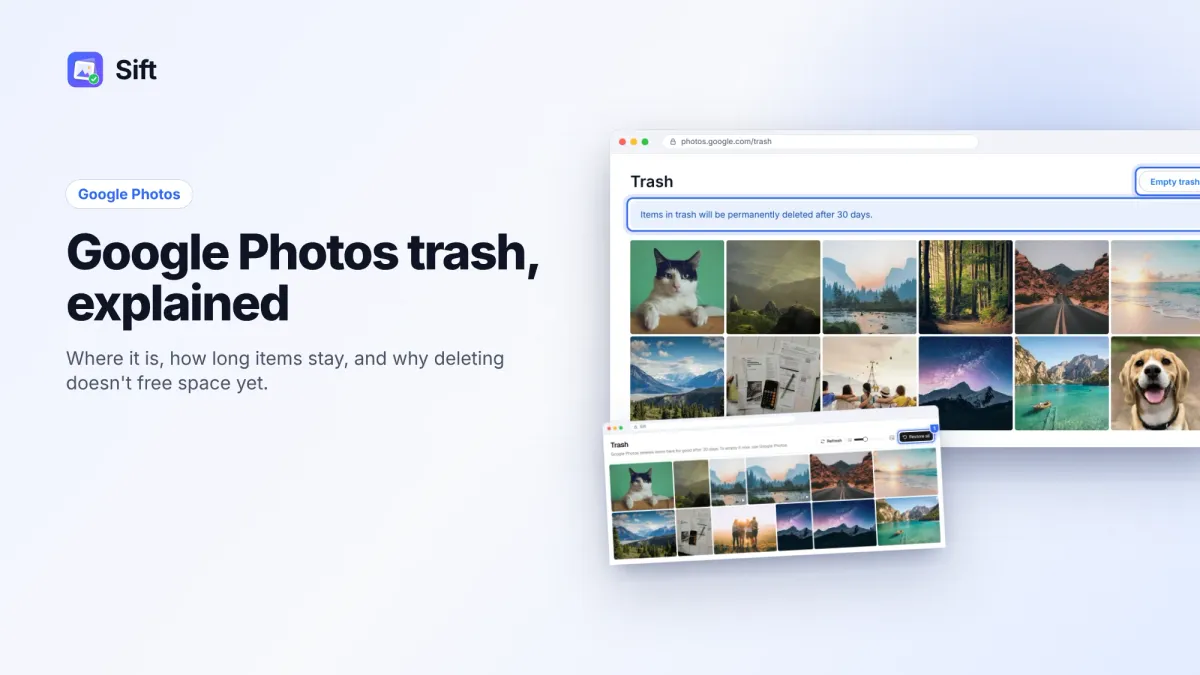
Google Photos Trash: Where It Is, How Long Photos Stay, and How to Empty It
Find the Google Photos trash on Android, iPhone and the web, restore deleted photos within 30 days, and empty it to get your storage back.
Questions or thoughts? Share them below.