
How to Download All Your Photos from Google Photos (3 Ways)
Three ways to download all your photos from Google Photos: the website, Google Takeout, and a Sift backup into dated folders. What each gives you and which to pick.

Michal Wlosik
· 7 min read
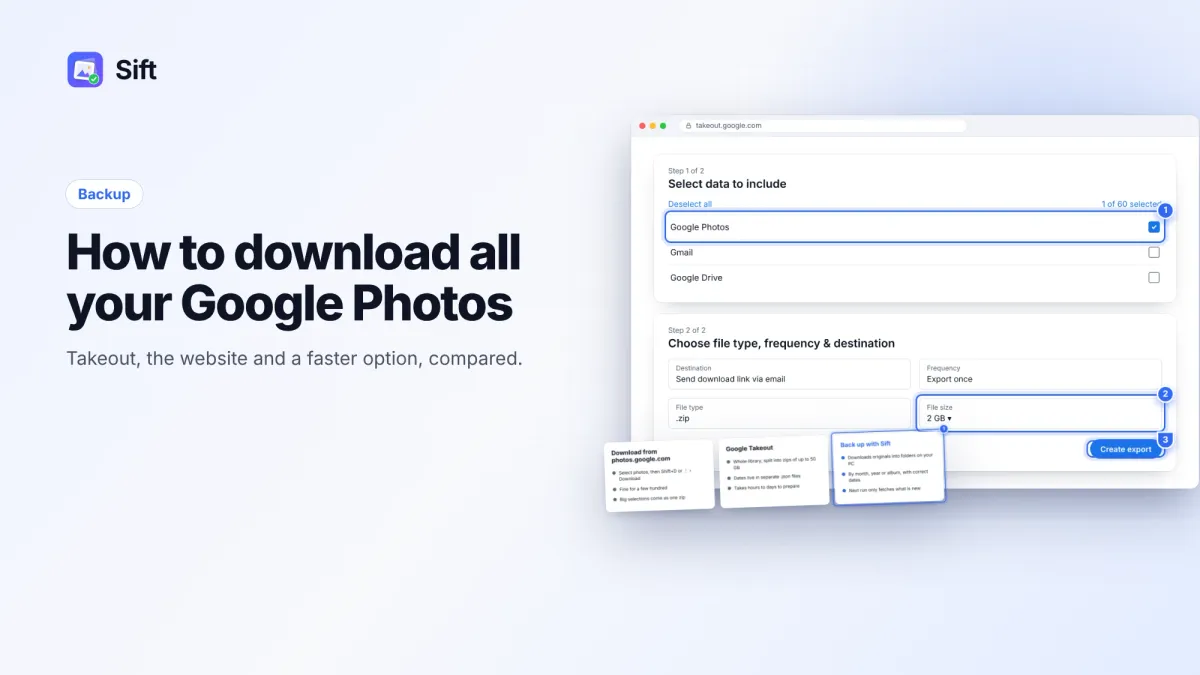
Short answer: To download all your photos from Google Photos, use Google Takeout: pick only Google Photos, choose a zip size, create the export and download the zips when Google emails you. For a few albums or days, select them on photos.google.com and press Shift+D. If you want originals in dated folders that update over time, a backup tool like Sift does it straight from the Google Photos website.
Here is how each of the three ways works, what you get at the end, and which one fits your library.
Why download all your Google Photos
People usually want a full copy for one of three reasons:
- Storage is full. Free Google Account storage is 15 GB, shared across Gmail, Google Drive and Google Photos. When it fills up, Photos stops backing up and Gmail can't send or receive. A local copy lets you clean up the cloud without worrying.
- You want to stop paying. A copy on your own drive is the first step before you cancel Google One without losing photos.
- Peace of mind. One copy in one cloud account is not a backup plan. A second copy at home is.
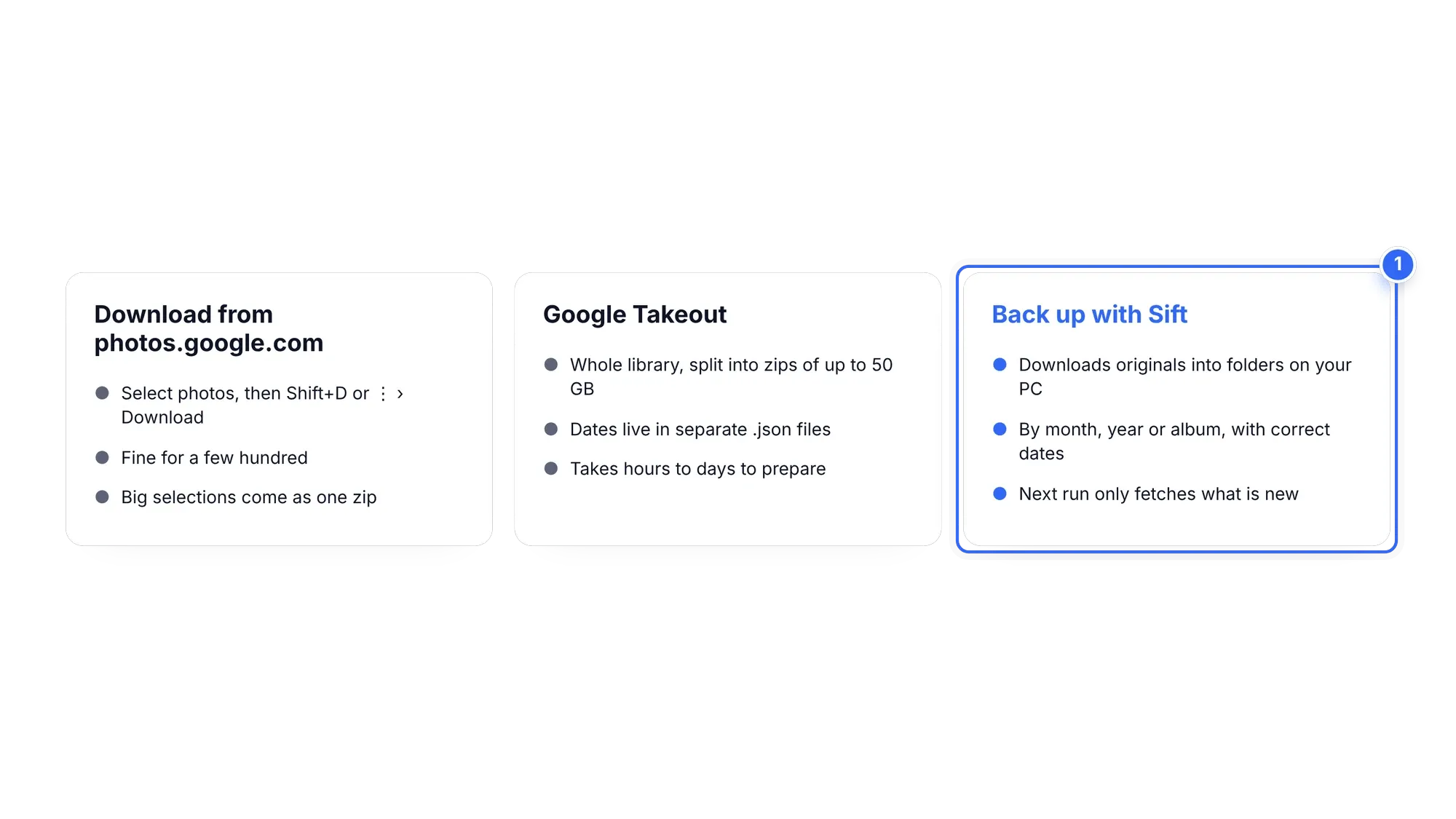
Way 1: Download photos from Google Photos to your computer on the website
This is the quickest method for a handful of photos, an album, or a few days. It is how most people first try to download photos from Google Photos to a computer.
- Go to photos.google.com on your computer and sign in.
- Hover a photo and click its checkmark. To select a whole day, click the checkmark next to the date. Shift+click another photo to select everything in between.
- Press Shift+D, or click ⋮ (More options) › Download.
- One item downloads as a file. Several items arrive as a single zip. Unzip it on your computer.
The catch: there is no "select all" for the whole library on the web. If you have 30,000 photos, you would be Shift-clicking through years of scrolling. For that, you can read our guide on how to select all photos in Google Photos, but for a full download the next two ways are better.
To download one album, open it, click ⋮ › Download all. That works well for sharing a trip, less well for a whole library spread across hundreds of albums.
Way 2: Google Takeout photos export (the free way to download everything)
Google Takeout is Google's own export tool. It is free and it can download all Google Photos in one job. Here are the steps.
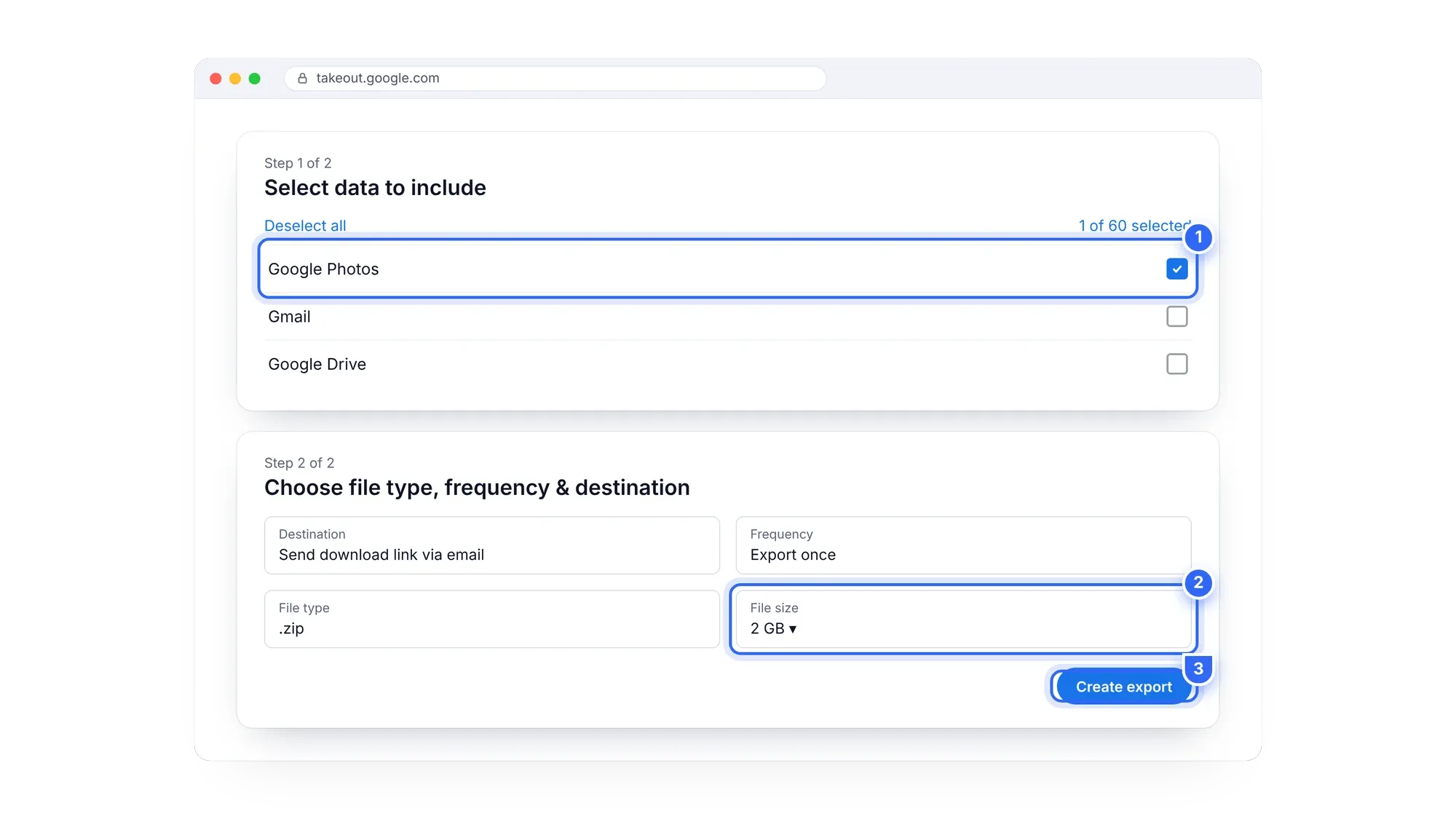
- Open takeout.google.com and sign in.
- Click Deselect all, then scroll down and tick only Google Photos. You can click "All photo albums included" to limit it to certain albums or years.
- Click Next step. Choose "Send download link via email", a one-time export, and the .zip file type.
- Pick a file size: 1, 2, 4, 10 or 50 GB per part. Bigger parts mean fewer files to click, but a failed download costs more time.
- Click Create export and wait. Preparing can take hours to days for a big library.
- When the email arrives, download every part and unzip them into one folder.
What you get from Takeout
- Lots of zips. A 200 GB library at 4 GB per part is 50 separate downloads. Some browsers stall on large files, so 2 or 4 GB parts are often safer.
- Folders by year and album. Photos sit in folders like "Photos from 2023", plus a folder for each album. Photos in albums can show up twice, once in the year folder and once in the album folder.
- JSON sidecar files. Next to each photo is a .json file with its date, description and location. The date you see in Google Photos often lives only in that file.
The dates problem
This is the part that surprises most people. When you unzip a Takeout export, many files show the date you downloaded them, not the date they were taken. That happens most with photos received in WhatsApp or other chats, scans, and anything whose date you changed in Google Photos. Your computer sorts by the file date, so your 2014 holiday ends up next to last night's dinner.
To fix it you need a separate tool that reads the .json sidecars and writes the dates back into the files. It works, but it is one more step, and you have to repeat the whole export whenever you want a fresh copy.
Skip the zips and the JSON files. Sift backs up your first 500 photos free, as originals in dated folders, with no card or account.
Way 3: Back up to your computer with Sift
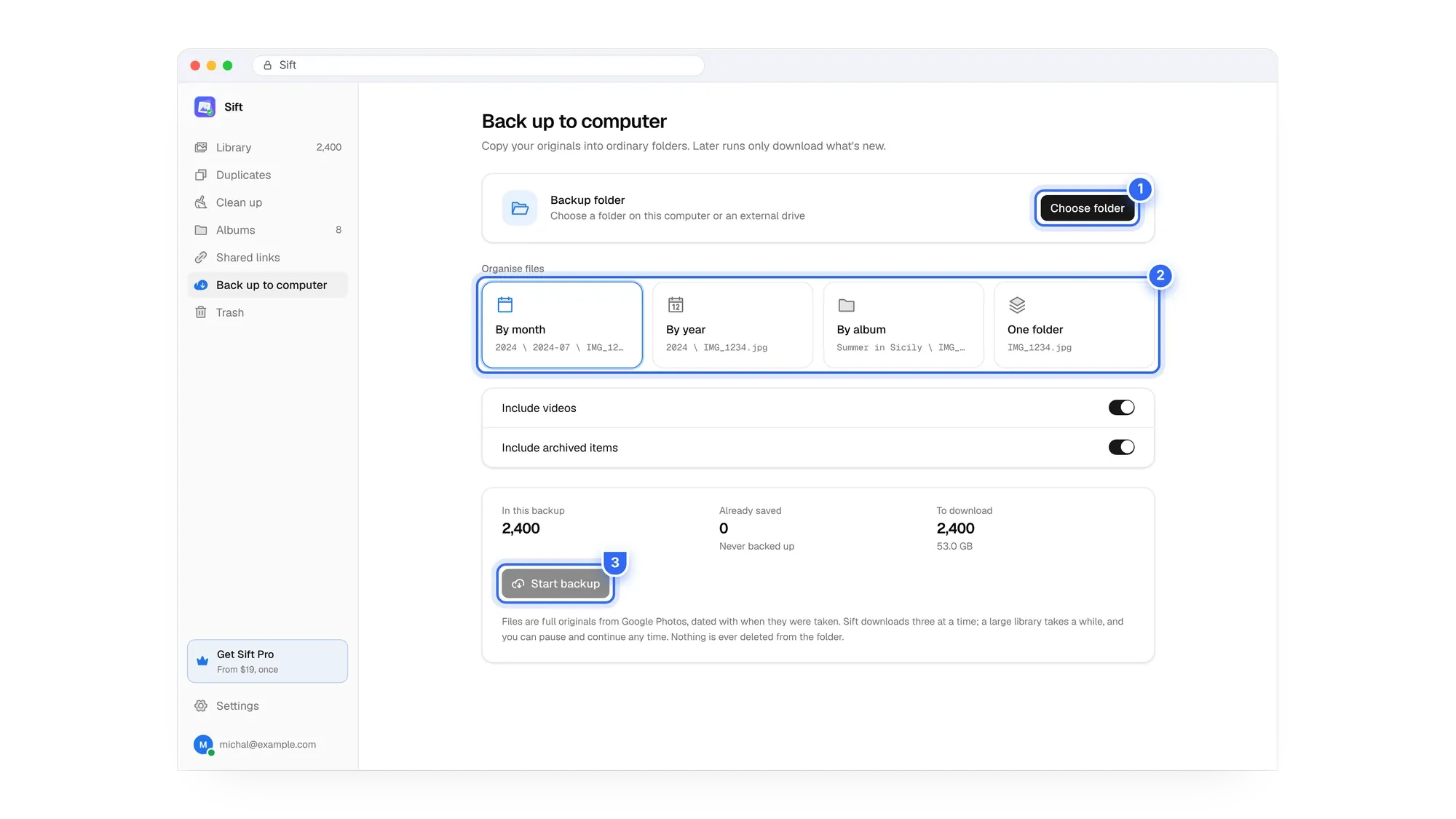
Sift is a Chrome extension (and Windows app) that works through the Google Photos website. Its "Back up to computer" feature downloads full-quality originals into ordinary folders on your PC or an external drive.
- Install Sift and sign in on Google's own page. Sift never sees your password.
- Open Back up to computer and click Choose folder. Pick a folder on your PC or an external drive.
- Choose how to organize it: by month, by year, by album, or one folder.
- Click Start backup.
What is different from Takeout:
- No waiting for an export. The download starts right away.
- Files are dated with when they were taken, so they sort correctly in File Explorer or any photo app. No sidecars to process.
- Incremental. Later runs only download what's new. Run it once a month and your copy stays current.
- Nothing is deleted from the folder. If you remove photos from Google later, your local copies stay.
- Private. Photos travel only between Google and your computer, never to Sift's servers.
The free plan backs up the first 500 photos. Personal is $19 one time for unlimited backup and cleanup (see pricing). For comparison, Google's 100 GB plan costs about $20 to $24 a year in the US, every year.
Website vs Takeout vs Sift: which way to download
| photos.google.com | Google Takeout | Sift backup | |
|---|---|---|---|
| Best for | A few photos, days or one album | A one-off full export | A full copy you keep up to date |
| Whole library | No select all, slow | Yes | Yes |
| Wait time | None | Hours to days | None |
| Format | File or one zip | Zips of 1 to 50 GB | Ordinary folders |
| Organized by | Nothing | Year and album folders | Month, year, album or one folder |
| Dates on files | Often download date | In separate .json files | Date taken |
| Later updates | Repeat by hand | Repeat the full export | Only new items |
| Cost | Free | Free | Free for 500 photos, $19 one time |
After the download: free up space safely
Once every photo is on your own drive, you have options. You can delete the clutter in Google Photos and get back under 15 GB, so you stop paying for storage, Gmail works again and phone backups resume. Good places to start:
- How to clean up Google storage, the full walkthrough.
- How to transfer Google Photos to an external hard drive, if your laptop disk is too small.
- How to organize Google Photos, so what stays in the cloud is easy to browse.
Remember that deleting a backed-up item in Google Photos also removes it from every device with backup on. Deleted items stay in the trash for 30 days, then they are gone for good (Google's trash rules).
Back up first, then clean up. Sift copies your originals to your drive and shows how much Google storage each clean-up frees before anything is removed.
FAQ
Can I download all Google Photos at once?
Yes, with Google Takeout or a backup tool like Sift. The photos.google.com website has no select all for the whole library, so it is only practical for smaller batches.
How long does a Google Takeout photos export take?
Preparing can take hours to days, depending on library size. Then you still need to download every zip part.
Does Google Takeout download full quality?
It downloads what is stored in your account. If you backed up in Storage saver, you get those resized copies, since the originals were never uploaded.
Why are the dates wrong after I unzip Takeout?
Many dates are stored in the .json sidecar files, not in the photos themselves. The files then show the download date. A tool that reads the sidecars, or a backup that writes the date taken, fixes it.
Will downloading delete photos from Google Photos?
No. Downloading only copies. Your library stays exactly as it was.
How do I download photos from Google Photos to my computer without zips?
Download one photo at a time on the website, or use Sift, which saves ordinary files into folders.
Pick the website for a few photos, Takeout for a free one-off export, and Sift if you want a dated copy that keeps itself current.
Sift is independent and not affiliated with Google. Google Photos details checked in October 2026 and may change.
Written by
Keep reading
How to Find and Delete Large Videos in Google Photos
Videos are usually the biggest thing in your Google storage. Here's how to find large videos in Google Photos, back up the keepers, and delete the rest safely.
Storage Saver vs Original Quality in Google Photos: Which to Choose (and How to Recover Space)
Storage saver resizes photos to 16 MP and videos to 1080p; Original quality keeps everything. Here's who notices, how to switch, and how Recover storage works.
How to Delete Photos from Google Photos Without Deleting Them from Your Phone
Deleting in Google Photos also deletes from your phone when backup is on. Here's the safe order on Android and iPhone, and why "Free up space" does the opposite.
Questions or thoughts? Share them below.