
How to Clean Up Google Storage Without Paying for More (2026)
Google storage full? Check where the space goes, then free the most in Google Photos first, followed by quick Gmail and Drive fixes. No new plan needed.

Michal Wlosik
· 9 min read
Short answer: To clean up Google storage, open one.google.com/storage to see which service uses the most space. For most people it's Google Photos, so start there: delete duplicates, large videos, screenshots and chat photos, then empty the trash. After that, clear big Gmail attachments and old Drive files. Most accounts get back under the free 15 GB without paying for more.
This guide walks through how to clean up Google storage in the order that frees the most space for the least effort, with free Google-only methods first and a faster option where it helps.
Why Google storage fills up
Every Google Account gets 15 GB of free storage, and it's shared across Gmail, Google Drive and Google Photos. Since June 1, 2021, every new photo and video counts toward that 15 GB, whatever quality you back it up in. Phones take bigger photos and longer 4K videos every year, and backup runs quietly in the background, so the space goes faster than most people expect.
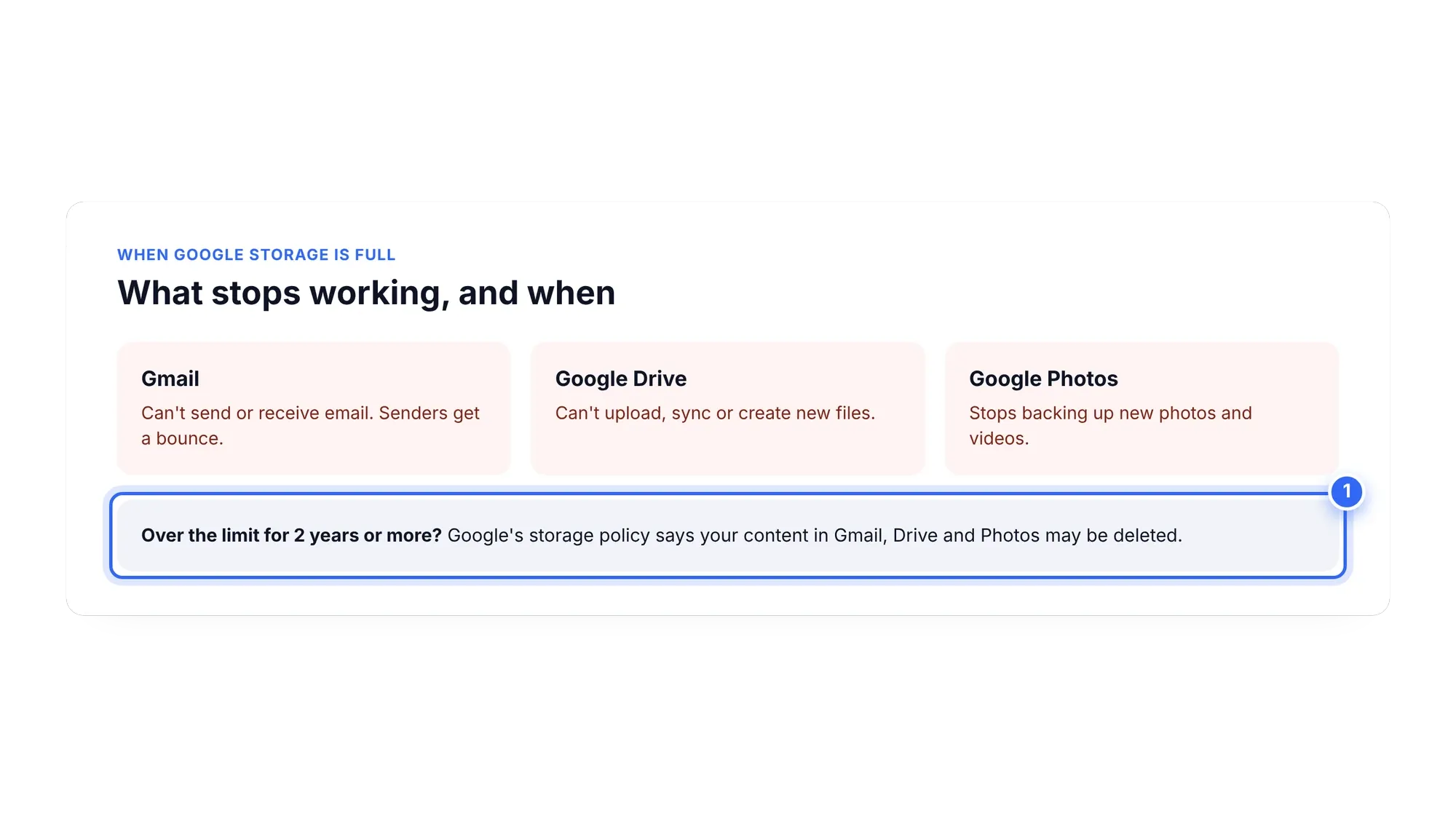
When your Google storage is full, a few things stop at once:
- Gmail can't send or receive email. People who write to you get a bounce message.
- Google Drive can't upload, sync or create new files.
- Google Photos stops backing up your phone.
If an account stays over the limit for 2 years or more, Google's policy says your content may be deleted. That's a long window, but it's a good reason not to ignore the warning.
Step 1: Check where your storage goes
Don't start deleting at random. First, see which service is actually using the space.
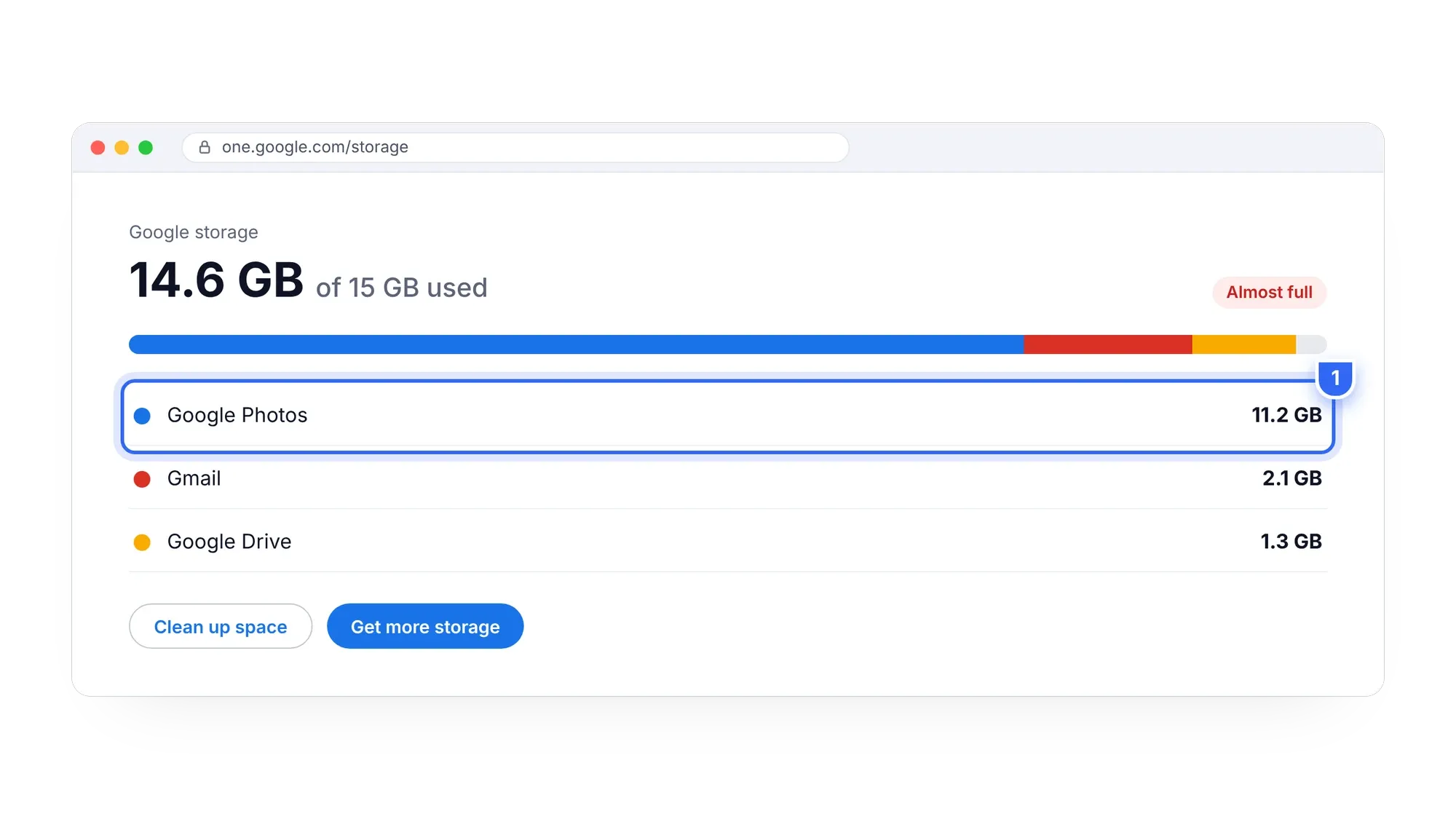
- Go to one.google.com/storage and sign in.
- Look at the breakdown bar. It splits your usage into Google Photos, Gmail and Google Drive.
- Note the biggest number. That's where your cleanup should start.
In most personal accounts, Google Photos is the largest share by far. Gmail is usually a few gigabytes. Drive depends on whether you store big files there.
The same page has a "Clean up space" section with Google's own suggestions, such as large files and items in the trash. It's worth a quick look, but it doesn't find duplicate photos or sort your library by type.
Step 2: Free up Google storage in Google Photos
Because photos and videos are usually the biggest share, this is where you'll free the most Google storage. Work through these in order.
Remove duplicate and look-alike photos
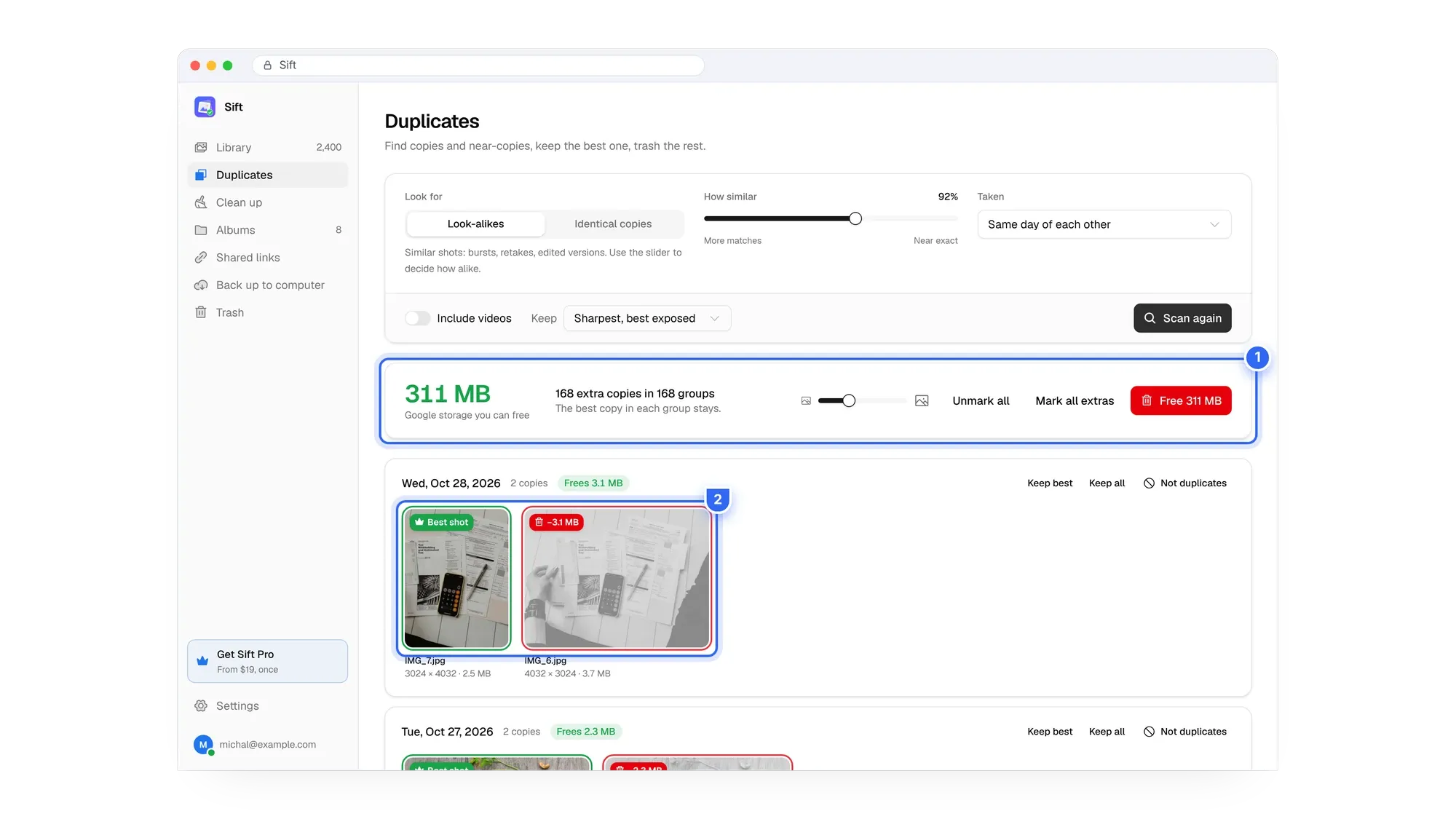
Google Photos has no built-in duplicate finder. It skips uploading an exact identical file twice in many cases, but edited copies, re-saved or re-downloaded copies and burst look-alikes all stay in your library and all count toward storage. If you've switched phones, restored a backup or imported from WhatsApp, you likely have hundreds.
The free way is to scroll your library, spot copies by eye and delete them one by one. It works, but it's slow. Our guide on how to remove duplicates in Google Photos covers both the manual method and faster tools.
Delete large and long videos
One 10-minute 4K video can take more space than a thousand photos. Videos are often the fastest way to free gigabytes. On photos.google.com, search for "Videos" to see them, though Google Photos doesn't sort by file size. For a step-by-step method, see how to find large videos in Google Photos.
Clear screenshots and chat photos
Screenshots, memes, receipts and photos saved from WhatsApp, Messenger or Signal pile up fast. Most were useful for a day. Search "Screenshots" in Google Photos to find many of them. Chat photos are harder to find on the website because they mix in with everything else.
Pick photos fast on the website
On photos.google.com, hover a photo and click its checkmark. Click the checkmark next to a date to select that whole day, or Shift+click to select a range. There's no "select all" for the whole library on the web. Our guide on how to select all photos in Google Photos has more shortcuts.
One warning before you delete: if backup is on, deleting a backed-up item in Google Photos also removes it from every device with backup on. To delete only from the cloud and keep the copy on your phone, turn off backup on the phone first. We explain the safe order in how to delete from Google Photos but not your phone.
The faster way: let Sift sort it
Sift is a Chrome extension that works through the Google Photos website. It compares photos visually to find duplicates and look-alikes, keeps the sharpest, best-exposed copy in each group, and marks the rest. It also finds large videos (over 100 MB, biggest first), long videos (over 5 minutes), screenshots, WhatsApp, Messenger and Signal photos, low-resolution photos, and blurry or too-dark shots.
The key difference: Sift shows how much Google storage each group would free before anything is removed. You see "frees 1.3 GB" first, then decide.
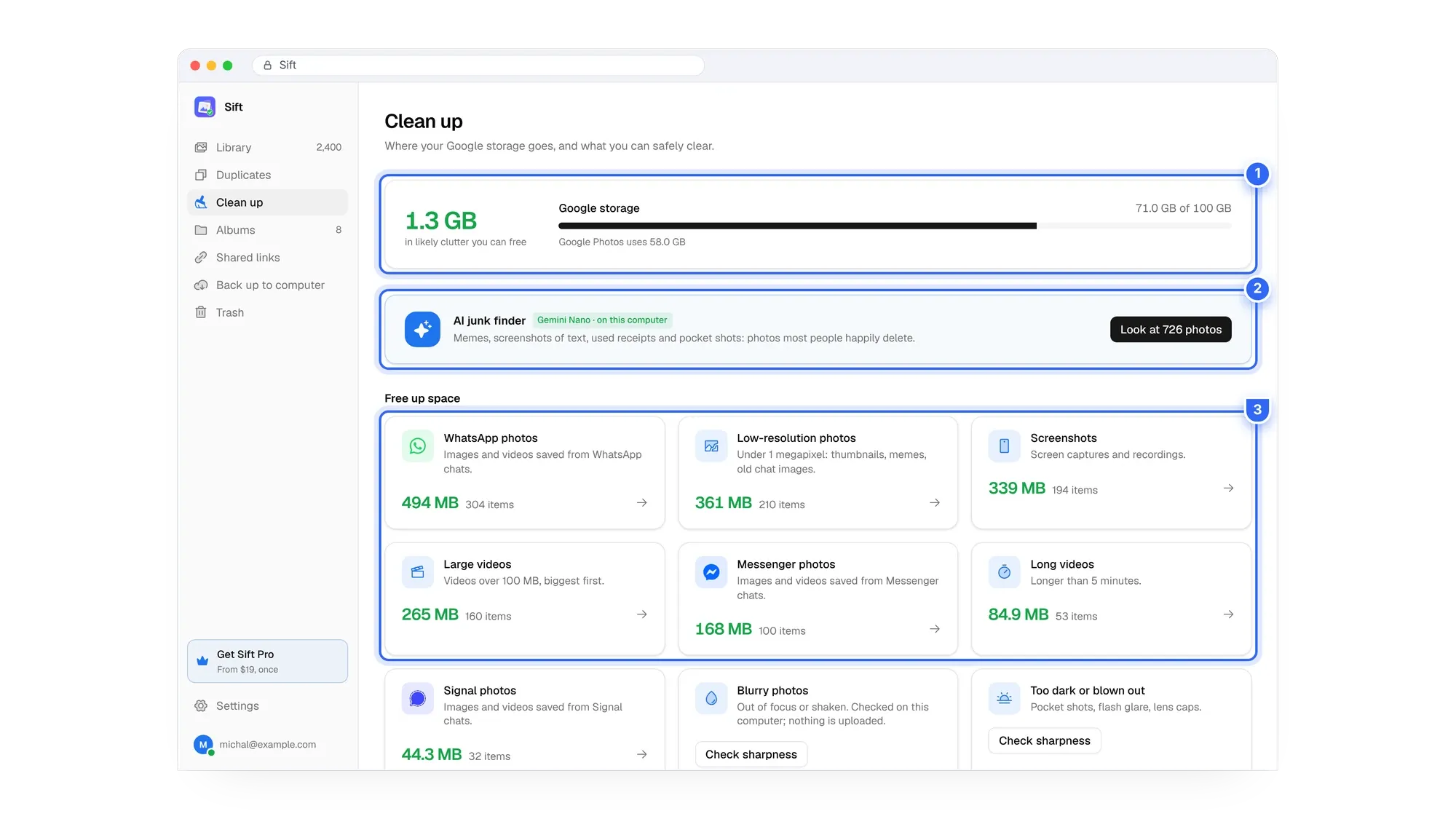

See what's filling your storage in minutes. Sift scans your Google Photos for duplicates, big videos and junk, and the free version frees up to 1 GB with no card.
Empty the trash
Deleted photos and videos go to the Google Photos trash and stay there for 30 days. To get the space back sooner, empty it: on the web or in the app, go to Collections or Library, then Trash, then Empty trash. Sift itself never empties your trash, so you always have 30 days to change your mind. Read more in our guide to the Google Photos trash.
Use Recover storage (optional)
Google Photos can compress your existing Original quality items to Storage saver. Go to photos.google.com, then Settings, then Manage storage, then "Recover storage". It reduces photos over 16 MP to 16 MP and videos over 1080p to 1080p. The change is permanent for the cloud copy, so back up your originals first. Our comparison of Storage saver vs Original quality explains when it's worth it.
Step 3: Clean up Gmail storage
Gmail is rarely the biggest share, but large attachments add up. Our full guide on what to do when Gmail storage is full goes deeper. The quick version:
- In the Gmail search box, type
has:attachment larger:10Mto find emails with big attachments. - Delete the ones you don't need. Save any important files to your computer first.
- Open the Promotions tab and delete old newsletters and offers in bulk.
- Empty Spam and Trash. Gmail empties them on its own after 30 days, but doing it now frees the space today.
Step 4: Clean up Google Drive storage
If Google Drive storage is full, the fix is usually a handful of big files.
- Open Google Drive and click Storage in the left menu. This lists your files from largest to smallest.
- Delete or download old backups, video exports, zip files and duplicates you don't need.
- Check "Shared with me" is not the problem. Files others own don't count against your storage. Only files you own do.
- Empty the Drive trash to free the space right away.
Which cleanup frees the most space?
Here's a rough guide to where the gigabytes usually are, based on typical personal accounts.
| What to clean | Typical space freed | Effort (Google only) | Effort with Sift |
|---|---|---|---|
| Large and long videos | High, often several GB | Medium: no size sort | Low: sorted biggest first |
| Duplicates and look-alikes | Medium to high | High: manual by eye | Low: grouped, best copy kept |
| Screenshots and chat photos | Low to medium | Medium | Low |
| Gmail attachments | Low to medium | Low: one search | Not covered |
| Drive large files | Varies | Low: Storage view | Not covered |
| Recover storage | Varies | Low, but permanent | Back up first with Sift |
Back up before you delete
The safest cleanup keeps a copy of everything that matters on a drive you own. You can download from photos.google.com (select items, then Shift+D or ⋮ then Download; multiple items arrive as a zip), or use Google Takeout, which exports your library as zips with dates in separate .json files and can take hours to days to prepare.
Sift's Back up to computer feature downloads full-quality originals into ordinary folders on your PC or an external drive, organised by month, year or album, and dated with when they were taken. Later runs only download what's new. See how to download all your Google Photos and how to move Google Photos to an external hard drive.
Keep Google storage clean
Once you're back under 15 GB, a few habits keep you there:
- Check once a month. A quick look at one.google.com/storage catches problems early.
- Turn off chat app folders in backup. On Android, Google Photos lets you choose which device folders back up. Leaving WhatsApp images out stops a lot of clutter.
- Delete screenshots the same week. Most are temporary.
- Trim long videos. Keep the best minute instead of the whole ten.
- Run a duplicate scan after switching phones. That's when copies multiply.
If photos still take more space than you want, our guides on organizing Google Photos and stopping Google Photos backup can help.
Clean up or pay for more?
Google's 100 GB plan costs about $20 to $24 a year in the US, and it renews every year. If you're at 16 GB because of 4 GB of duplicates and old videos, paying doesn't fix the cause. It just moves the limit. Clean up first, and you may not need a plan at all. If you already pay and want to stop, read how to cancel Google One without losing your photos.
Sift is free to scan and frees up to 1 GB on the free plan. Personal is $19 one time, with unlimited cleanup and backup. See Sift pricing.
Get back under 15 GB instead of paying every year. Sift finds duplicates, large videos and clutter, then shows exactly how much each would free before you remove anything.
FAQ
What takes up the most Google storage?
For most personal accounts, Google Photos. Check one.google.com/storage to see your own breakdown across Photos, Gmail and Drive.
How do I free up Google storage without deleting photos?
Back up your originals to your computer or an external drive, then delete them from Google Photos. You can also use Recover storage to compress existing photos, though that change can't be undone for the cloud copy.
Why is my Google storage full when I have few files?
Photos and videos count toward your 15 GB since June 2021, and items in the trash still count until they're permanently deleted. Large Gmail attachments and old Drive backups also add up.
Does deleting photos from Google Photos delete them from my phone?
Yes, if backup is on. Deleting a backed-up item removes it from every device with backup on. Turn off backup on the phone first to delete only from the cloud.
How long does it take for Google storage to update after deleting?
Items in the trash still count for up to 30 days. Empty the trash, then give the storage page some time to refresh.
Is Google photo storage free?
Only within the free 15 GB shared with Gmail and Drive. Both Original quality and Storage saver count toward it.
Start with the biggest number on your storage page, and you'll usually free more than you need in one sitting.
Sift is independent and not affiliated with Google. Google Photos details checked in October 2026 and may change.
Written by
Keep reading

How to Find and Delete Large Videos in Google Photos
Videos are usually the biggest thing in your Google storage. Here's how to find large videos in Google Photos, back up the keepers, and delete the rest safely.
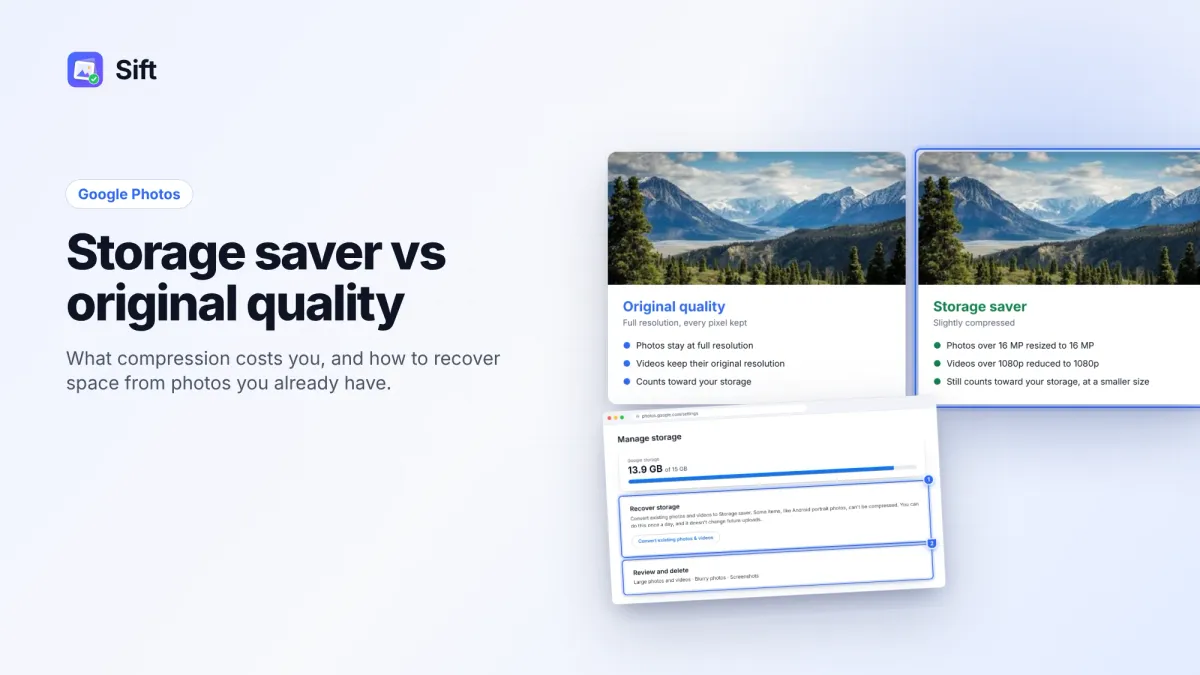
Storage Saver vs Original Quality in Google Photos: Which to Choose (and How to Recover Space)
Storage saver resizes photos to 16 MP and videos to 1080p; Original quality keeps everything. Here's who notices, how to switch, and how Recover storage works.
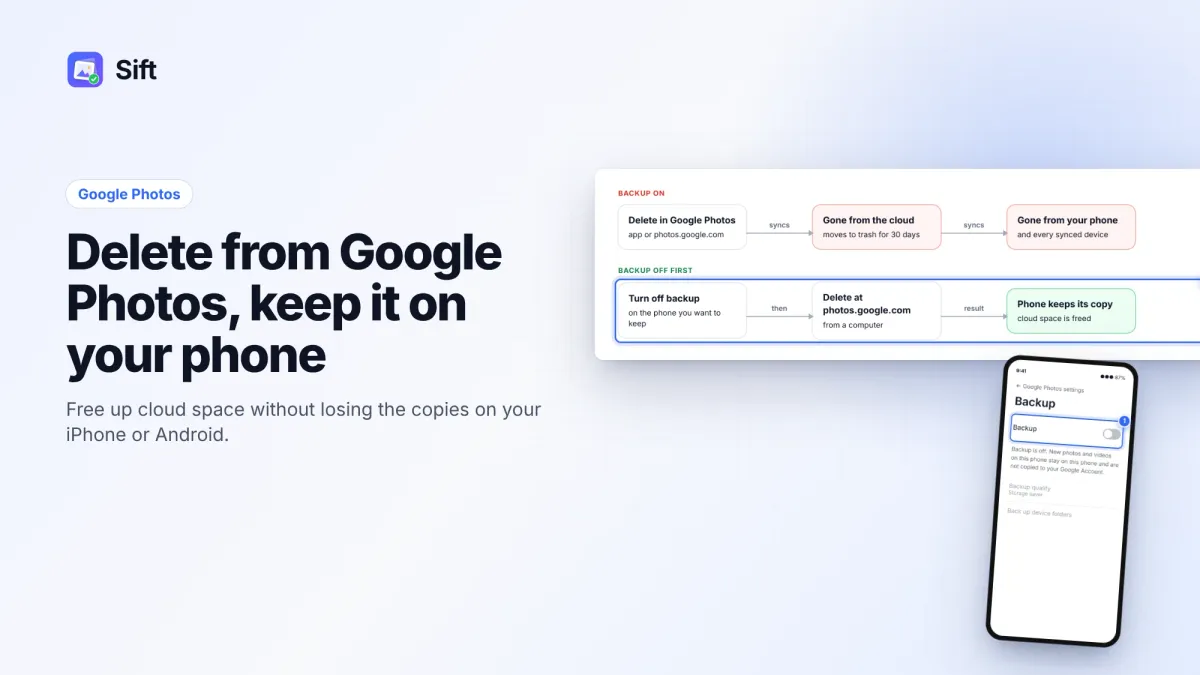
How to Delete Photos from Google Photos Without Deleting Them from Your Phone
Deleting in Google Photos also deletes from your phone when backup is on. Here's the safe order on Android and iPhone, and why "Free up space" does the opposite.
Questions or thoughts? Share them below.