
How to Stop Google Photos Backup on iPhone and Android (Without Losing Anything)
How to stop Google Photos backup on Android and iPhone, what happens to photos already backed up, and how to fix full storage so backup can keep running.

Michal Wlosik
· 6 min read
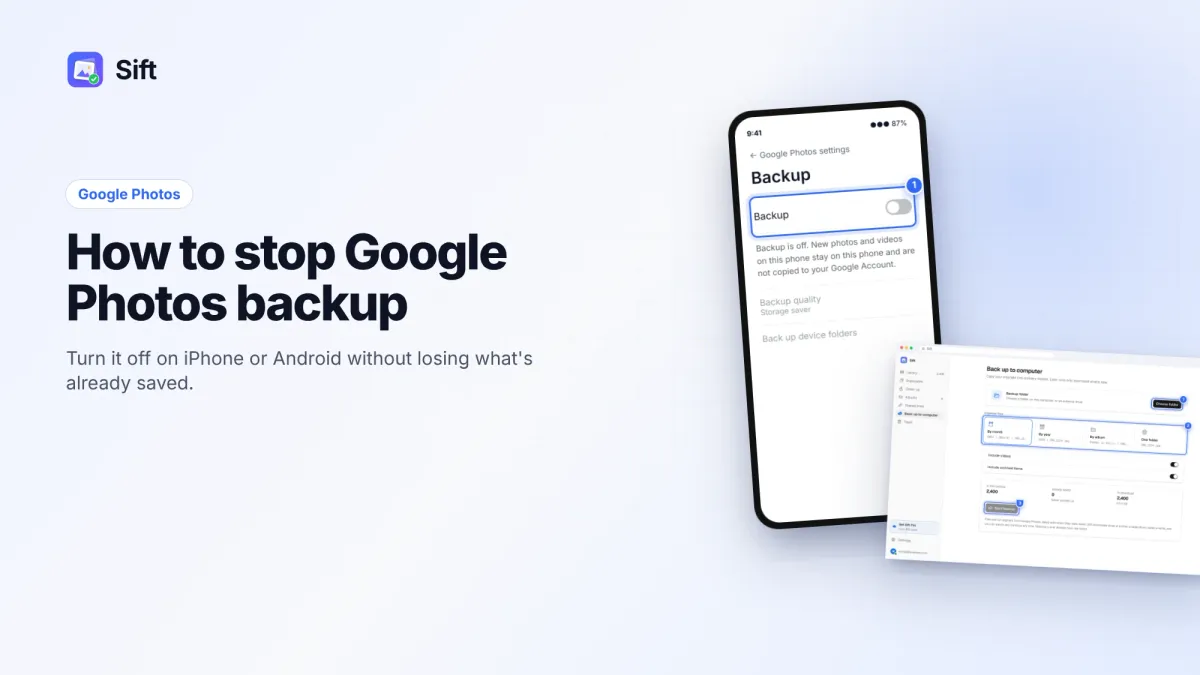
Short answer: To stop Google Photos backup, open the Google Photos app, tap your profile picture at the top right, tap Photos settings (on iPhone, the Google Photos settings icon), then Backup, and switch Backup off. Photos already backed up stay in your Google account. Only new photos stop uploading.
Here are the steps for Android and iPhone, what happens to your existing photos, and a better fix if the real problem is full storage.
How to stop Google Photos backup on Android
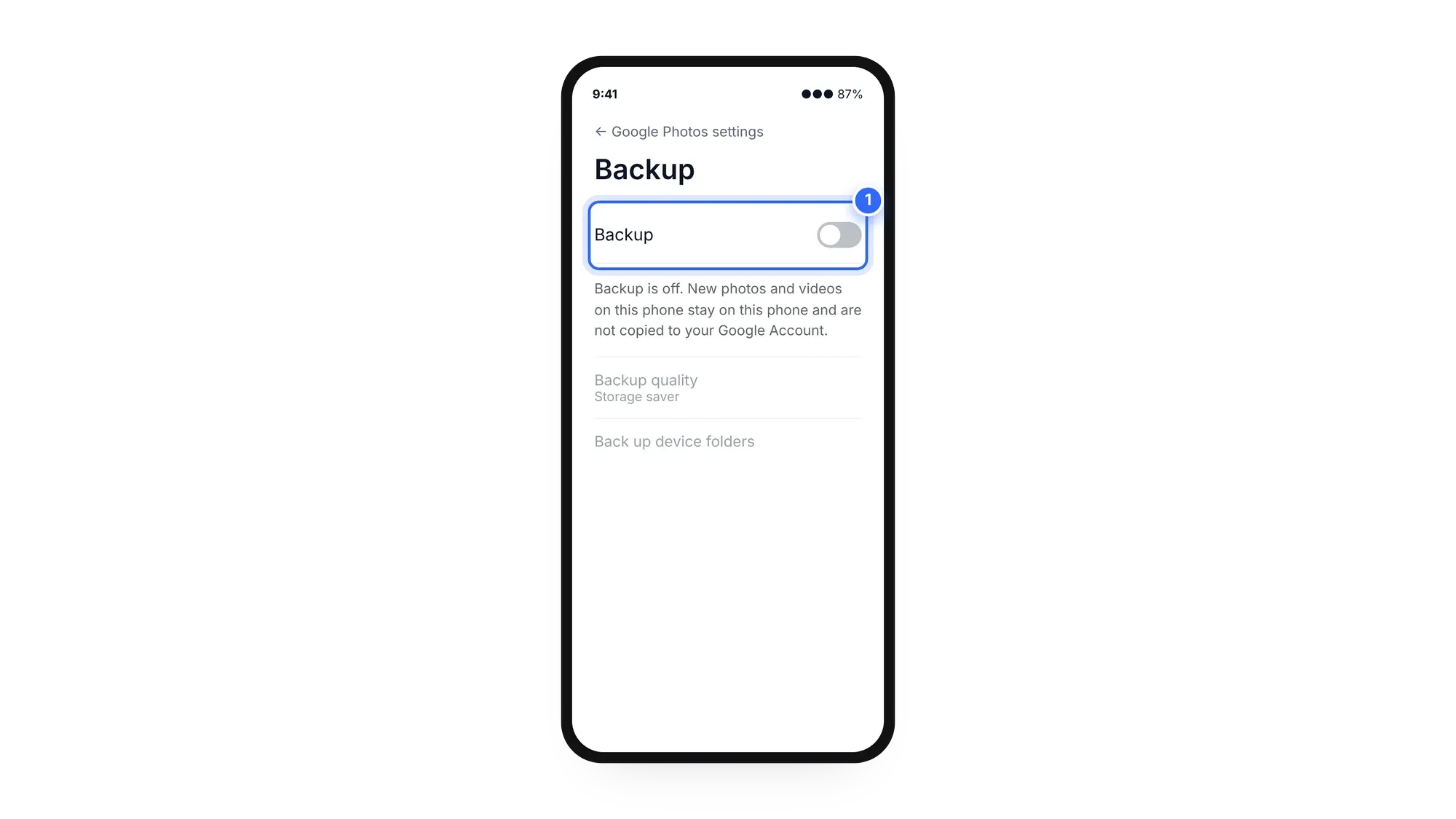
- Open the Google Photos app.
- Tap your profile picture or initial at the top right.
- Tap Photos settings.
- Tap Backup.
- Turn Backup off.
That's it. The app now shows that backup is off, and new photos and videos stay only on the phone. Google lists the same steps on its Back up photos and videos help page.
On some Android phones, Google Photos is also the default gallery. Turning backup off doesn't remove the app or your photos; it only stops the upload.
Stop only part of the backup on Android
You may not need to switch everything off. In the same Backup screen, Android lets you choose which device folders back up. If the problem is WhatsApp images, screenshots or downloaded memes filling your account, turn those folders off and keep backup on for your camera. That way your own photos stay protected while the junk stays on the phone.
The Backup screen also has options for mobile data. If the worry is your data plan rather than storage, you can limit backup to Wi-Fi instead of turning it off.
How to turn off backup on Google Photos on iPhone
- Open the Google Photos app.
- Tap your profile picture or initial at the top right.
- Tap the Google Photos settings icon.
- Tap Backup.
- Switch Backup off.
If you want to be extra sure nothing uploads, you can also go to iPhone Settings › Privacy & Security › Photos and limit or remove Google Photos' access. That stops the app from seeing your camera roll at all. Your photos in Apple's Photos app and iCloud are not affected by either setting.
How to unsync Google Photos: what "unsync" really means
People search for how to unsync Google Photos, but Google Photos backup is one-way. Your phone uploads to Google. Turning backup off breaks that link for new photos. It does not:
- delete anything from your Google account,
- delete anything from your phone,
- free up any Google storage.
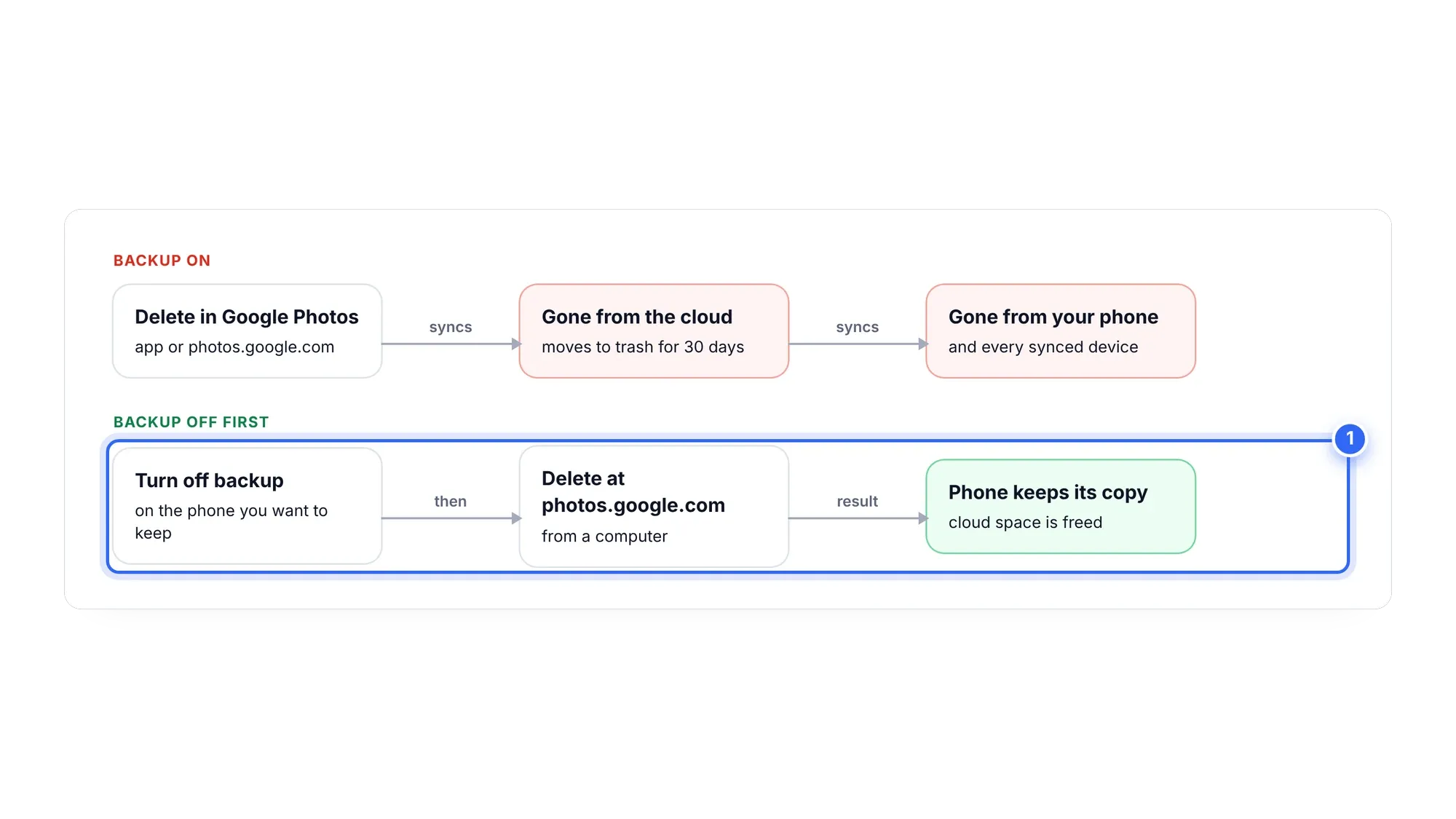
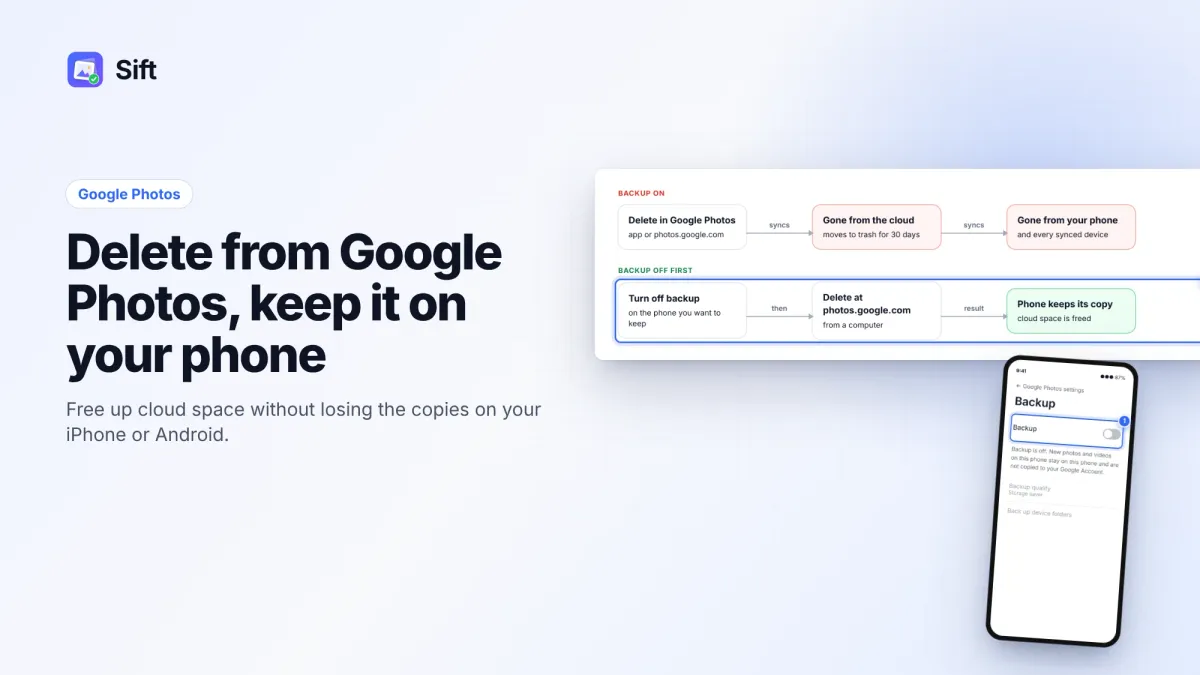
What it does change is how deletion works. While backup is on, deleting a backed-up item in Google Photos also removes it from every device with backup on. With backup off on a phone, you can delete photos from Google Photos on the web and keep the copies on that phone (Google's help page). That is the safe order if you want to clear the cloud but keep your camera roll. Our guide on how to delete from Google Photos but not your phone walks through it.

Stopping backup because storage is full? Sift finds the duplicates, big videos and screenshots taking your space. Free scans, frees up to 1 GB, no card.
Why people stop Google Photos backup
Most of the time it's storage. Free Google Account storage is 15 GB, shared across Gmail, Google Drive and Google Photos. Since June 1, 2021, new photos and videos count toward it in every quality. When it's full:
- Photos stops backing up anyway,
- Gmail can't send or receive, and senders get bounces,
- Drive can't upload, sync or create files.
Other reasons: using a different backup (iCloud, a computer), saving mobile data, privacy, or a shared phone whose photos shouldn't go to your account.
If storage is the reason, turning off backup treats the symptom. Your Gmail is still stuck, and your new photos now have no backup at all. If the phone is lost or broken, those photos are gone.
How to stop syncing photos to Google Photos without losing anything
Before you switch backup off, make sure nothing is caught in between:
- Check that backup is finished. In the app, tap your profile picture. If it says items are still waiting, let them finish on Wi-Fi first, or those photos will exist only on the phone.
- Keep a copy you control. Download your library to a computer or external drive. See how to download all your photos from Google Photos and how to transfer Google Photos to an external hard drive.
- Turn backup off using the steps above.
- Set up another backup if you want one, so new photos aren't left with a single copy.
The storage-friendly alternative: clean up so backup can keep running
For most people the better fix is to make room, so backup keeps protecting new photos and Gmail works again. A typical library has gigabytes of clutter: duplicates, edited copies, screenshots, WhatsApp forwards and a few huge videos.
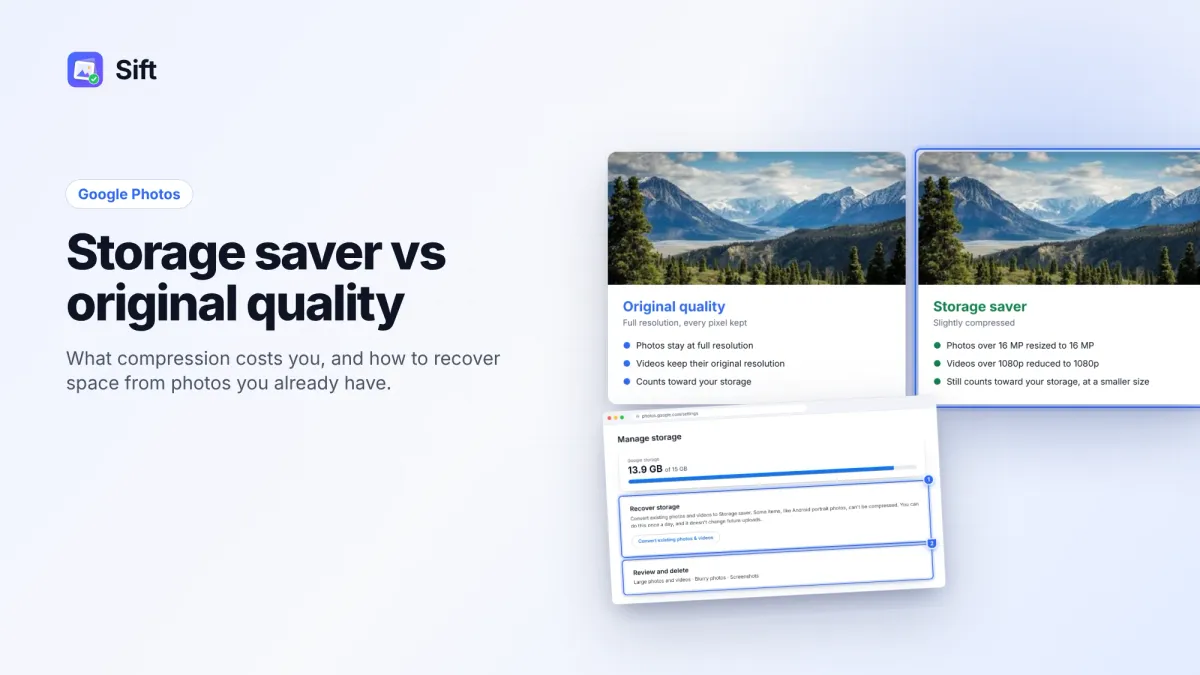
- Recover storage: on photos.google.com › Settings › Manage storage, "Recover storage" converts existing Original quality items to Storage saver. It can be used once a day and doesn't change future uploads (Google One help).
- Switch future uploads to Storage saver in the app's Backup settings. Photos over 16 MP are resized to 16 MP and videos over 1080p are reduced to 1080p. See Storage saver vs Original quality.
- Delete clutter and empty the trash. Deleted items stay in the trash for 30 days, then they're gone.
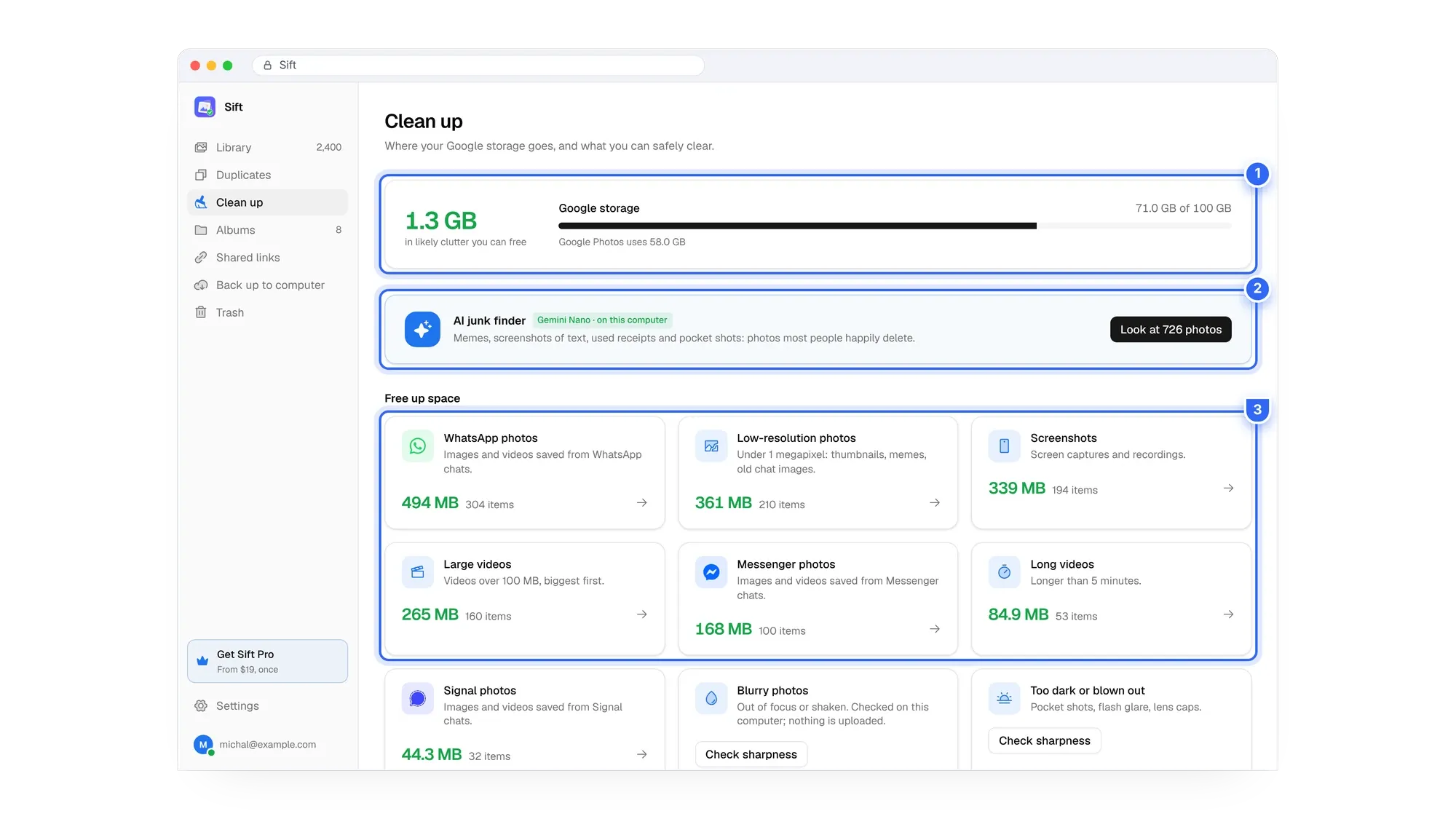
Sift is a Chrome extension that works through the Google Photos website to find that clutter fast. It compares photos visually to find duplicates and look-alikes and keeps the sharpest copy, finds videos over 100 MB, screenshots and chat photos, and shows how much storage each group frees before anything is removed. It only moves items to Google Photos' trash and never empties it, so you can restore anything for 30 days.
The free plan covers all scans and frees up to 1 GB. Personal is $19 one time for unlimited cleanup and backup (pricing), compared with about $20 to $24 a year for Google's 100 GB plan in the US. For the full walkthrough across Gmail, Drive and Photos, read how to clean up Google storage.
Keep backup on, lose the clutter. Clear duplicates and big videos with Sift so your phone keeps backing up without a bigger plan.
FAQ
If I turn off backup, will my photos be deleted from Google Photos?
No. Everything already backed up stays in your Google account. Only new photos stop uploading.
How do I stop Google from backing up photos on just one phone?
Turn off Backup in the Google Photos app on that phone. Backup is set per device, so other phones and tablets keep backing up.
Does turning off backup free up storage?
No. Your storage use stays the same. To free space you need to delete items, empty the trash, or use Recover storage.
Can I delete photos from Google Photos but keep them on my phone?
Yes. Turn off backup on the phone first, then delete the items from Google Photos on the web.
How do I turn backup back on?
Follow the same steps and switch Backup on. Google Photos uploads anything on the phone that isn't backed up yet.
Turn backup off if you need to, but if storage is the reason, clearing clutter usually solves the real problem.
Sift is independent and not affiliated with Google. Google Photos details checked in October 2026 and may change.
Written by
Keep reading

How to Find and Delete Large Videos in Google Photos
Videos are usually the biggest thing in your Google storage. Here's how to find large videos in Google Photos, back up the keepers, and delete the rest safely.
Storage Saver vs Original Quality in Google Photos: Which to Choose (and How to Recover Space)
Storage saver resizes photos to 16 MP and videos to 1080p; Original quality keeps everything. Here's who notices, how to switch, and how Recover storage works.
How to Delete Photos from Google Photos Without Deleting Them from Your Phone
Deleting in Google Photos also deletes from your phone when backup is on. Here's the safe order on Android and iPhone, and why "Free up space" does the opposite.
Questions or thoughts? Share them below.