
How to Transfer Google Photos to an External Hard Drive
Two ways to transfer Google Photos to an external hard drive: Google Takeout, or a Sift backup that writes dated folders and only copies new items next time.

Michal Wlosik
· 6 min read
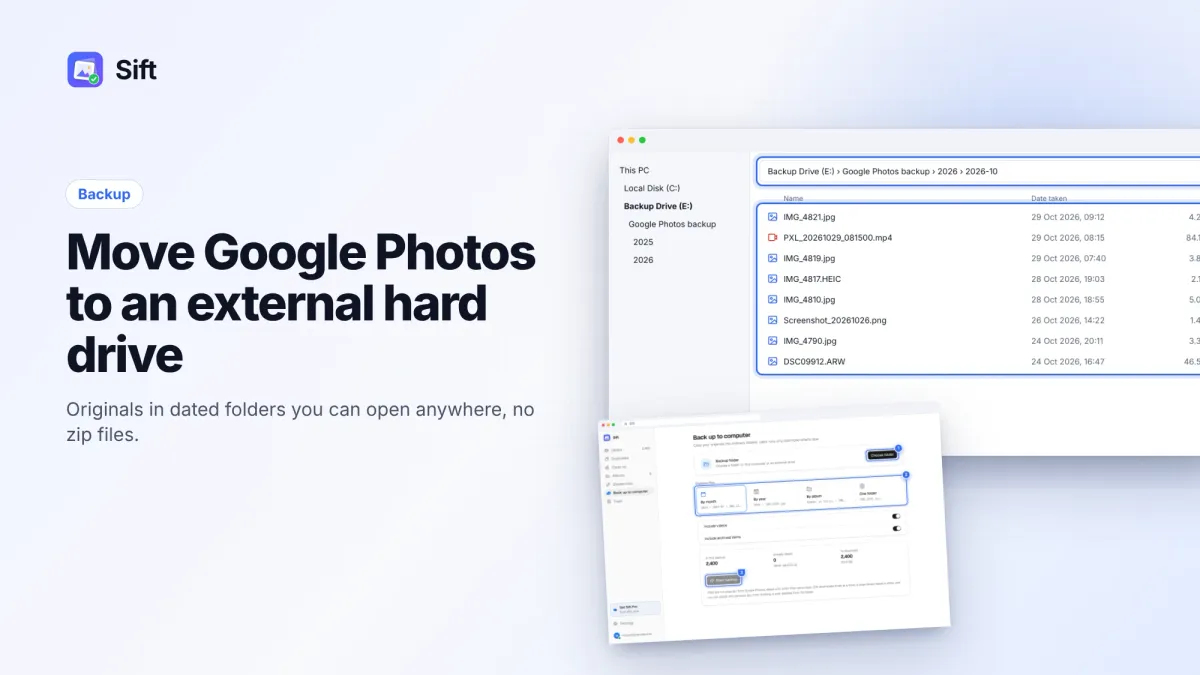
Short answer: To transfer Google Photos to an external hard drive, export your library with Google Takeout, download the zips and extract them onto the drive, then fix the dates stored in the .json files. Or use a backup tool like Sift: choose a folder on the external drive, pick folders by month, year or album, and start. Later runs only copy what's new.
Below are both methods step by step, plus what to do once your photos are safe on the drive.
Before you start
- Check the size of your library. Open one.google.com/storage and look at the Google Photos number. Your drive needs at least that much free space, plus room to grow. With Takeout you also need space for the zips before you extract them.
- Use a drive formatted for big files. Many external drives come formatted as FAT32, which can't hold single files over 4 GB. Long 4K videos can be bigger than that. exFAT or NTFS (on Windows) avoids the problem.
- Plug the drive straight into the computer, not through a loose hub, and keep the laptop on power. A big transfer can run for hours.
How to transfer Google Photos to an external hard drive with Google Takeout
Takeout is Google's free export tool. It is the standard way to do a Google Photos backup to a hard drive, and it works for any library size, but it takes a few separate steps.
- Go to takeout.google.com, click Deselect all, then tick only Google Photos.
- Click Next step. Choose a one-time export, .zip, and a file size of 1, 2, 4, 10 or 50 GB per part.
- Click Create export. Preparing can take hours to days. Google emails you when it is ready.
- Download every zip part. If your browser lets you choose a download folder, point it at the external drive so the zips don't fill your laptop.
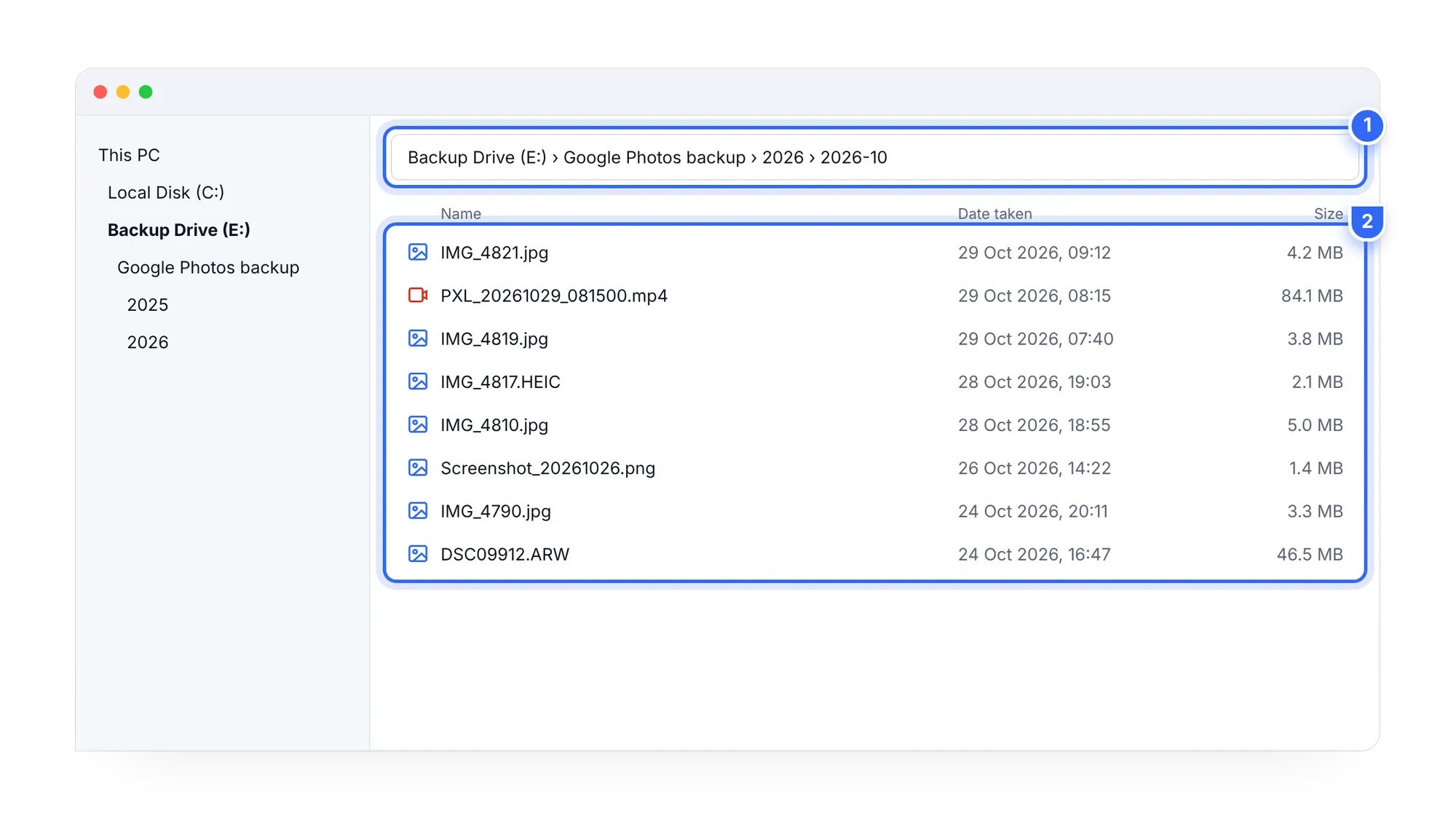
- Extract each zip into one folder on the drive, for example
E:\Google Photos backup. On Windows, right-click › Extract All. On a Mac, double-click the zip. - Deal with the dates. Takeout puts each photo's date, description and location in a separate .json sidecar file. Many photos, especially WhatsApp images and items you edited in Google Photos, show the download date on disk instead of the date taken. Run a tool that reads the .json files and writes the dates back, or your drive will sort wrongly.
- Spot-check: open a few folders, play a video, and compare the photo count with what Google Photos shows.
Downsides of Takeout for a drive backup:
- You need free space for the zips and the extracted files at the same time, or you must extract and delete as you go.
- Photos in albums can appear twice, in the year folder and in the album folder.
- There is no "only new photos" option. Next time, you export everything again or pick date ranges by hand.
Point it at your drive and press Start. Sift saves originals straight to your external drive in dated month folders. The first 500 photos are free, no card needed.
How to transfer Google Photos to an external drive with Sift
Sift is a Chrome extension (and Windows app) that works through the Google Photos website. Its Back up to computer feature writes files directly to any folder, including one on an external drive.
- Plug in the external drive.
- Install Sift and sign in on Google's own sign-in page. Sift never sees your password.
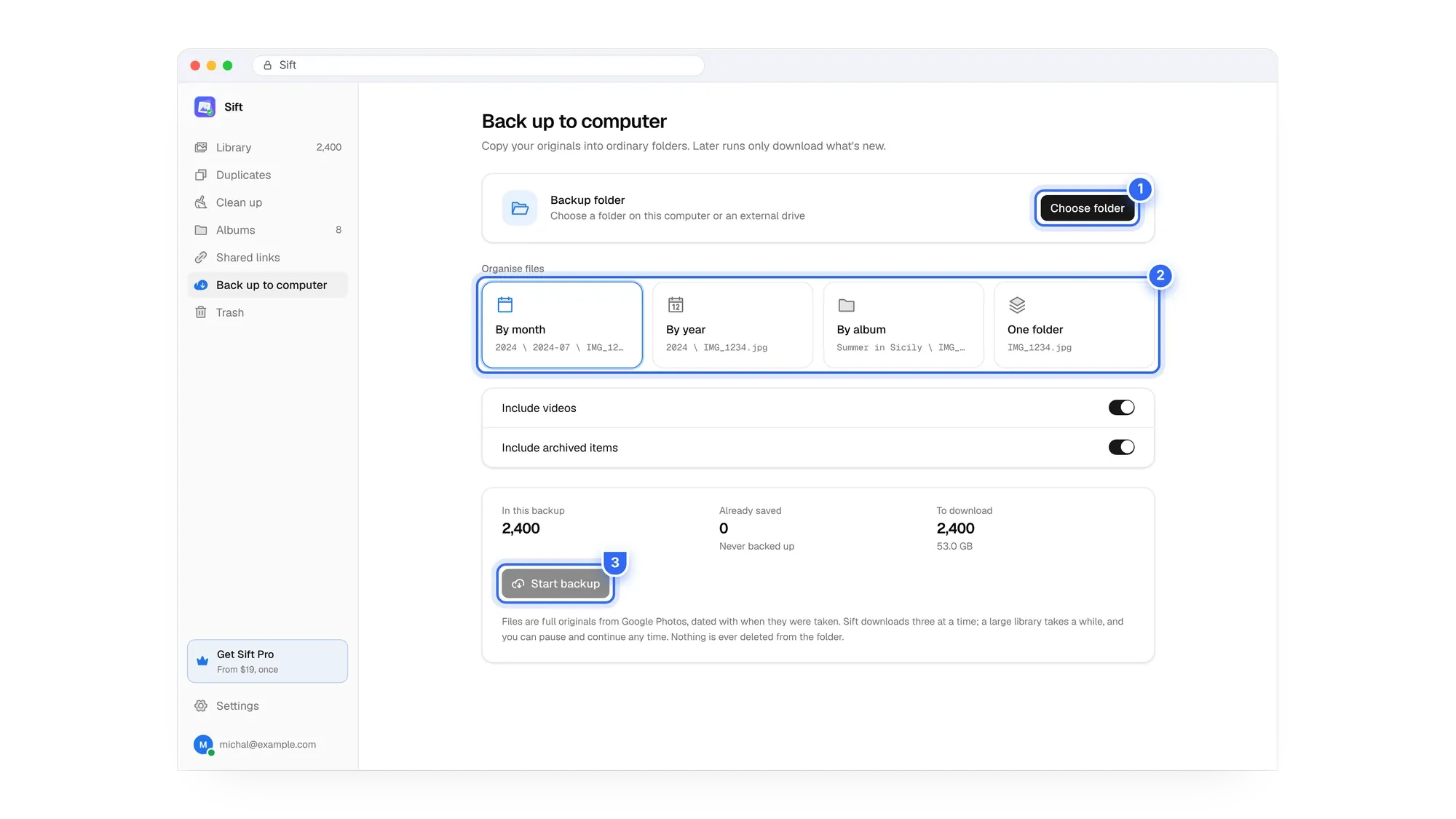
- Open Back up to computer and click Choose folder. Pick or create a folder on the external drive.
- Choose how to organize it: by month, by year, by album, or all in one folder.
- Click Start backup. Sift downloads full-quality originals and dates each file with when it was taken.
- Next month, plug the drive in and run it again. Later runs only download what's new.
A few things worth knowing:
- No zips, no sidecars. Files land as ordinary photos and videos that any app can open.
- Nothing is ever deleted from the folder. If you delete something in Google Photos later, the drive copy stays.
- Private. Photos travel only between Google and your computer, never to Sift's servers.
- Cost. Free backs up the first 500 photos. Personal is $19 one time for unlimited backup and cleanup (pricing).
Takeout vs Sift for an external drive
| Google Takeout | Sift backup | |
|---|---|---|
| Wait before download | Hours to days | None |
| Extra disk space | Room for zips and extracted files | Only the photos |
| Folders | By year and album | By month, year, album or one folder |
| Dates on files | Need fixing from .json files | Date taken |
| Next backup | Full export again | Only new items |
| Price | Free | Free for 500 photos, $19 one time |
How to move photos from Google Photos to a computer, then free up space
Copying is not the same as moving. After either method, your photos are in two places: Google Photos and your drive. That is what makes the next step safe. If your Google storage is full, you can now clear space in the cloud without risk:
- Remove clutter first: duplicates, screenshots, chat photos and large videos. See how to remove duplicates in Google Photos.
- If you want a clean slate, read how to delete all photos from Google Photos.
- For the bigger picture across Gmail, Drive and Photos, start with how to clean up Google storage.
Two rules before you delete anything. First, deleting a backed-up item in Google Photos also removes it from every phone with backup on. If you want to keep the copies on your phone, turn off backup on the phone first. Second, deleted items stay in the trash for 30 days and then are permanently deleted (Google's help page).
Getting under the free 15 GB means no yearly Google One bill, Gmail that sends and receives again, and phone backups that keep running. If you plan to stop paying, read how to cancel Google One without losing photos.
Keep it safe: the 3-2-1 idea
One external drive is a good start, but drives fail and get dropped. The common 3-2-1 rule says keep three copies of what matters, on two different kinds of storage, with one copy somewhere else. For photos that could be: Google Photos, your external drive, and a second drive kept at a relative's house or in the office. Refresh the drive copy every month or two so it stays current.
Back up, then make room. Sift copies your library to the drive and shows how much Google storage each clean-up frees before anything is removed.
FAQ
Can Google Photos back up to a hard drive automatically?
Not by itself. Google Photos has no built-in sync to an external drive. You can repeat Takeout exports, or use a tool like Sift that only downloads new items each time you run it.
How do I move photos from Google Photos to my computer instead of a drive?
Use the same steps and choose a folder on your computer's internal disk. Make sure it has enough free space for the whole library.
Will transferring photos delete them from Google Photos?
No. Both methods only copy. Nothing changes in your Google account until you delete something yourself.
Do I get full quality on the drive?
You get what is stored in Google Photos. If you backed up in Original quality, you get the originals. If you used Storage saver, you get the resized copies.
Which drive format should I use?
exFAT works on both Windows and Mac and handles files over 4 GB. NTFS is fine if you only use Windows.
Copy everything to the drive first, check it, and only then start freeing space in Google Photos.
Sift is independent and not affiliated with Google. Google Photos details checked in October 2026 and may change.
Written by
Keep reading
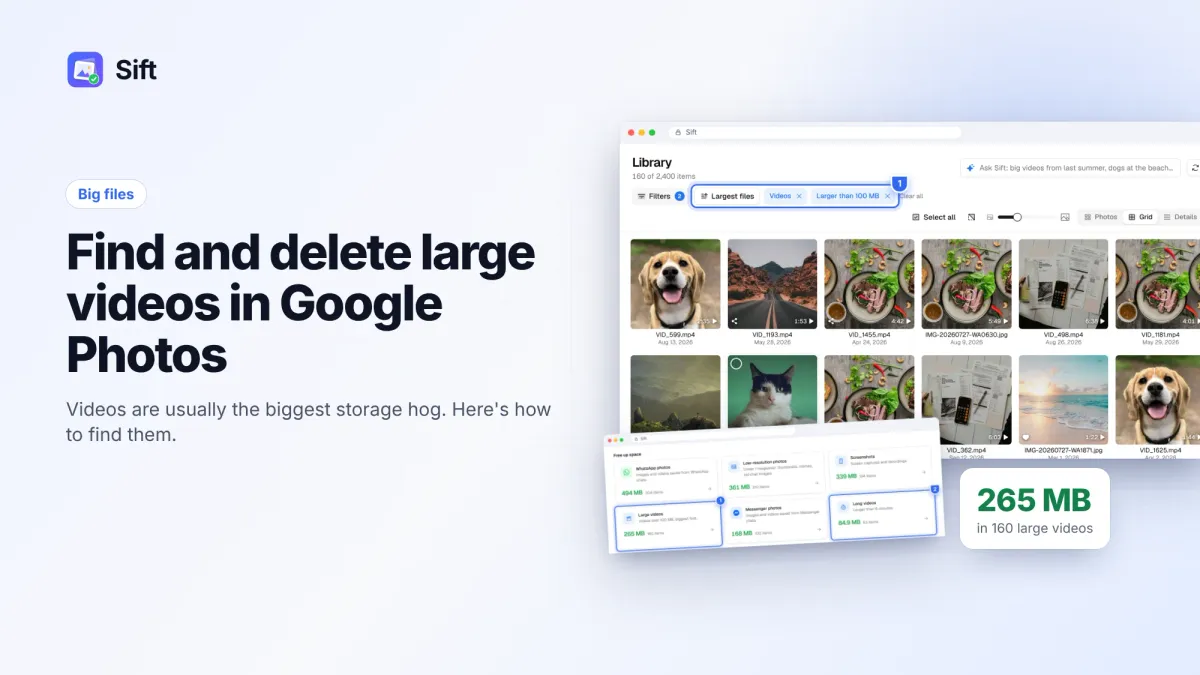
How to Find and Delete Large Videos in Google Photos
Videos are usually the biggest thing in your Google storage. Here's how to find large videos in Google Photos, back up the keepers, and delete the rest safely.
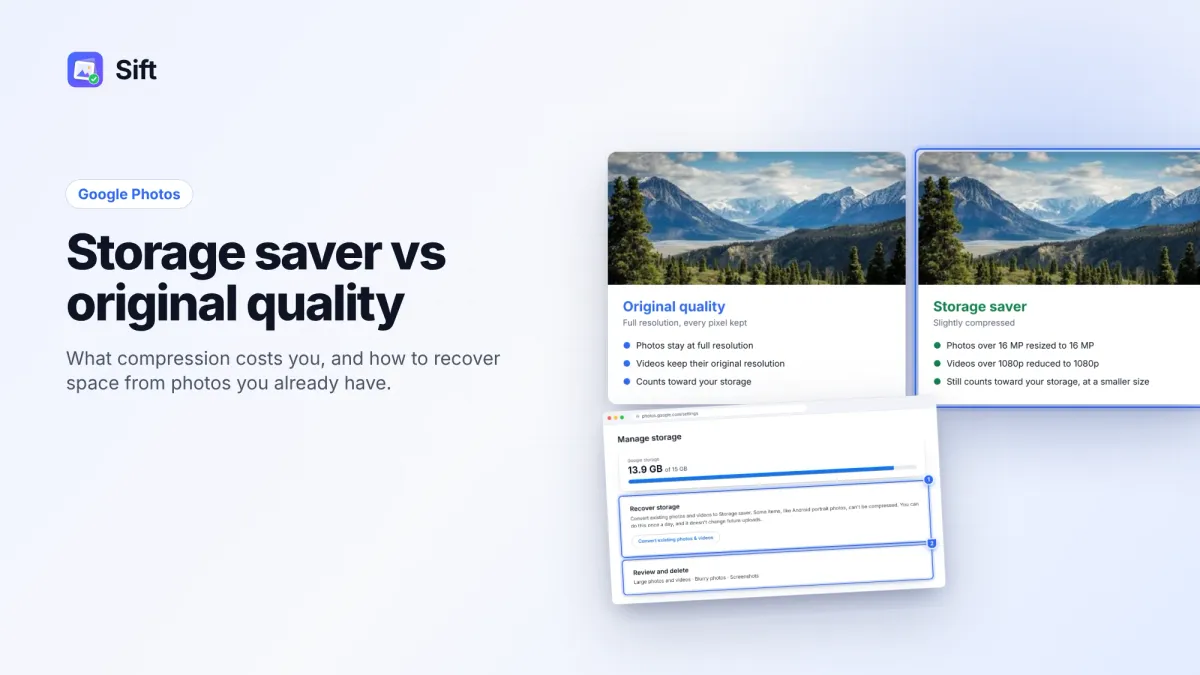
Storage Saver vs Original Quality in Google Photos: Which to Choose (and How to Recover Space)
Storage saver resizes photos to 16 MP and videos to 1080p; Original quality keeps everything. Here's who notices, how to switch, and how Recover storage works.
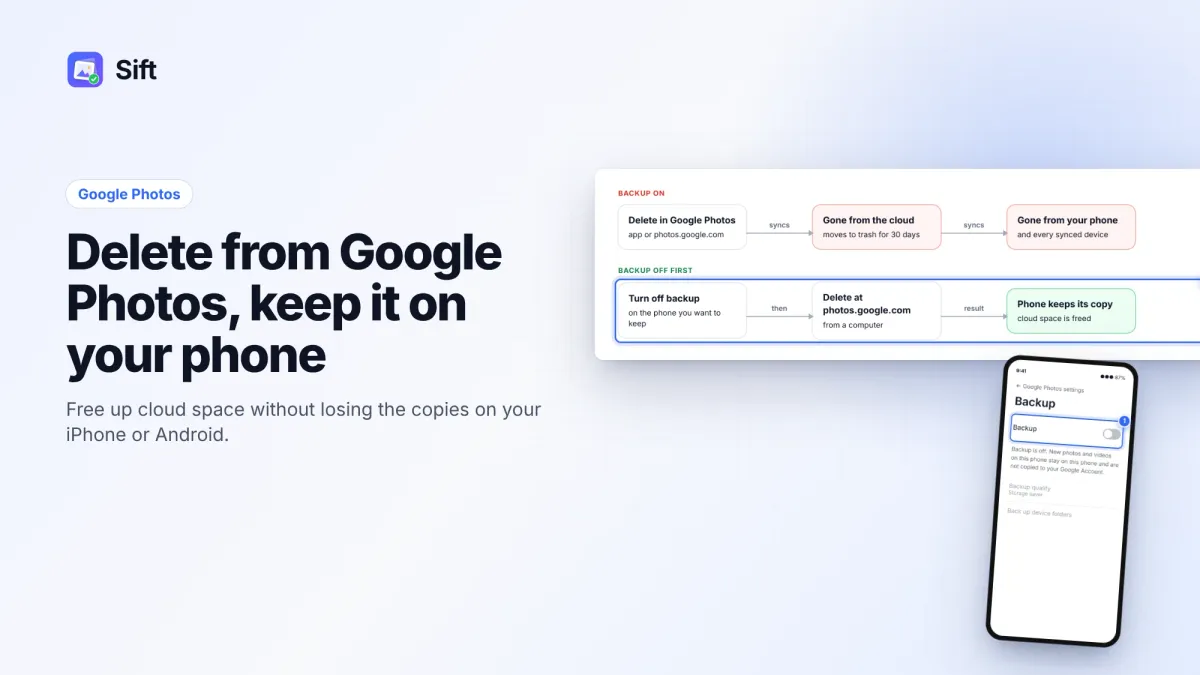
How to Delete Photos from Google Photos Without Deleting Them from Your Phone
Deleting in Google Photos also deletes from your phone when backup is on. Here's the safe order on Android and iPhone, and why "Free up space" does the opposite.
Questions or thoughts? Share them below.