
How to Cancel Google One Without Losing Your Photos
Cancelling Google One doesn't delete your photos, but going over 15 GB stops backups and email. Here's the safe order: get under 15 GB, then cancel.

Michal Wlosik
· 6 min read
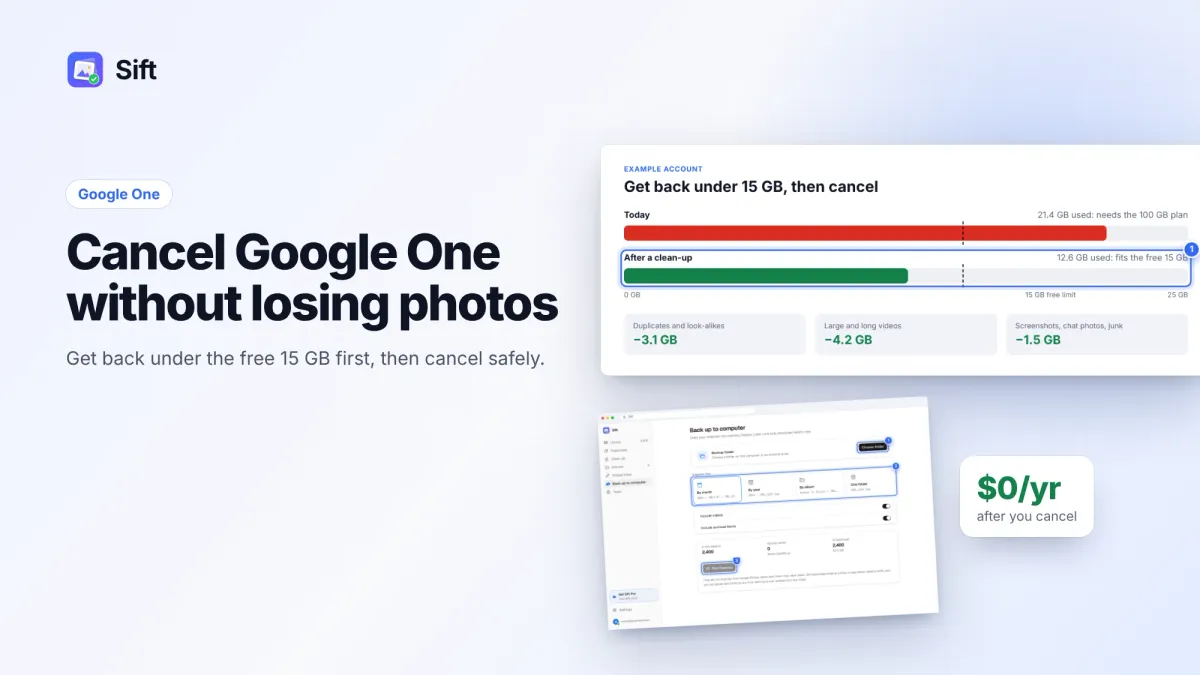
Short answer: To cancel a Google One subscription without losing photos, first get your account under the free 15 GB, or back up your originals to your own drive. Then cancel: on a computer, go to one.google.com, click Settings, then Cancel membership. On Android, use the Google One app. If you pay through Apple, cancel in the App Store. Nothing is deleted the day you cancel.
Here's what really happens to your files when you cancel Google One, and the safe order to do it in.
What happens to your photos when you cancel Google One
Cancelling doesn't delete anything right away. Your extra storage stays until the end of the current billing cycle. After that, your account drops back to the free 15 GB shared across Gmail, Google Drive and Google Photos.
If you're using more than 15 GB at that point, your files stay, but things stop working:
- Gmail can't send or receive messages. People who email you get a bounce.
- Google Drive can't sync or upload new files, and you can't create new Docs, Sheets or Slides.
- Google Photos stops backing up your phone.
And if you stay over the limit for 2 years or more, Google's policy says your content may be deleted. That's the real risk: not losing photos on cancel day, but drifting over the limit and forgetting about it.
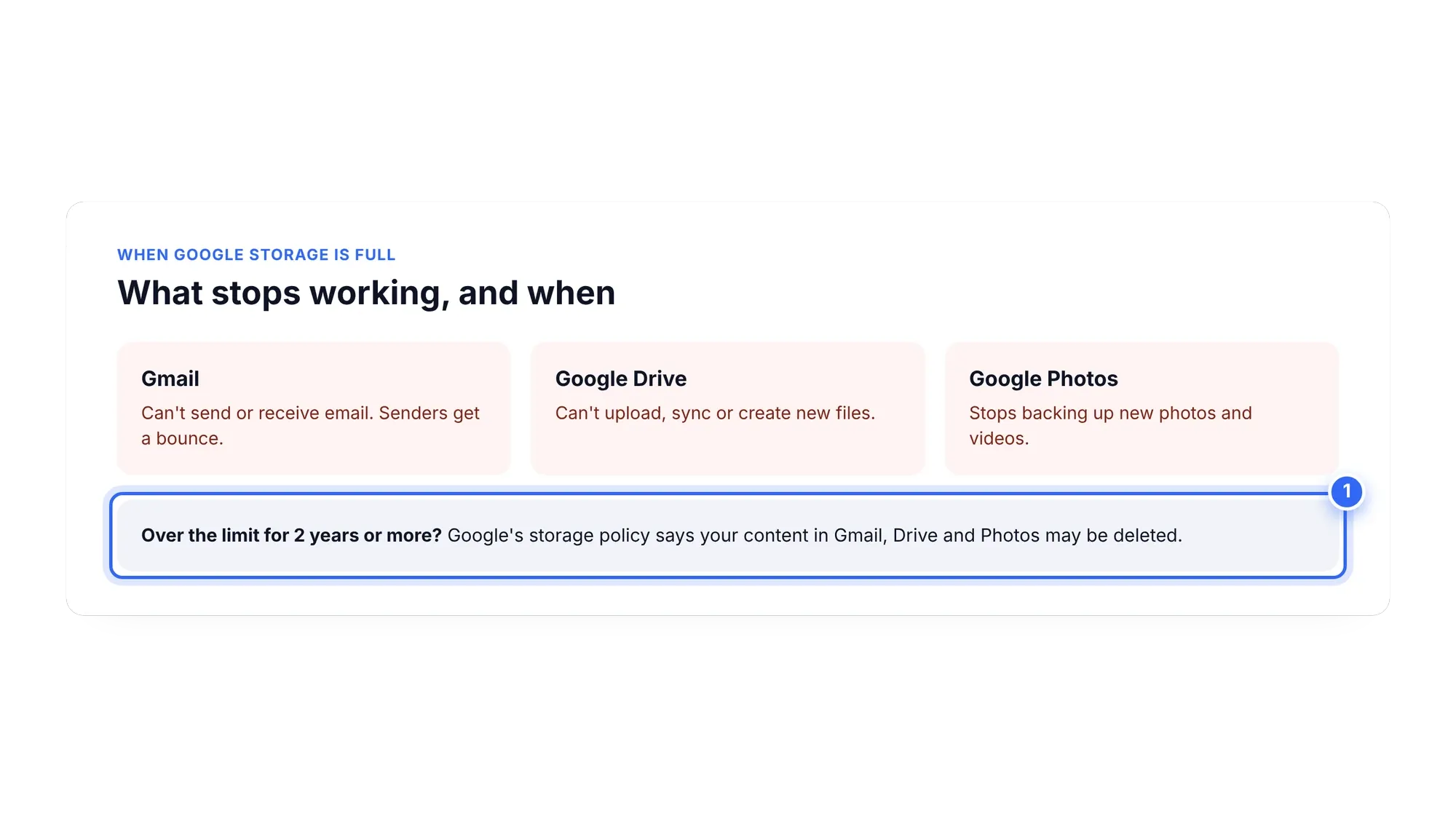
So the safe plan has two parts: get under 15 GB (or keep a full copy of your photos somewhere you control), then cancel.
Step 1: Check how far over 15 GB you are
- Go to one.google.com/storage.
- Look at your total and the breakdown across Google Photos, Gmail and Drive.
- Subtract 15 GB. That's how much you need to free or move before your plan ends.
For most people the gap is a few gigabytes, and most of it sits in Google Photos: duplicates, long videos, screenshots and chat photos.
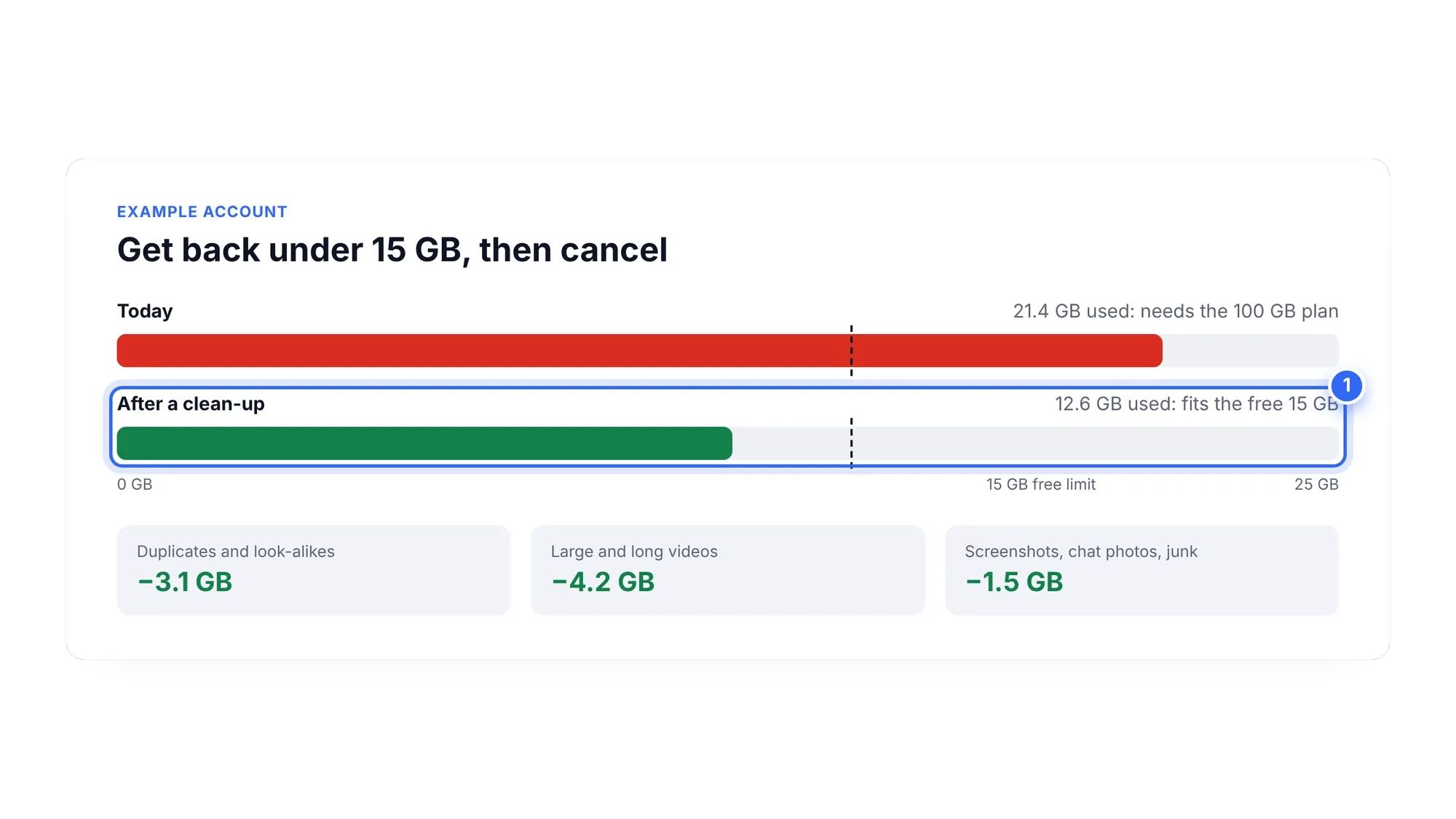
Step 2: Get under 15 GB before you cancel
You have two ways to do this, and you can combine them.
Option A: Clean up what you don't need
The free, Google-only method:
- Delete large videos. On photos.google.com, search "Videos". Long 4K clips are often the biggest files you have.
- Remove duplicates. Google Photos has no built-in duplicate finder, so edited copies, re-downloaded copies and burst look-alikes pile up. See how to remove duplicates in Google Photos.
- Clear screenshots and chat photos. Search "Screenshots" and delete in batches.
- Clean Gmail. Search
has:attachment larger:10Mand delete big attachments you don't need. Our Gmail storage full guide has more. - Empty the trash. Deleted items stay in trash for 30 days and still count until then. Read our Google Photos trash guide for the steps.
Sift does the Photos part faster. It finds duplicates, large videos (over 100 MB, biggest first), long videos, screenshots and chat photos, and shows how much each group would free before anything is removed.
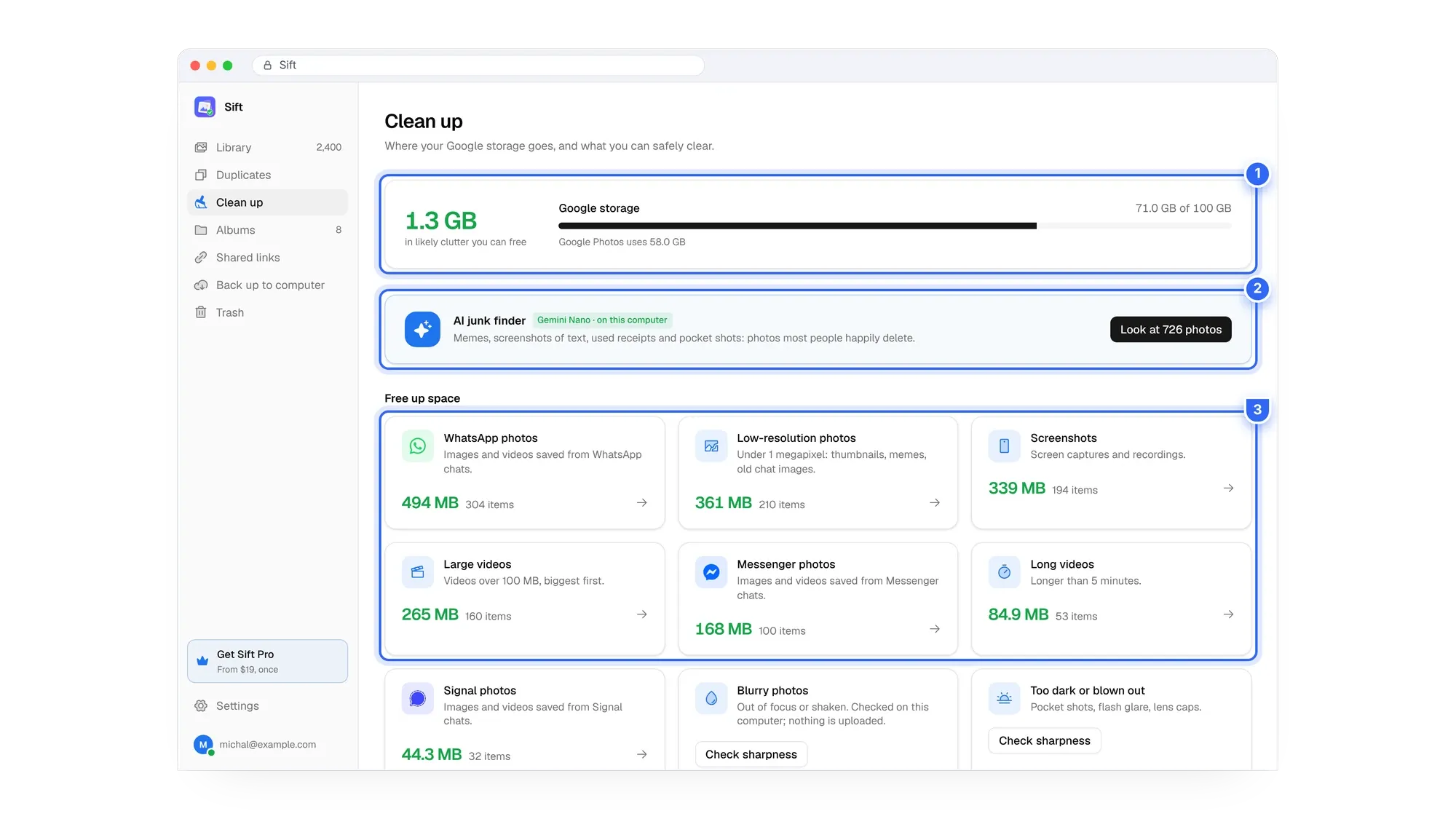
Get under 15 GB before your plan ends. Sift finds the duplicates and big videos that keep you over the limit, and the free version frees up to 1 GB with no card.
Option B: Back up originals, then remove them from the cloud
If you want to keep every photo, move older ones to a drive you own. You have a few options:
- Download from photos.google.com. Select items, then press Shift+D or click ⋮ then Download. Multiple items arrive as a zip.
- Google Takeout. Exports Google Photos as zips (1, 2, 4, 10 or 50 GB parts). Dates go in separate .json files, and preparing can take hours to days.
- Sift's Back up to computer. Downloads full-quality originals into ordinary folders on your PC or an external drive, organised by month, year or album, dated with when they were taken. Later runs only download what's new.
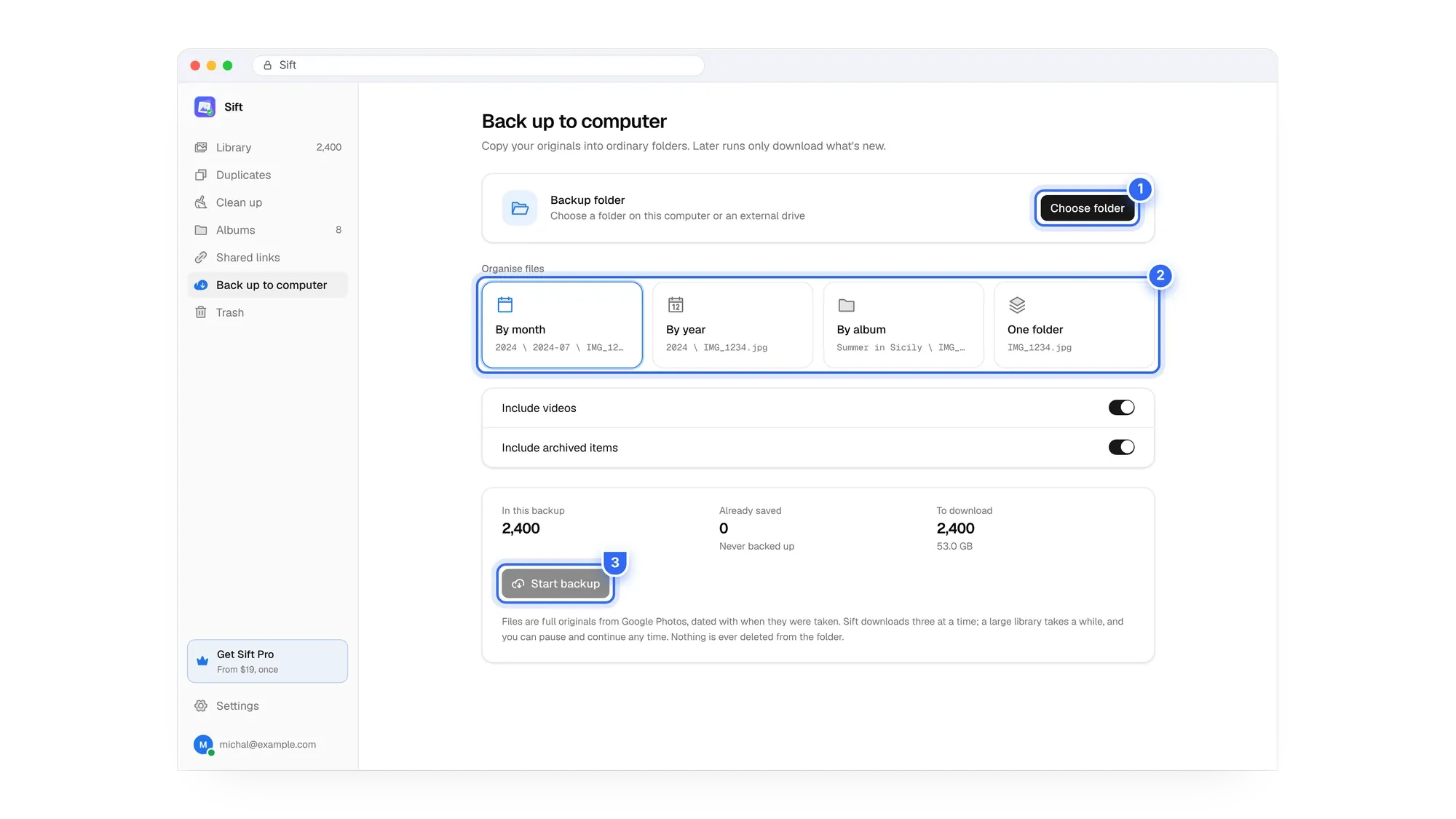
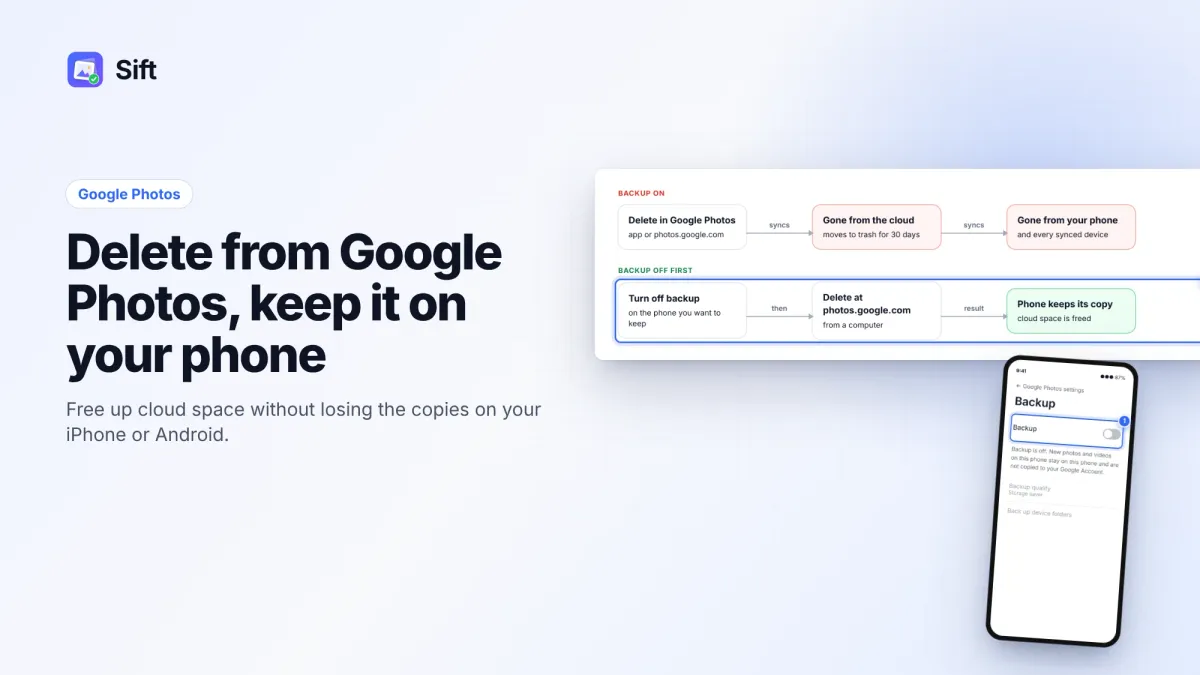
Once your copy is safe, you can delete those items from Google Photos. One warning: if backup is on, deleting a backed-up item also removes it from every device with backup on. Turn off backup on the phone first if you want to keep the phone copy. See how to delete from Google Photos but not your phone and how to move Google Photos to an external hard drive.
Step 3: How to cancel your Google One subscription
Use the method that matches how you pay. These steps follow Google's cancel help page.
On a computer
- Go to one.google.com and sign in.
- Click Settings.
- Click Cancel membership.
- Click Cancel membership again to confirm. You should see a confirmation.
On Android
- Open the Google One app.
- At the top, tap Menu, then Settings, then Cancel membership.
- Tap Cancel membership to confirm.
If you bought the plan through Google Play, you can also manage it in the Play Store's Payments and subscriptions section.
On iPhone or iPad (billed through Apple)
- Open the Google One app, tap Menu, then Membership plans, then Manage plan.
- Tap Cancel membership. This opens Apple's subscription page.
- Tap Cancel Subscription. You may need to scroll to find it.
You can also go straight to the App Store app, tap your name, then Subscriptions, then Google One, then Cancel Subscription. If there's no Cancel button, or a red expiration message, the subscription is already cancelled.
Paying every year vs cleaning up once
| Keep Google One 100 GB | Clean up and cancel | |
|---|---|---|
| Cost | About $20 to $24 a year in the US, every year | $0 with Google tools, or Sift Personal $19 one time |
| After 3 years | About $60 to $72 | Still $0 or $19 |
| Your originals | Only in Google's cloud | Optional full copy on your own drive |
| Library | Keeps growing with clutter | Smaller and easier to browse |
Sift's free plan scans your whole library and frees up to 1 GB. Personal is $19 one time for unlimited cleanup and backup, and Family is $39 for up to 5 Google accounts. See Sift pricing.
For the full cleanup walkthrough across Photos, Gmail and Drive, read how to clean up Google storage.
Pay once instead of every year. Back up your originals to your own drive and clear the clutter, then cancel Google One with nothing to worry about.
FAQ
Will I lose my photos if I cancel Google One?
Not right away. Your files stay. If you're over 15 GB, backups, Gmail and Drive uploads stop, and Google's policy says content may be deleted if you stay over the limit for 2 years or more.
How do I cancel Google One?
On a computer, go to one.google.com, click Settings, then Cancel membership. On Android, use the Google One app. If billed through Apple, cancel in the App Store under Subscriptions.
How do I cancel a Google Photos subscription?
Google Photos storage is part of Google One, so you cancel the Google One membership using the steps above.
When does my storage end after I cancel?
At the end of your current billing cycle. You keep the extra storage until then.
Do I get a refund?
In most countries, Google storage plan purchases are non-refundable. Play Store and App Store purchases follow those stores' refund rules.
Get under 15 GB, keep a copy of what matters, then cancel. Your photos stay safe and you stop paying.
Sift is independent and not affiliated with Google. Google Photos details checked in October 2026 and may change.
Written by
Keep reading
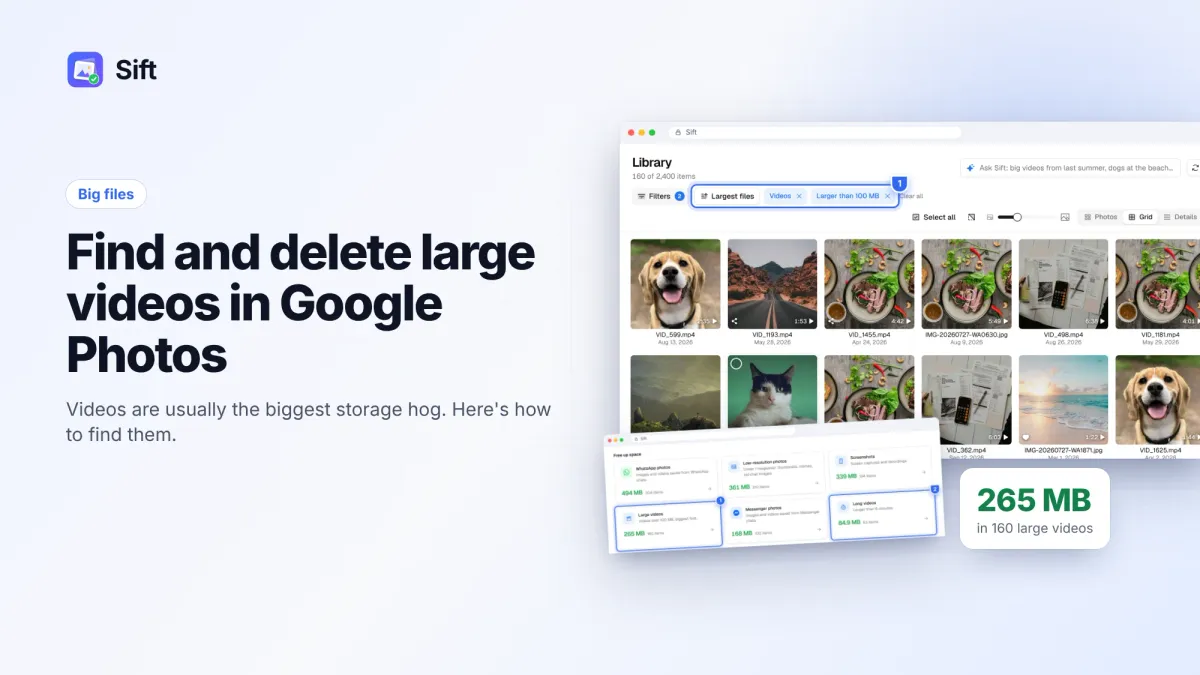
How to Find and Delete Large Videos in Google Photos
Videos are usually the biggest thing in your Google storage. Here's how to find large videos in Google Photos, back up the keepers, and delete the rest safely.
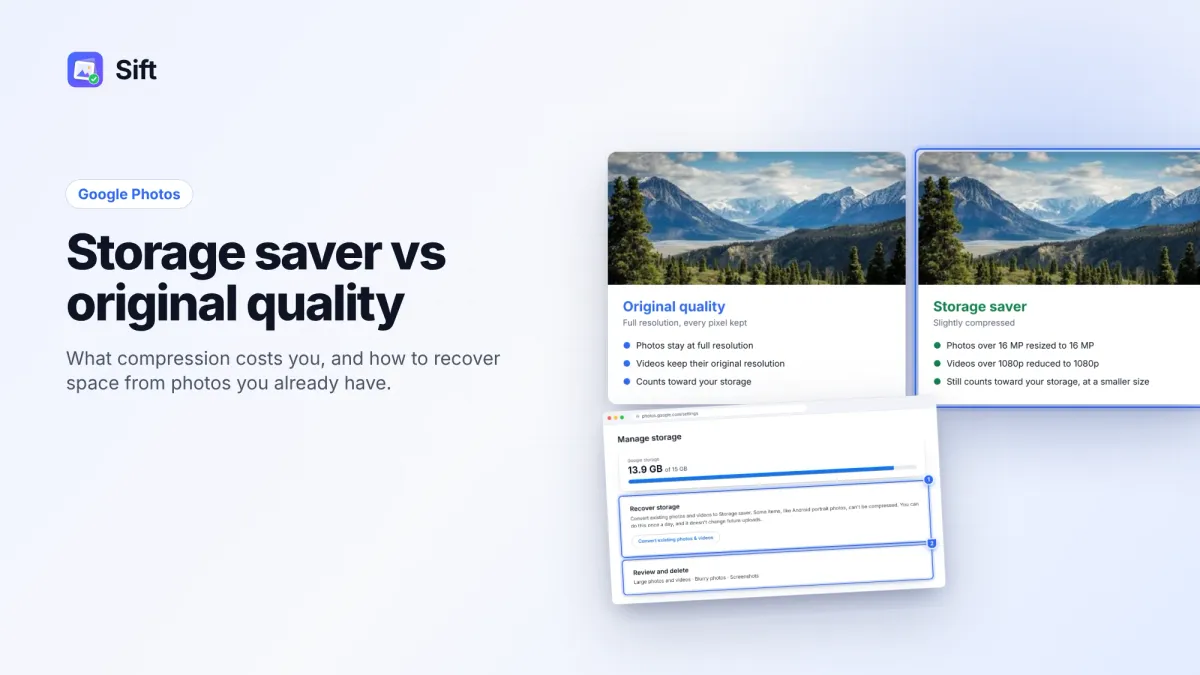
Storage Saver vs Original Quality in Google Photos: Which to Choose (and How to Recover Space)
Storage saver resizes photos to 16 MP and videos to 1080p; Original quality keeps everything. Here's who notices, how to switch, and how Recover storage works.
How to Delete Photos from Google Photos Without Deleting Them from Your Phone
Deleting in Google Photos also deletes from your phone when backup is on. Here's the safe order on Android and iPhone, and why "Free up space" does the opposite.
Questions or thoughts? Share them below.