
How to Find and Remove Duplicates in Google Photos (2026)
Google Photos has no built-in duplicate finder. Here's why duplicates pile up, how to find and delete them for free, and how to clean a whole library in minutes.

Michal Wlosik
· 7 min read
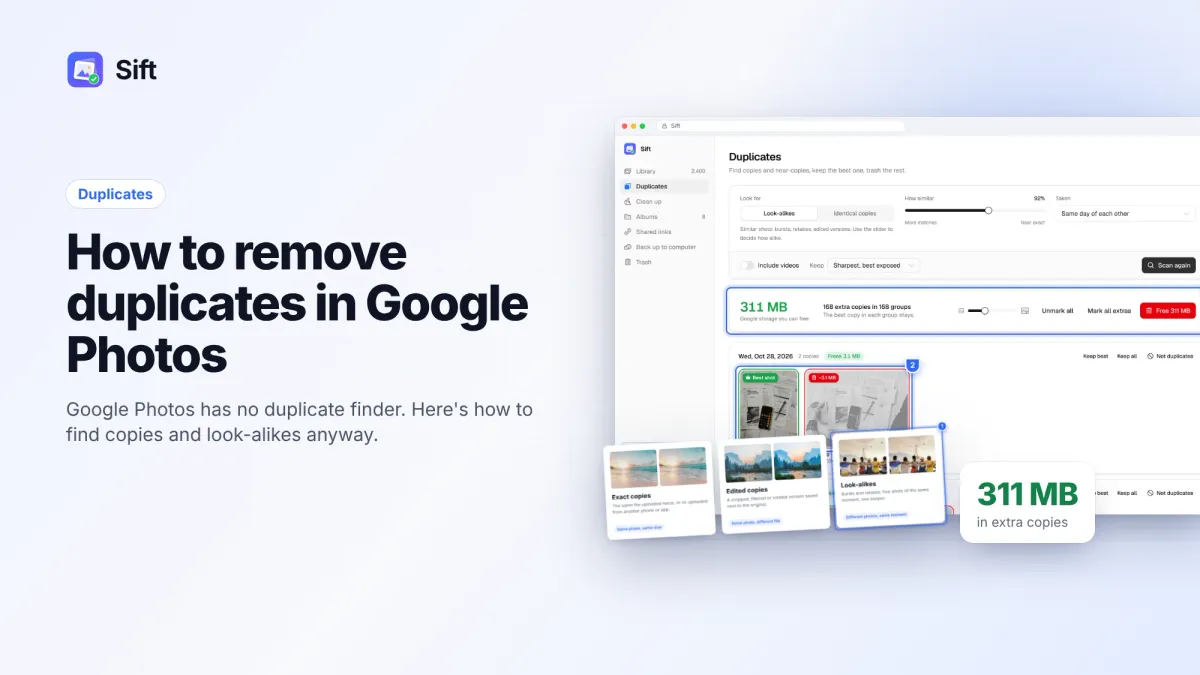
Short answer: Google Photos has no built-in tool to remove duplicates. To find duplicate photos in Google Photos for free, search for a date or place, sort through the results by eye, and delete the extra copies one by one. To do it in minutes, a duplicate finder like Sift compares your whole library visually, keeps the sharpest copy in each group, shows how much storage you will free, and moves only the extras to trash.
This guide covers why duplicates pile up, the three kinds you will find, the free manual method, and the faster way to clean up a large library.
Why Google Photos fills up with duplicates
Most people never copy a photo on purpose. Duplicates build up quietly over the years, usually from one of these:
- More than one phone. An old phone and a new phone both backing up the same camera roll, or a tablet signed in to the same account.
- WhatsApp and other chat apps. You send a photo to a group, then the app saves its own compressed copy to your gallery, and that copy backs up too.
- Edits. Cropping, filtering or rotating a photo can save a second version next to the original.
- Burst shots. Ten frames of the same moment, a fraction of a second apart.
- Re-uploads after a phone switch. Restoring a backup, re-downloading photos and letting them back up again, or importing the same folder from a computer twice.
Google Photos often skips uploading a file that is byte-for-byte identical to one you already have. It does not catch edited copies, re-saved or re-downloaded copies, or look-alikes. Those are the ones taking up space.
The three types of duplicates
It helps to know what you are looking for, because each type needs a different decision.
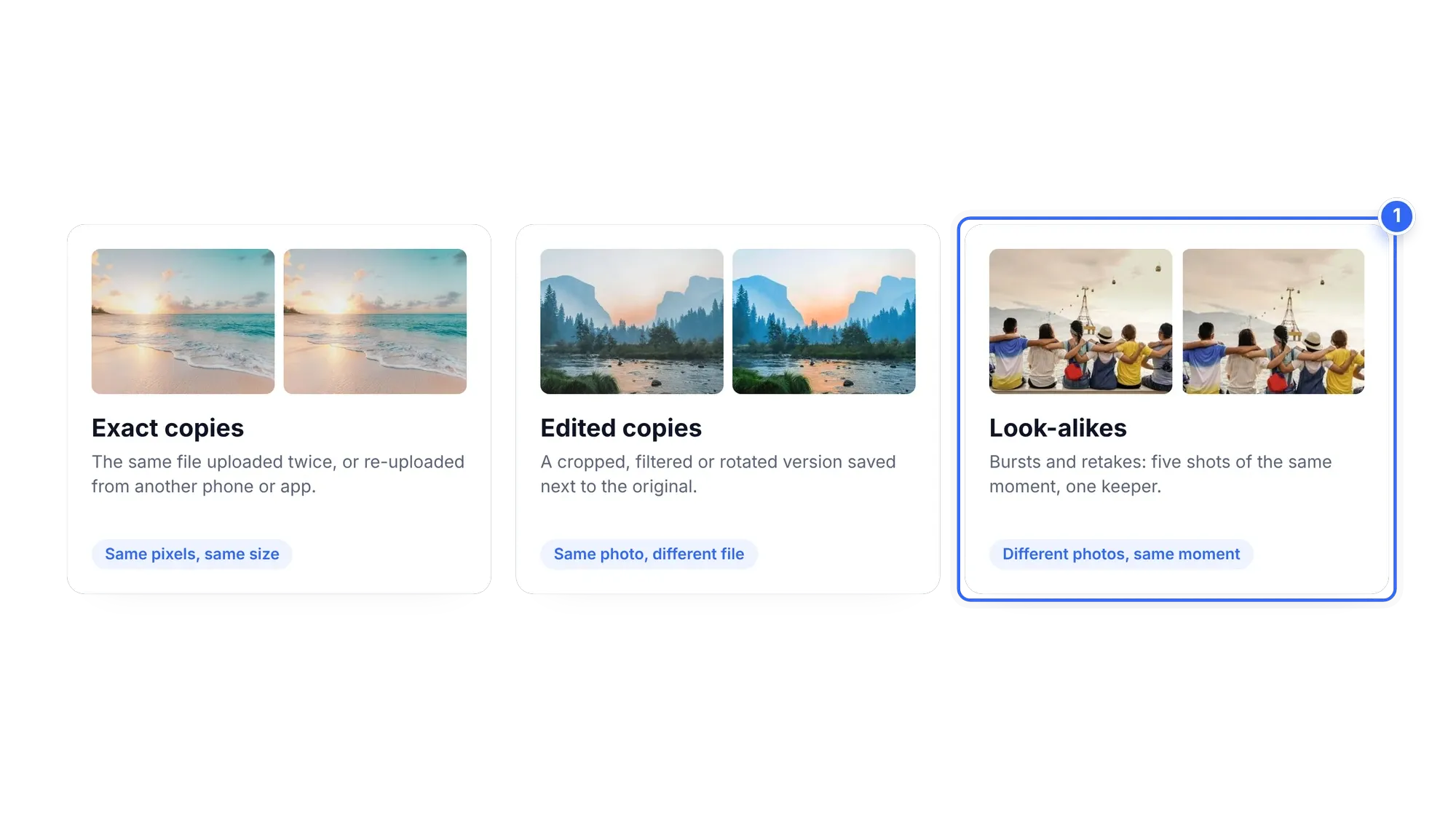
| Type | What it looks like | Usual cause | Safe to delete? |
|---|---|---|---|
| Exact copies | Same photo, same size, same date | Second phone, re-upload, import twice | Yes, keep one |
| Edited copies | Same shot, different crop, filter or file size | Edits, WhatsApp re-saves, screenshots of photos | Usually, keep the version you like |
| Look-alikes | Near-identical frames a second apart | Burst mode, "one more just in case" | Your call, keep the best one or two |
How to find duplicate photos in Google Photos manually
The free method uses only photos.google.com. It works well for a few hundred photos or a single trip. It gets slow with tens of thousands.
- Open photos.google.com on a computer. A big screen makes comparing photos much easier than a phone.
- Search for something narrow: a date ("June 2023"), a place, or a subject like "beach". Duplicates from the same moment end up next to each other.
- Scroll the results and look for runs of the same shot. Open two side by side and check the file size and resolution with the info (i) button. The larger, sharper file is usually the original.
- Hover over each extra copy and click its checkmark. Shift-click to select a run of shots in one go.
- Click the trash icon. The copies move to trash, where they stay for 30 days before they are permanently deleted.
- Repeat for the next date, place or album.
Two tips that save time: the search "WhatsApp" often finds a whole folder of chat re-saves, and opening a single busy day makes burst runs easy to spot. For selection tricks, see how to select all photos in Google Photos.

Skip the side-by-side comparing. Sift scans your whole library for duplicates and look-alikes and frees up to 1 GB on the free plan, no card needed.
Why Google Photos has no duplicate finder
People ask for one every year on Google's own help forums, and the answer stays the same: there is no "remove duplicates" button in Google Photos on the web, on Android or on iPhone. Google prevents some exact re-uploads, but it does not group near-identical shots or edited copies for you to review.
That leaves you with the manual method above or a separate tool. If your library is small, manual is fine. If you have 20,000 photos and storage is nearly full, it can take a weekend.
How to remove duplicates in Google Photos with Sift
Sift is a Chrome extension (and Windows app) that works through the Google Photos website. It compares photos visually, not by file name, so it catches re-saved and edited copies too.
- Add Sift to Chrome and sign in on Google's own sign-in page. Sift never sees your password.
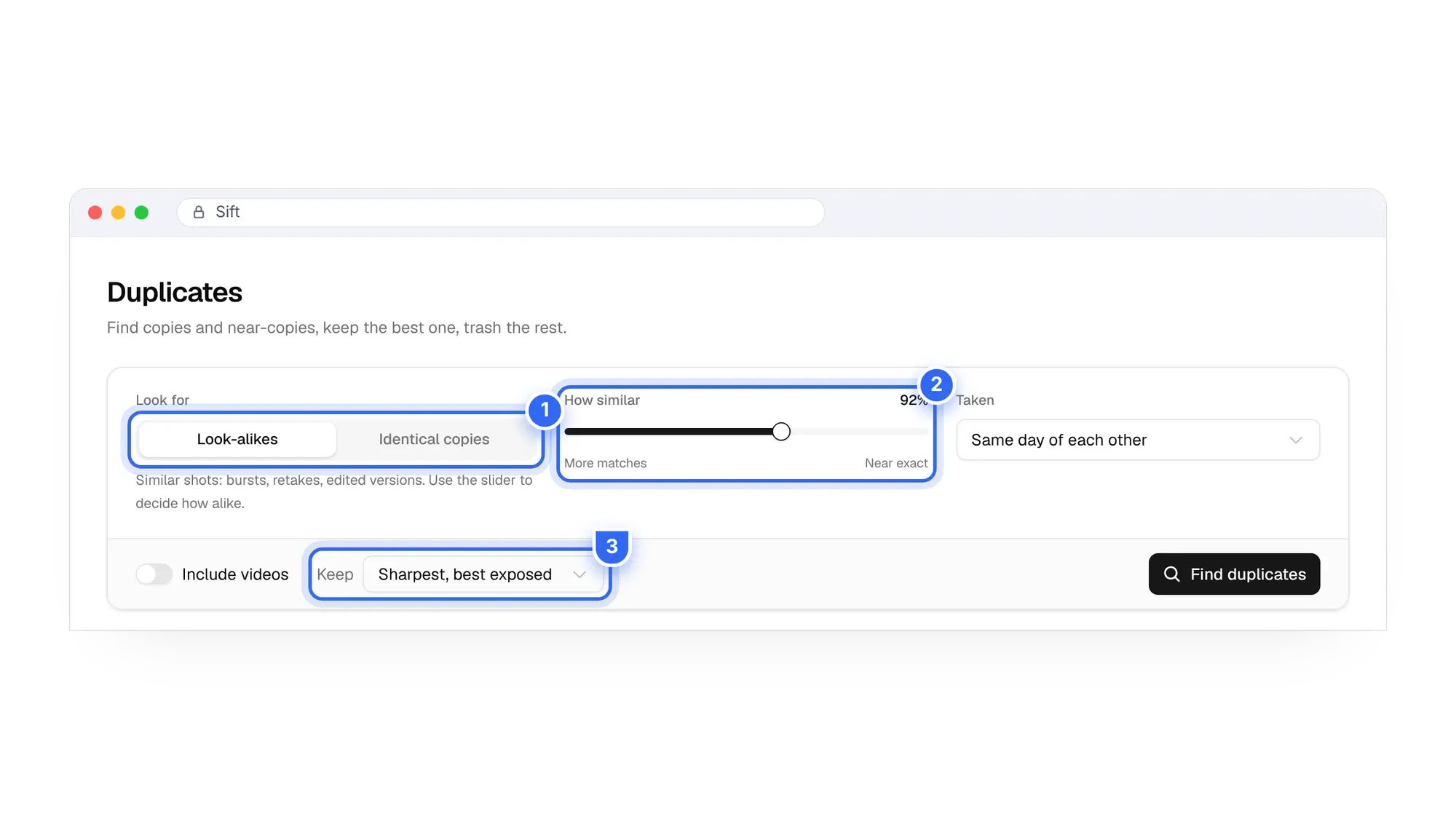
- Open Duplicates and pick a mode: Identical copies for exact matches only, or Look-alikes to include burst shots and near-identical frames.
- Move the how similar slider. Stricter finds fewer, closer matches. Looser groups more shots together.
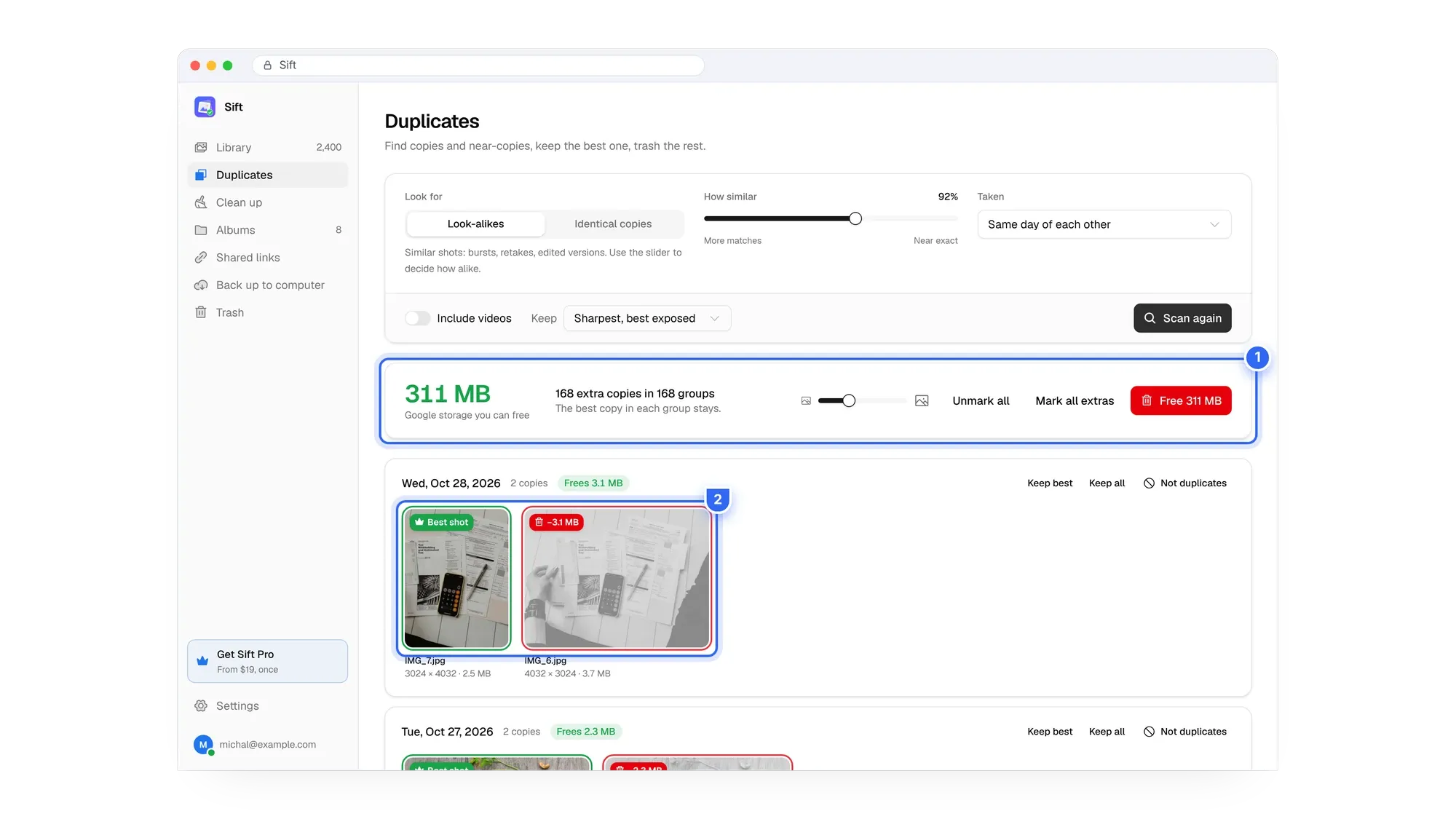
- Run the scan. Sift groups matching photos and keeps the sharpest, best-exposed copy in each group. The rest are marked for removal.
- Look through the groups and confirm the kept photo is the one you want.
- Look at the total at the top. It shows how much Google storage the clean-up will free before anything is removed.
- Click Free. The marked copies move to Google Photos' trash. Nothing is permanently deleted, and you can restore anything for 30 days.
Photos travel only between Google and your computer. Nothing goes to Sift's servers, and there is no tracking.
Manual vs Sift: which should you use?
| Manual (photos.google.com) | Sift | |
|---|---|---|
| Cost | Free | Free up to 1 GB, then $19 one time |
| Finds exact copies | By eye | Yes |
| Finds edited copies and look-alikes | By eye | Yes, with a similarity slider |
| Picks the best copy | You decide each time | Keeps the sharpest, best-exposed copy |
| Shows space freed first | No | Yes |
| Good for | One trip or a few hundred photos | Whole libraries |
The free plan covers every scan and frees up to 1 GB. Personal is $19 one time for unlimited clean-up on one Google account, and Family is $39 for up to five. See Sift pricing. For comparison, Google's 100 GB plan costs about $20 to $24 a year in the US, every year.
Before you delete: three quick checks
- Back up anything you care about. If you want a copy outside Google, download your Google Photos to a computer or external drive first.
- Remember that deletions sync. Deleting a backed-up photo in Google Photos also removes it from every phone with backup turned on.
- Empty the trash only when you're sure. Items in trash still count toward storage until they are permanently deleted. Here's how Google Photos trash works.
What you get back
Duplicates are rarely the biggest file type, but there are a lot of them. Clearing a few hundred megabytes to a few gigabytes can bring a full account back under the 15 GB free limit, so Gmail can send and receive again and phone backups start working. It also makes your library easier to browse: one good photo of each moment instead of six. If you want more space after duplicates, large videos are usually next, and the full plan is in how to clean up Google storage.
See how much your duplicates take up. Run a free scan and Sift shows the megabytes you'd free before anything goes to trash.
FAQ
Does Google Photos have a duplicate finder?
No. Google Photos has no built-in duplicate finder on the web, Android or iPhone. It skips some exact re-uploads, but edited copies and look-alikes stay.
How do I delete duplicate photos in Google Photos?
Find the extra copies by searching a date or place, select them with the checkmark (Shift-click for a range), and click the trash icon. A duplicate finder like Sift does the finding and selecting for you.
Will deleting duplicates in Google Photos delete them from my phone?
Yes, if the phone has backup turned on. To keep phone copies, turn off backup first. See how to delete from Google Photos without deleting from your phone.
Which copy should I keep?
Usually the largest, sharpest file with the original date. Sift keeps the sharpest, best-exposed copy in each group automatically.
Can I undo it?
Yes. Deleted items stay in Google Photos' trash for 30 days. Sift never empties the trash, so you can restore anything in that window.
Is a Google Photos duplicate finder safe to use?
Check how it signs in and where your photos go. Sift signs in on Google's own page, never sees your password, and keeps photos between Google and your computer.
One good copy of every moment, and space to spare: that's the goal.
Sift is independent and not affiliated with Google. Google Photos details checked in October 2026 and may change.
Written by
Keep reading

How to Find and Delete Large Videos in Google Photos
Videos are usually the biggest thing in your Google storage. Here's how to find large videos in Google Photos, back up the keepers, and delete the rest safely.
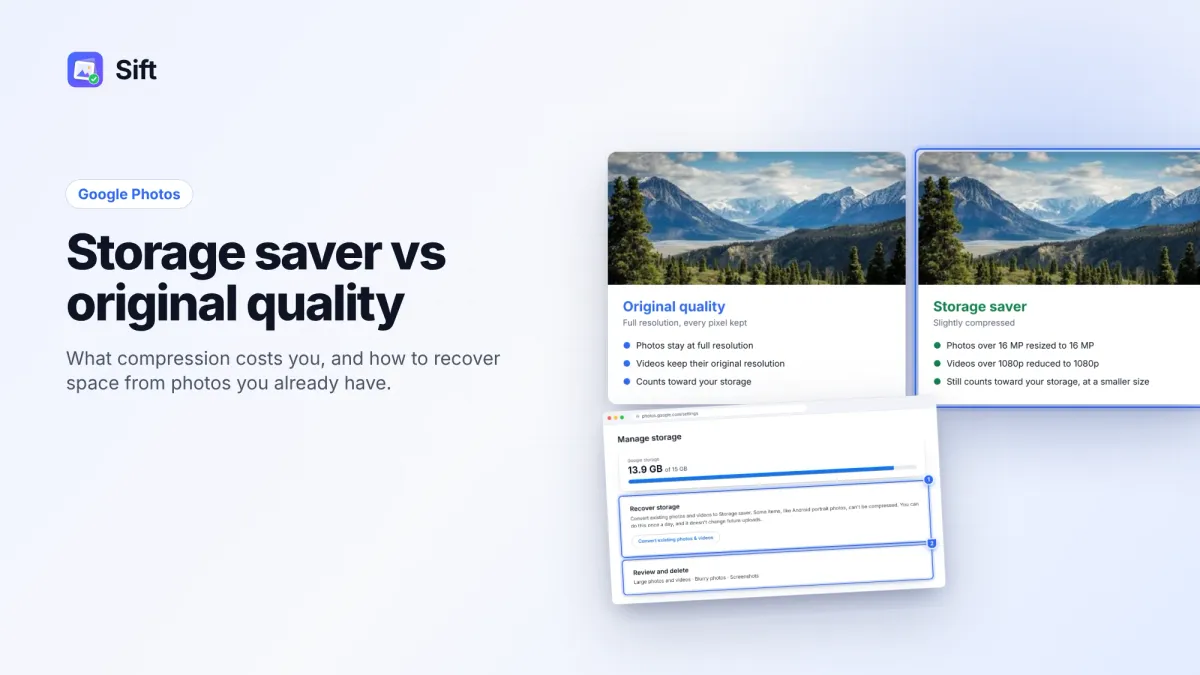
Storage Saver vs Original Quality in Google Photos: Which to Choose (and How to Recover Space)
Storage saver resizes photos to 16 MP and videos to 1080p; Original quality keeps everything. Here's who notices, how to switch, and how Recover storage works.
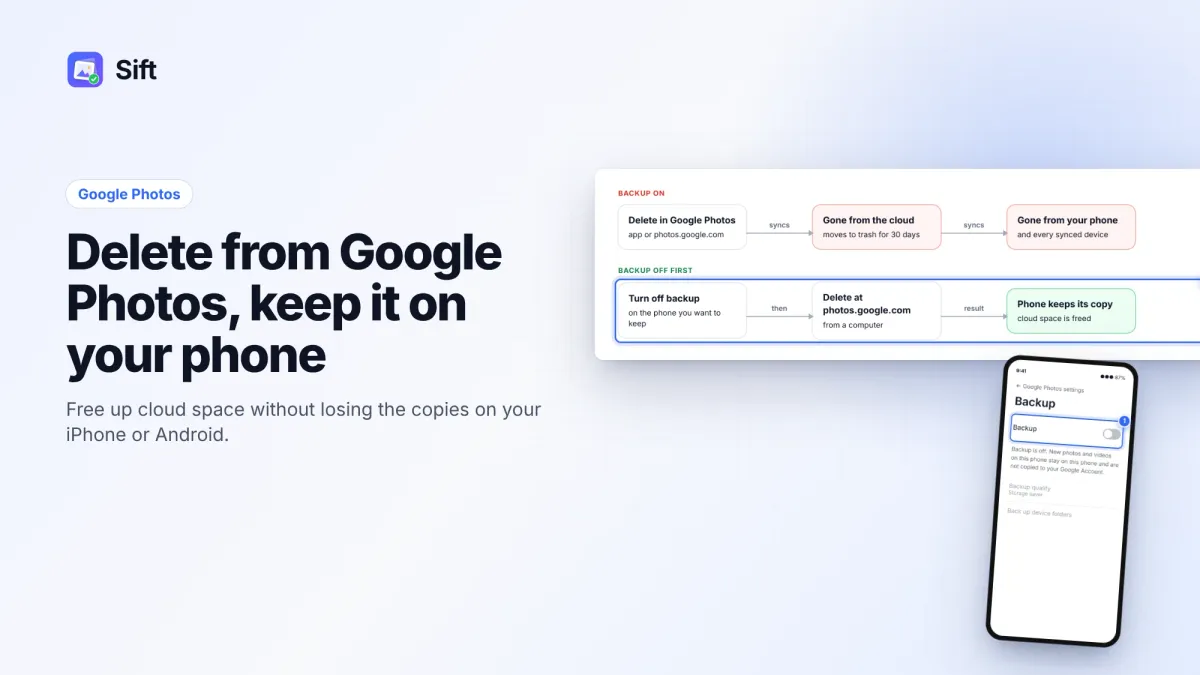
How to Delete Photos from Google Photos Without Deleting Them from Your Phone
Deleting in Google Photos also deletes from your phone when backup is on. Here's the safe order on Android and iPhone, and why "Free up space" does the opposite.
Questions or thoughts? Share them below.