
How to Organize Google Photos: Albums, Dates and Less Clutter
A practical system to organize Google Photos: clear duplicates and screenshots first, build albums by event, archive or delete, star favorites and fix wrong dates.

Michal Wlosik
· 6 min read
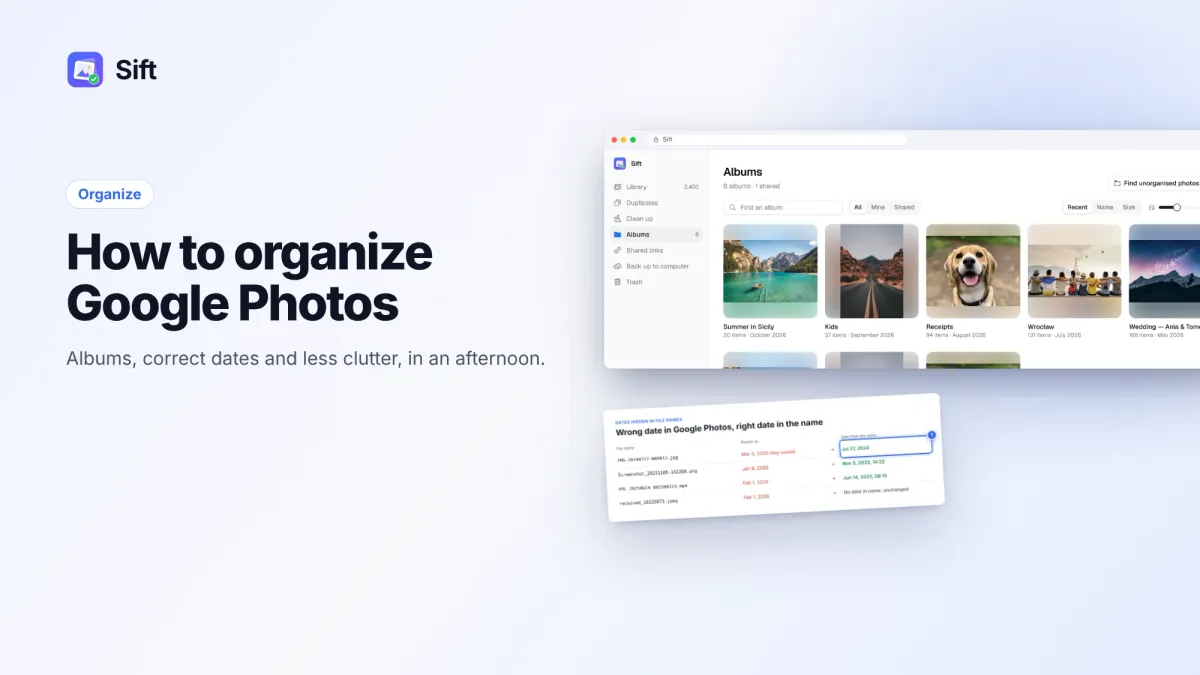
Short answer: To organize Google Photos, clear the clutter first (duplicates, screenshots, chat photos), then put the photos you care about into albums by event, archive what you want to keep but not see, and star your favorites. Fix wrong dates so photos sort in the right place, merge duplicate albums, and check for photos that sit in no album at all.
Here is a practical system that works whether you have 2,000 photos or 60,000, with the free Google Photos way for each step and a faster option where it helps.
Step 1: Clear the clutter before you organize
Organizing a messy library is slow because you keep scrolling past things you don't want. Delete those first and everything after is quicker. A smaller library is also cheaper: free Google storage is 15 GB, shared with Gmail and Drive, and clutter is often what pushes people into a paid plan.
The usual clutter:
- Duplicates and look-alikes. Google Photos has no built-in duplicate finder. Edited copies, re-downloaded files and burst shots pile up. See how to remove duplicates in Google Photos.
- Screenshots. Search "screenshots" in Google Photos to see them together.
- Chat photos. WhatsApp, Messenger and Signal images: memes, forwards, photos of receipts.
- Large and long videos. A few accidental 10-minute pocket videos can outweigh thousands of photos. See how to find large videos in Google Photos.
- Blurry and too-dark shots. The fifth try at a group photo, the dark concert blur.
On photos.google.com you can select a whole day with the checkmark next to the date and Shift+click to select a range, then move items to the trash. Items stay in the trash for 30 days before they are permanently deleted, so mistakes can be undone (Google's trash rules).
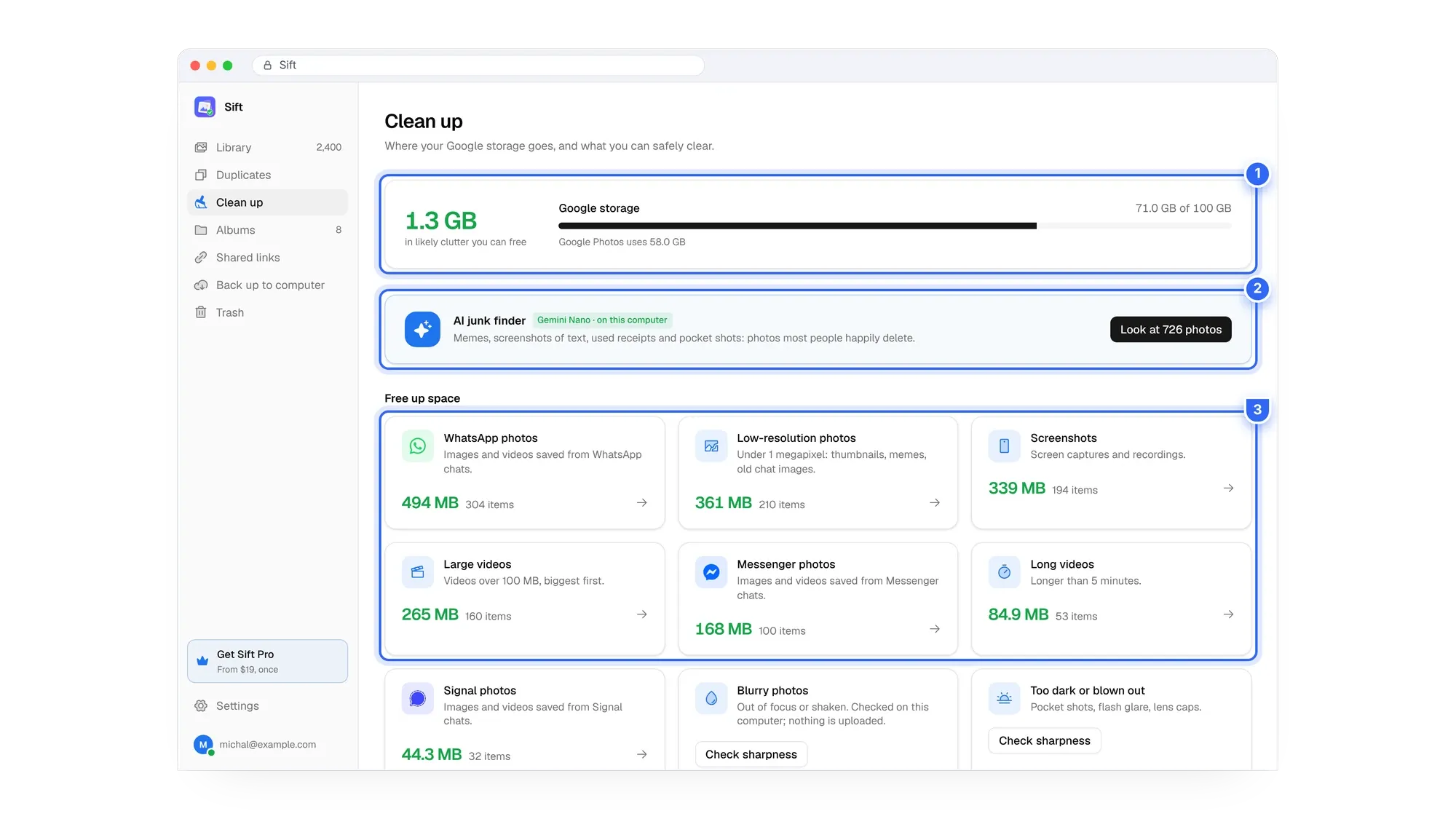
Sift, a Chrome extension that works through the Google Photos website, groups these for you: duplicates and look-alikes, screenshots, WhatsApp, Messenger and Signal photos, large and long videos, low-resolution, blurry and too-dark shots. It shows how much storage each group would free before anything is removed. Its AI junk finder spots memes, receipts, pocket shots and text screenshots, running on your computer with Chrome's built-in Gemini Nano, so nothing is uploaded.

See your clutter in one screen. Sift scans for duplicates, screenshots and chat photos for free and frees up to 1 GB, no card or account.
Step 2: How to organize Google Photos into albums by event
Albums are the backbone. Google Photos already sorts everything by date and lets you search by people, places and things, so you don't need an album for every day. Make albums for things you will want to find as a set.
- Pick a simple naming rule and stick to it, for example 2024-07 Lisbon trip or 2023 Emma's birthday. Starting with the year keeps albums in order when sorted by name.
- On photos.google.com, select the photos (checkmark next to the date for a whole day, Shift+click for a range).
- Click + (Add to) › Album, then create a new album or add to an existing one.
- For recurring themes, like "Kids' drawings" or "House documents", make one long-running album and keep adding to it.
Good album types: trips, holidays and birthdays, each child or pet, projects (renovation, garden), and paperwork you photographed. Shared albums work well for family events where several people took photos.
Step 3: Archive vs delete
Not everything worth keeping needs to be in your main photo grid.
| Archive | Delete | |
|---|---|---|
| What it does | Hides items from the main Photos view | Moves items to the trash |
| Still in albums and search | Yes | No |
| Frees storage | No | Yes, after the trash empties |
| Can be undone | Any time | Within 30 days |
| Use it for | Receipts, documents, screenshots you need | Duplicates, blurry shots, junk |
Rule of thumb: if you would never miss it, delete it. If you need it now and then but don't want to see it, archive it.
Step 4: Star your favorites
Open a photo and tap the star to add it to Favorites. Favorites is a ready-made album of your best shots, which is handy for showing someone photos on your phone or picking prints. Keep it strict, maybe one or two photos per event, or it turns into a second copy of your library.
Step 5: Fix wrong dates
Google Photos sorts by the date it thinks a photo was taken. When that date is wrong, photos land in the wrong year and are hard to find. The usual cause: images received in WhatsApp or other chats, or saved from the web, often carry the date you saved them, not the date they were taken. Scanned prints have the same problem.
The free way, one at a time: on photos.google.com, open the photo, click the info icon (i), then click the date and edit the date and time. This is fine for a handful of photos.
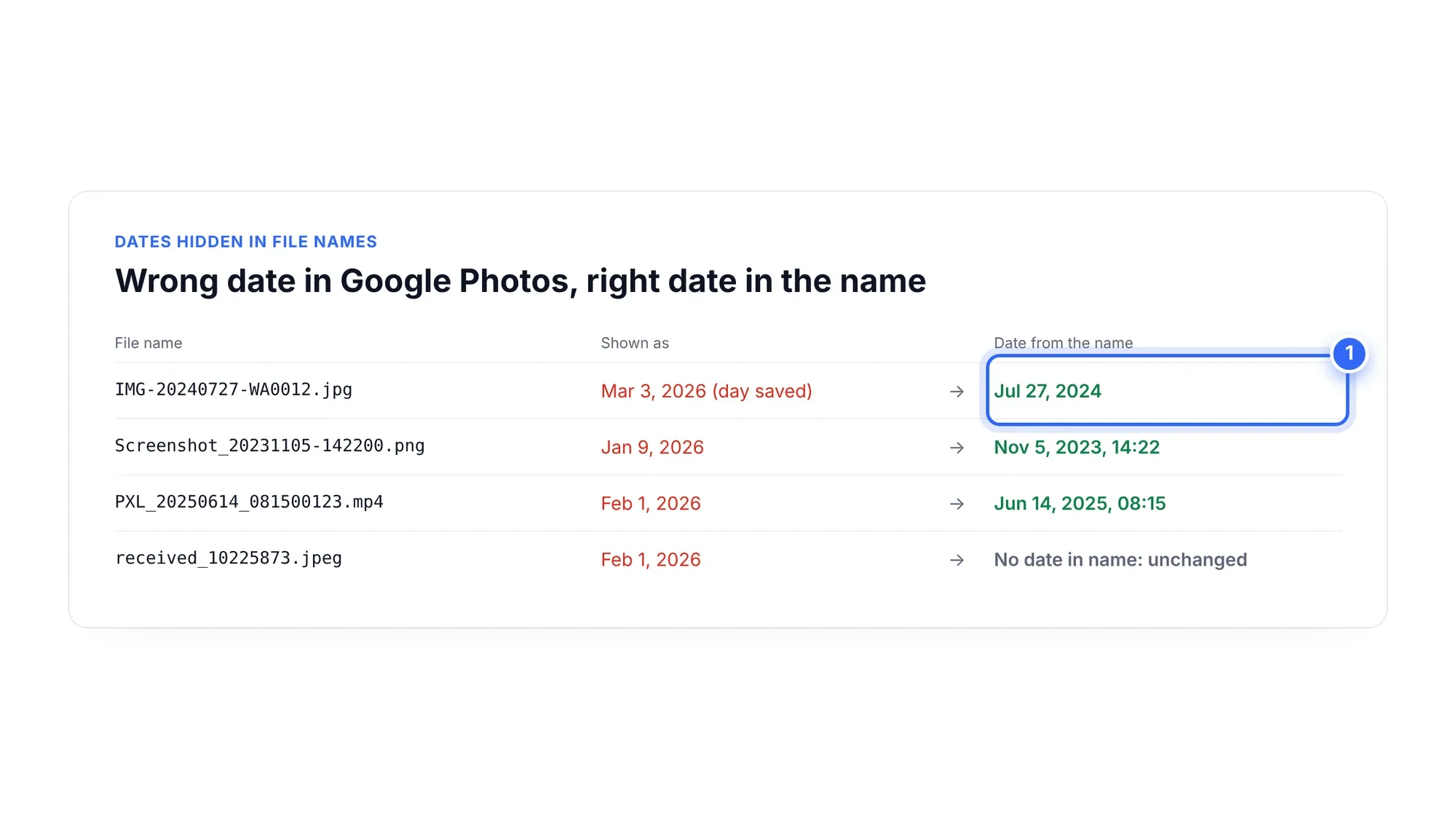
The bulk way: many file names already contain the real date. IMG-20240727-WA0012.jpg is a WhatsApp image from July 27, 2024. Sift reads dates from file names and sets them in bulk, so hundreds of chat photos move back to the right place in your timeline at once. Date fixes are part of Sift Personal, $19 one time (pricing).
Step 6: Merge duplicate albums
Over the years you end up with "Paris", "Paris 2019" and "Paris trip" holding overlapping photos. Google Photos has no merge button. The manual way is to open one album, select all its photos, add them to the other album, then delete the empty album (deleting an album does not delete the photos in it).
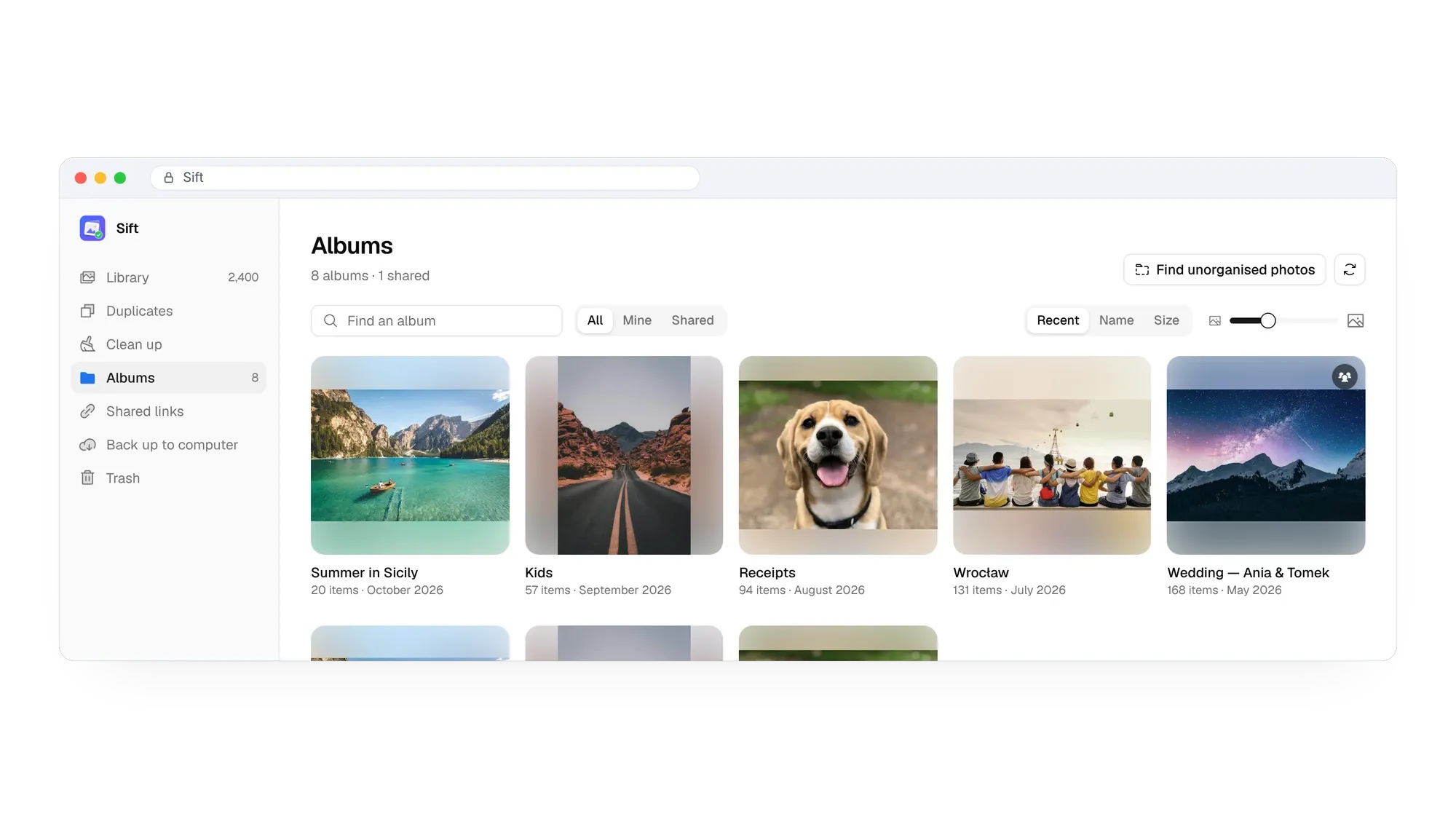
Sift's album tools let you merge albums in a few clicks, which saves time if you have dozens of overlaps.
Step 7: Find photos that aren't in any album
Once your main albums exist, the question becomes: what did I miss? Google Photos doesn't show a list of photos outside albums. Sift can find unorganized photos, the ones in no album, so you can sort the rest of the backlog or decide it's fine where it is.
Keep it organized: a 10-minute monthly habit
- Delete the obvious junk from the last month: screenshots you're done with, blurry shots, chat forwards.
- Add any events to albums.
- Star one or two favorites.
- Back up the month to your own drive. See how to download all your photos from Google Photos.
A tidy library is easier to browse, cheaper to keep, and stays under the free limit longer. For the full storage picture, read how to clean up Google storage.
Fix hundreds of wrong dates at once. Sift sets dates from file names in bulk, merges albums and finds photos that aren't in any album.
FAQ
Can Google Photos organize photos automatically?
Partly. It sorts by date and lets you search by people, places and things. It doesn't create albums for your events or clean up duplicates for you.
Does archiving photos free up storage?
No. Archived items still count toward your storage. Only deleting them, and letting the trash empty, frees space.
How do I organize Google Photos into folders?
Google Photos uses albums instead of folders. If you want real folders, back up to your computer and choose folders by month, year or album.
Why are some of my photos in the wrong year?
Usually because the file has the date it was saved, not taken. This is common with WhatsApp and other chat images and with scans. Edit the date on the web or fix them in bulk from the file names.
Does deleting an album delete the photos?
No. The photos stay in your library. Only the album is removed.
Clear the clutter, build a few good albums, fix the dates, and spend ten minutes a month keeping it that way.
Sift is independent and not affiliated with Google. Google Photos details checked in October 2026 and may change.
Written by
Keep reading

How to Find and Delete Large Videos in Google Photos
Videos are usually the biggest thing in your Google storage. Here's how to find large videos in Google Photos, back up the keepers, and delete the rest safely.
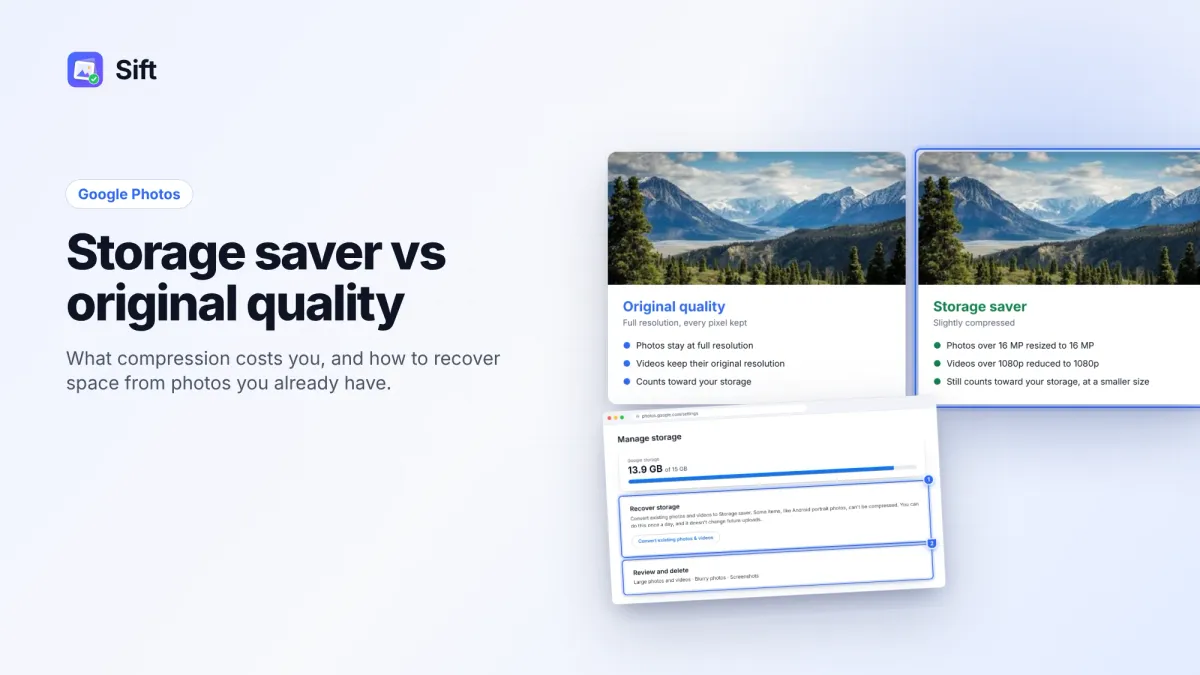
Storage Saver vs Original Quality in Google Photos: Which to Choose (and How to Recover Space)
Storage saver resizes photos to 16 MP and videos to 1080p; Original quality keeps everything. Here's who notices, how to switch, and how Recover storage works.
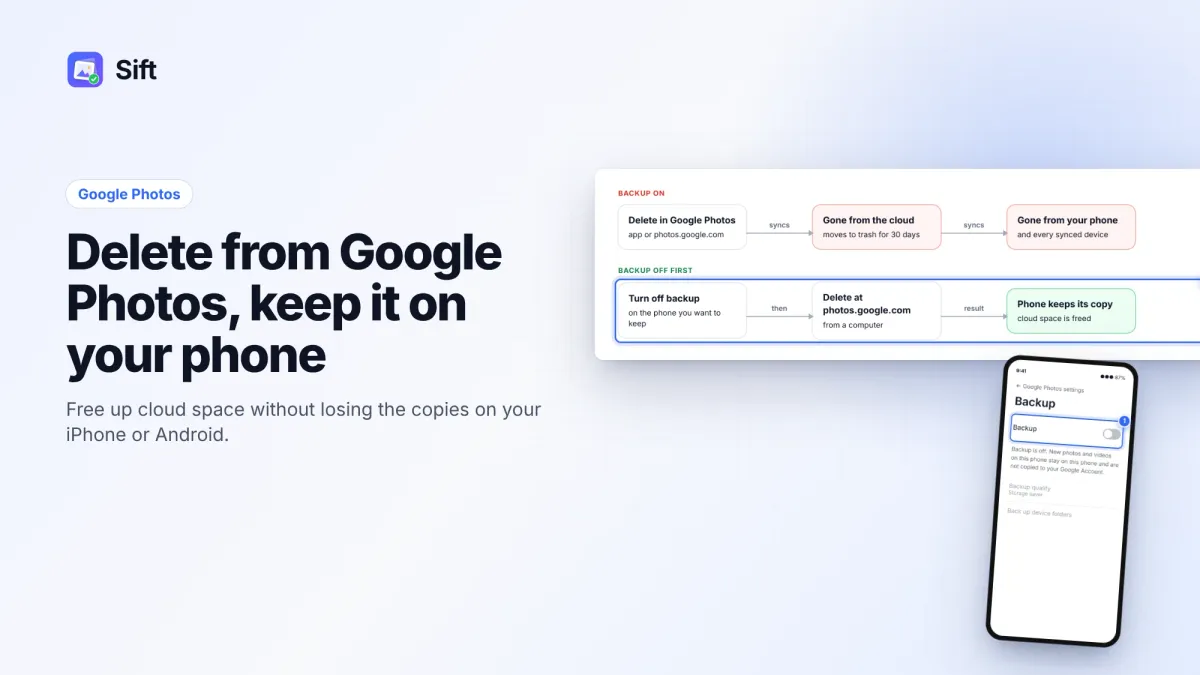
How to Delete Photos from Google Photos Without Deleting Them from Your Phone
Deleting in Google Photos also deletes from your phone when backup is on. Here's the safe order on Android and iPhone, and why "Free up space" does the opposite.
Questions or thoughts? Share them below.